


TL;DR
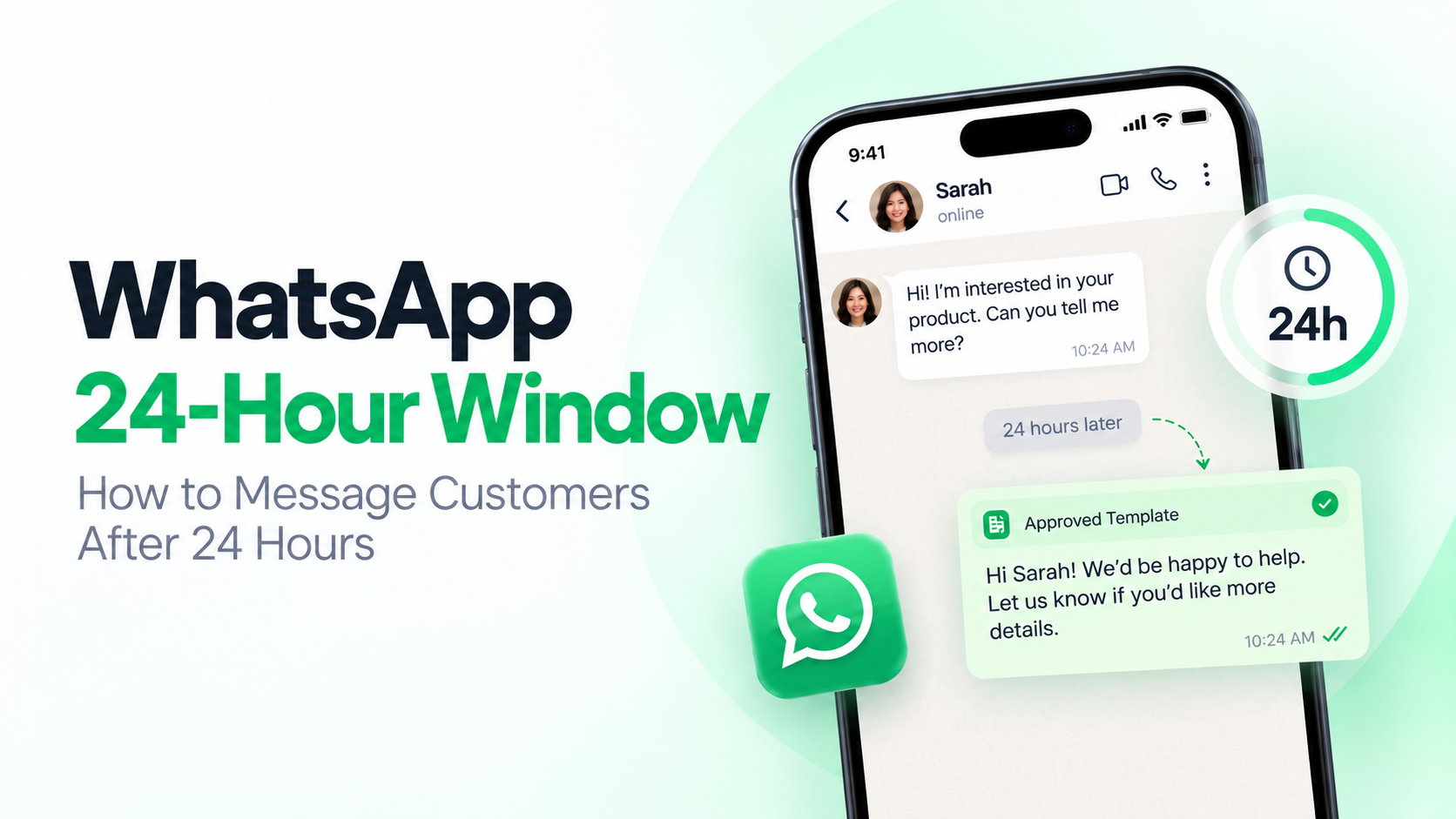
When a customer messages your business on WhatsApp, you can reply without a template for the next 24 hours. After the window closes, you need an approved message template to contact them again. Once the customer replies, a new 24-hour window opens and you can continue the conversation.
For the latest requirements, refer to the official WhatsApp Business Messaging Policy.
Can You Message a Customer on WhatsApp After 24 Hours?
Yes — with an approved message template.
Once the 24-hour customer service window closes, you can no longer restart the conversation with a regular free-form message.
An approved template lets you reach out again. If the customer responds, a new 24-hour window opens and your team can continue the conversation normally.
| Situation | What can you send? |
|---|---|
| Customer messaged within the last 24 hours | Free-form messages |
| More than 24 hours since their last message | Approved message template |
| Template sent, but no customer reply | Free-form messaging remains unavailable |
| Customer messages you again | Free-form replies within a new 24-hour window |
A template helps you restart the conversation. The customer’s reply reopens the service window.
What Is WhatsApp 24-Hour Customer Service Window?
The WhatsApp 24-hour customer service window, often called the WhatsApp 24-hour rule, is the period when your business can reply to a customer without using a message template.
The clock is based on the customer’s most recent message.
For example, if a customer messages you at 10:00 AM on Monday, you can continue replying normally for the next 24 hours. If they send another message later that day, the window starts again from that newer message.
Once 24 hours pass without another customer message, the window closes.
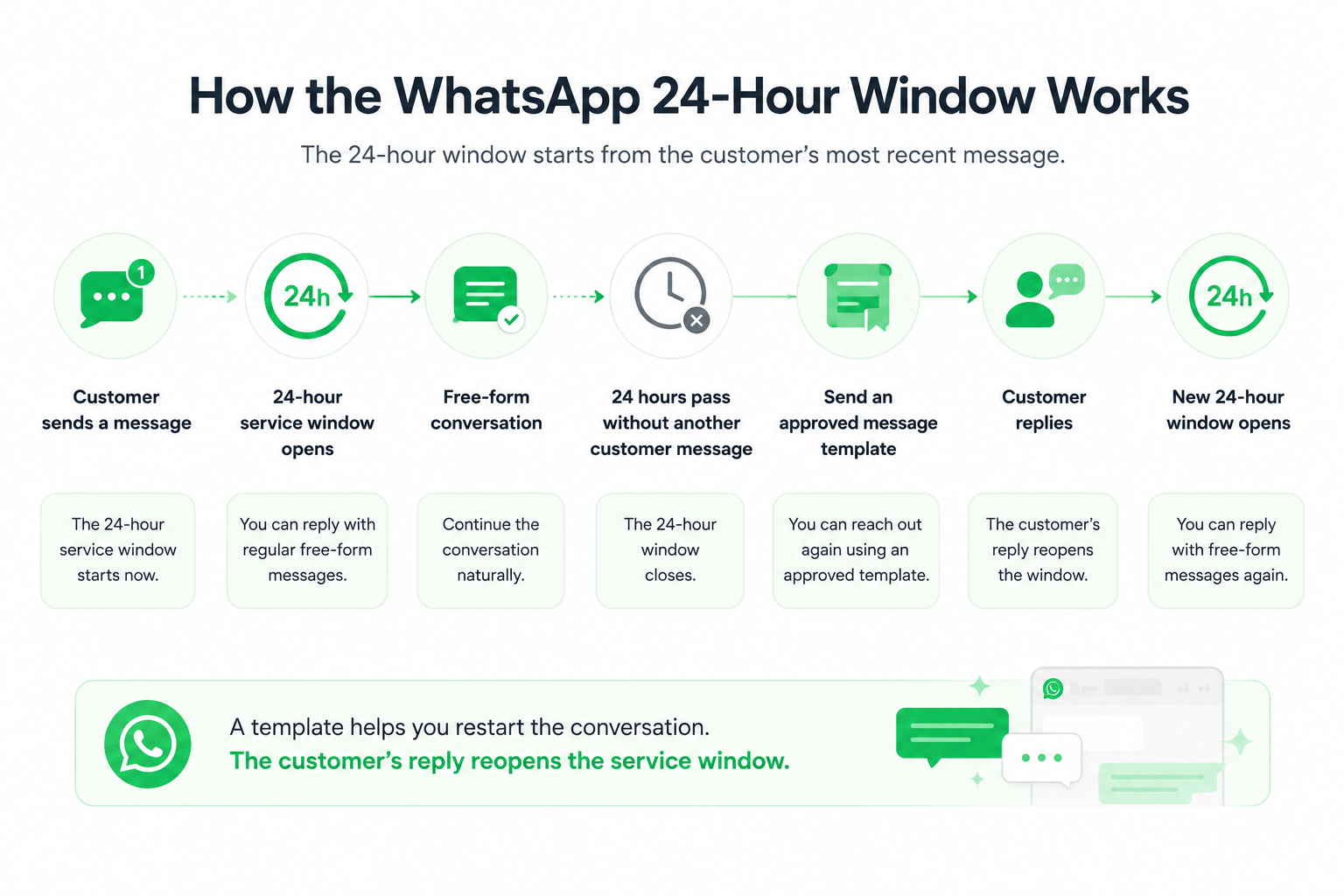
How WhatsApp 24-Hour Window Works
Customer sends a message
↓
24-hour service window opens
↓
Free-form conversation
↓
24 hours pass without another customer message
↓
Window closes
↓
Send an approved message template
↓
Customer replies
↓
New 24-hour window opens
Why the 24-Hour Window Matters for Sales and Support Teams
The rule itself is simple. Managing it across hundreds of customer conversations isn’t.
Valuable leads can go cold
A customer may ask for pricing today and stop replying. By the time your sales team follows up tomorrow, the service window may already be closed.
Without the right follow-up process, a promising conversation can easily be missed.
Teams can’t track every window manually
At low message volumes, checking the last customer message is manageable.
At scale, teams need to know which conversations are still open, which require a template, and which customers have already been followed up with.
Sending the template is only the beginning
The goal isn’t simply to deliver another message.
The real value comes when the customer replies and your team can continue the conversation with the right context.
The real challenge isn’t sending one more WhatsApp message. It’s keeping the customer conversation moving.
What Is a WhatsApp Message Template?
A WhatsApp message template is a predefined message format used for eligible businesses-initiated messaging on the WhatsApp Business Platform.
Templates go through Meta’s review process and can include variables such as a customer’s name, product, appointment date, or order number.
For example:
Hi {{first_name}}, you recently asked us about {{product}}. Would you like to continue the conversation?
Meta currently groups templates into categories including Marketing, Utility, and Authentication. The final category and approval status are determined by Meta.
Free-form vs. template messages
| Free-form message | Template message | |
|---|---|---|
| Natural conversational reply | Yes | Predefined structure |
| Requires approval | No | Yes |
| Can be used during the 24-hour window | Yes | Yes, when appropriate |
| Can reach out after the window closes | No | Yes |
A simple rule:
Inside the window, reply naturally. Outside the window, use an approved template to reconnect.
How to Follow Up After the 24-Hour Window Closes
1. Make sure the customer has opted in
Before reaching out, make sure the customer has agreed to receive WhatsApp messages from your business and respect any opt-out requests.
2. Choose the right approved template
Use a template that matches the reason for the follow-up, whether it’s a sales inquiry, order update, appointment reminder, or another relevant use case.
3. Give the customer context
Avoid vague messages like:
Hi, are you there?
Instead, make it clear why you’re reaching out:
Hi {{first_name}}, you contacted us about {{product}} yesterday. Would you like pricing or more information?
4. Continue when the customer replies
Once the customer messages your business again, a new customer service window opens and your team can continue with regular free-form replies.
Think of the template as a bridge back into the conversation.
WhatsApp Follow-Up Examples
Sales follow-up
Hi {{first_name}}, you recently asked about {{product}}. Would you like more information or pricing?
Appointment reminder
Hi {{first_name}}, this is a reminder about your appointment on {{date}}.
Order update
Your order {{order_number}} has been updated. View the latest details here: {{link}}.
Examples only. Meta determines the final template category and approval status.
Still Seeing a “24-Hour Window” Error?
If a customer has just messaged you but your system still says the conversation is outside the 24-hour window, The issue may be with integration rather than the policy itself.
Check that the latest inbound message reached the correct WhatsApp Business Account, your webhook was processed, and the customer conversation is mapped correctly.
If the customer’s latest valid message really was more than 24 hours ago, however, an approved template is still required.
What's New: Connect WhatsApp Directly to Mixdesk with Meta Embedded Signup
Mixdesk now supports Meta’s official Embedded Signup flow for WhatsApp Business Platform.
Businesses can connect their own WhatsApp Business Account (WABA) and business phone number directly to Mixdesk through Meta’s authorization flow, without relying on a separate third-party provider.
Your WhatsApp Business Account, phone number, and Meta business assets remain owned by your business. Mixdesk only receives the permissions you authorize to connect and manage business messaging.
Once connected, your team can receive, assign, and reply to WhatsApp conversations directly from the Mixdesk workspace.
When a conversation moves outside the 24-hour customer service window, businesses can use an approved WhatsApp message template to reconnect.
In practice, the workflow looks like this:
Connect WhatsApp → Customer starts a conversation → 24-hour window closes → Send an approved template → Customer replies → Continue with AI or a human teammate
This helps teams keep important WhatsApp conversations moving even after the 24-hour service window closes.
Connect WhatsApp to Mixdesk via Meta Embedded Signup
Mixdesk supports Meta’s official Embedded Signup flow, allowing businesses to connect their WhatsApp Business Account directly.
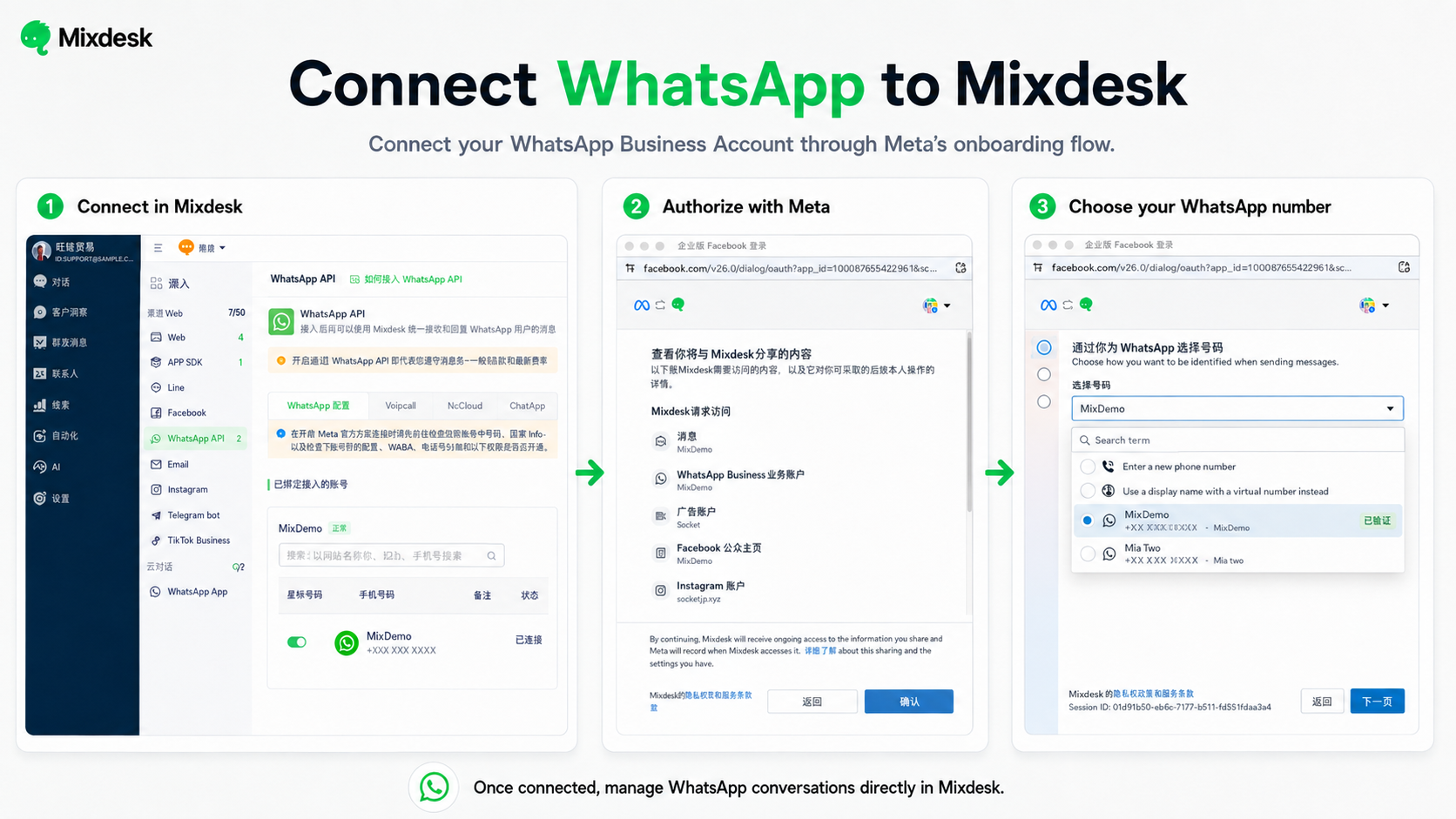
1. Open the WhatsApp API channel
On Mixdesk, go to Channels → WhatsApp API → WhatsApp Official, then select Connect WhatsApp Business.
2. Authorize your Meta business assets
Sign in with a Meta account that has access to the relevant Business Portfolio, then select or create the WhatsApp Business Account you want to connect with.
3. Select and verify your business phone number
Choose an existing eligible WhatsApp business number or add a new number and complete Meta’s verification process.
4. Complete Meta billing setup
Add the required payment method in Meta so your WhatsApp Business Account can send eligible business messages.
5. Confirm the connection to Mixdesk
Once authorization is complete, return to Mixdesk and confirm that your WhatsApp number shows Connected.
Incoming WhatsApp conversations can then be received and managed directly from the Mixdesk workspace.
For detailed setup instructions, see the Mixdesk WhatsApp API integration guide.
Manage WhatsApp Follow-Ups with Mixdesk
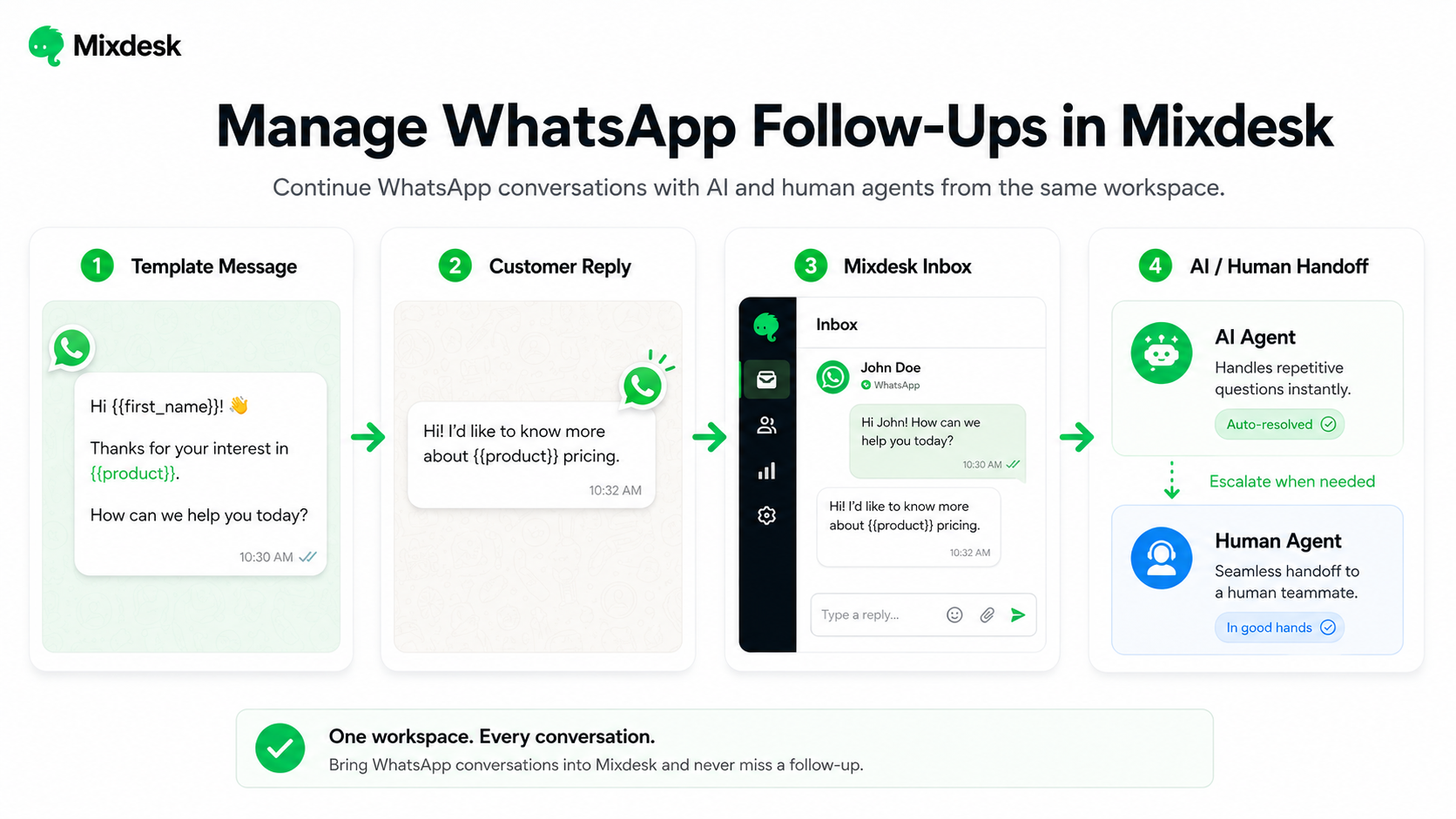
Connecting WhatsApp is only the first step. The real value comes from keeping the conversation moving after a customer replies.
Reconnect with approved message templates
When a conversation moves outside the 24-hour customer service window, your team can use an appropriate approved WhatsApp message template to reach out again.
Continue the conversation with AI when the customer replies
Once the customer responds, a new 24-hour customer service window opens. Mixdesk AI Agents can then handle repetitive questions, collect customer information, qualify leads, and continue the conversation using your business knowledge.
Hand off high-value conversations to a human
If a customer asks a complex question, needs special assistance, or shows strong purchase intent, the conversation can be handed over to a human teammate with the previous context preserved.
Manage WhatsApp alongside other channels
WhatsApp conversations can be managed in the same Mixdesk workspace as other supported customer channels, helping teams keep customer context in one place instead of switching between separate tools.
Template Message → Customer Reply → New 24-Hour Window → AI or Human Follow-Up
WhatsApp Messaging Best Practices
Get clear opt-in. Make sure customers have agreed to receive WhatsApp messages from your business.
Keep follow-ups relevant. Give customers enough context to understand why you’re contacting them.
Use the right template for the right purpose. Choose an approved template that matches the reason for your follow-up.
Respect opt-outs. Stop messaging customers who ask not to receive further communication.
Avoid unnecessary or repetitive outreach. Message templates should support legitimate customer communication, not be used as a workaround for unsolicited messaging.
For the latest requirements, always refer to the official WhatsApp Business Messaging Policy.
Frequently Asked Questions
Can I send a WhatsApp message after 24 hours?
Yes. Once the 24-hour customer service window closes, you can use an approved WhatsApp message template to reach out again.
Does sending a template reopen the 24-hour window?
No. A new customer service window opens when the customer messages your business again.
Why can’t I send a regular message after 24 hours?
Free-form replies are only available while the customer service window is open. Once it closes, an approved template is required to reach out again.
Do WhatsApp message templates need approval?
Yes. Message templates go through Meta’s review process and may be approved, rejected, paused, or reclassified.
Can WhatsApp conversations be automated?
Yes. Businesses can use automation to handle WhatsApp conversations while following WhatsApp’s messaging policies and providing an appropriate path to human support when needed.
Mixdesk AI Agents can answer repetitive questions, collect customer information, qualify leads, and hand complex or high-value conversations off to a human teammate with the previous context preserved.
Keep WhatsApp Conversations Moving
Customers don’t always reply within 24 hours.
A lead may need time to compare options. A customer may return the next day. Someone may simply get distracted.
WhatsApp’s 24-hour customer service window changes how businesses follow up — it doesn’t have to mean the conversation is over.
With Mixdesk, teams can reconnect using approved WhatsApp message templates, continue conversations with AI, and hand important conversations to human teammates when needed.
See Mixdesk Pricing →.