
Overview
Review contact details, complete conversation history, and operation records. Import and export contact data to support bulk updates and data migration.
1. Filter contacts
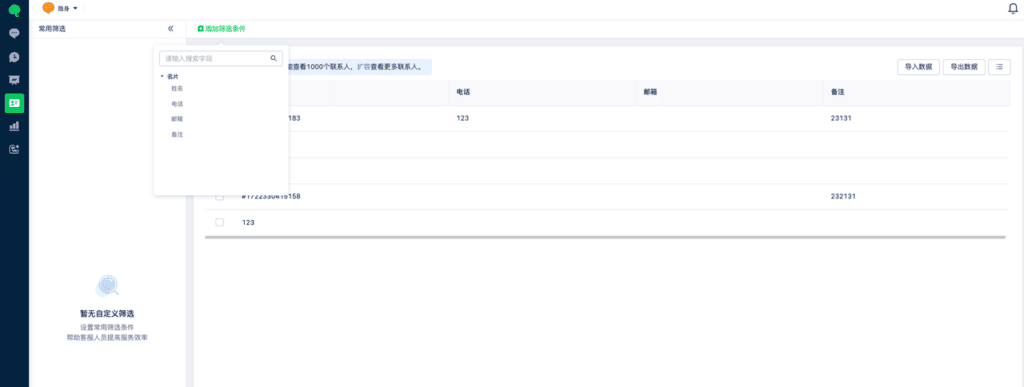
Go to Contacts > Add Filter to filter by name, phone number, email, or notes. Save frequently used combinations as favorite filters.
2. Customize list fields
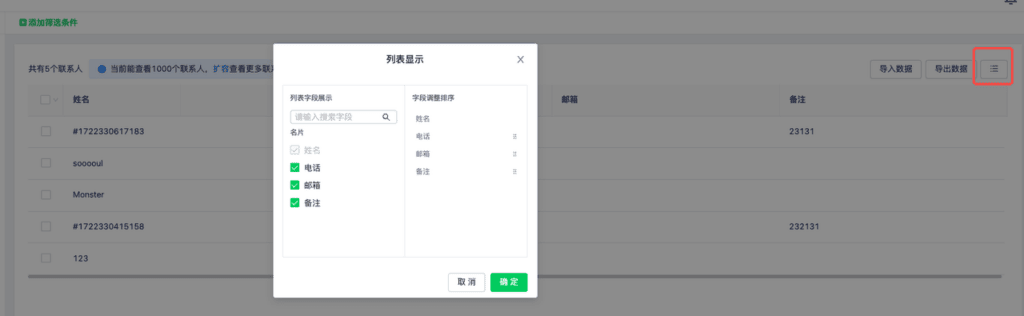
Choose which fields appear and their order. To reorder fields, drag them into place.
3. Import and export
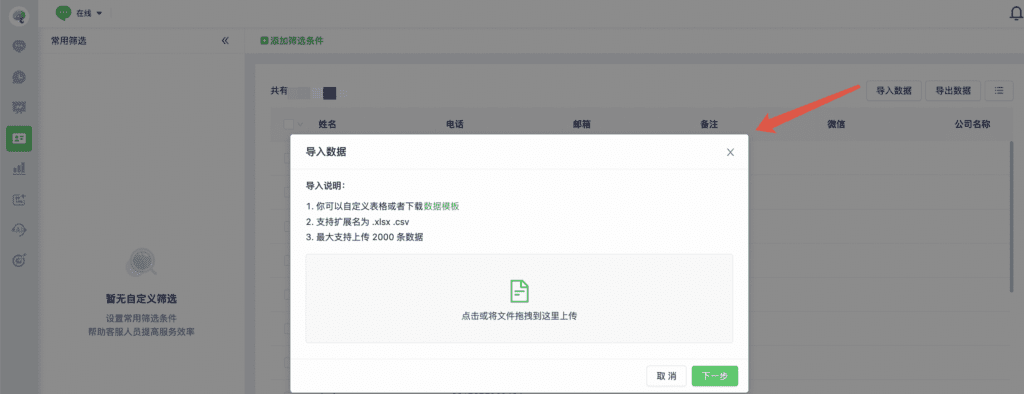
Go to Contacts > Import Data to import contact information. Only .xlsx and .xls files are supported. Download the data template for reference.
Note
1. Import up to 2,000 contacts at a time.
2. Phone numbers must include + followed by the country calling code and number, for example +1xxxxx.
3. Separate multiple contact tags with commas, for example tag1,tag2.
4. You can add custom columns in addition to the template’s fields.
5. Date and time fields must use YYYY-MM-DD HH:mm:ss, for example 2001-12-01 11:22:12.
6. For checkbox fields, the options must already exist in the contact field. Separate multiple values with commas, for example option1,option2.
7. For single-select fields, the option must already exist in the contact field.
8. Number fields must contain only numbers.