
Overview
Use a custom iframe to show information from your system in the conversation page. Enabling iframe authentication generates a key. Mixdesk encrypts selected fields using AES-128 CBC.
Configure an iframe
1. Go to Settings > General Settings > iframe to open the configuration page.
2. Use this configuration to display information from your own system in the conversation page.
iframe authentication
Mixdesk encrypts selected iframe fields using AES-128 in CBC mode with PKCS#7 padding to a multiple of 16 bytes. The source documentation specifies that the initialization vector (IV) uses the AES key. Use the IV and key to decrypt the fields.
iframe configuration
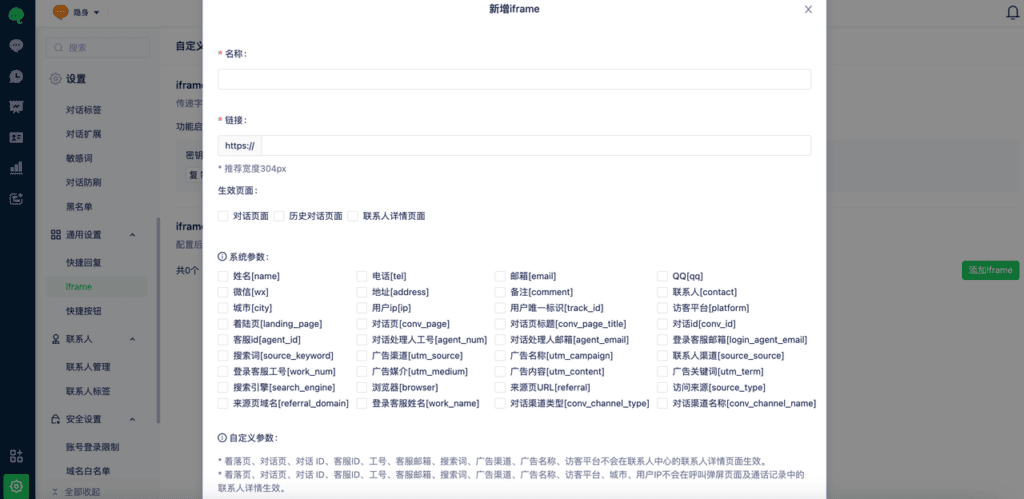
Select Add iframe to open configuration. Adjust the default parameters as needed.
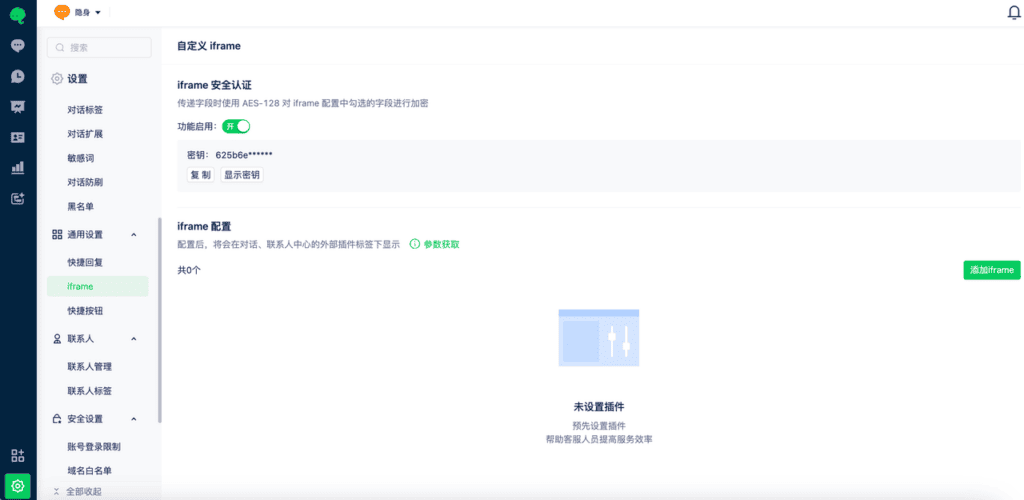
Enabling iframe authentication in the workspace automatically generates a key.
When Mixdesk visits your URL, it encrypts the fields selected in the configuration.
An iframe configuration supports up to 30 parameters, including system and custom parameters.
Parameters selected when creating or editing the iframe are passed through the URL. Escape the values appropriately after reading them.