Overview
Connect Coze to Mixdesk, then use Automation to assign conversations to Coze so it can respond to user messages.
Coze agents are supported.
Setup steps
1. Before you start
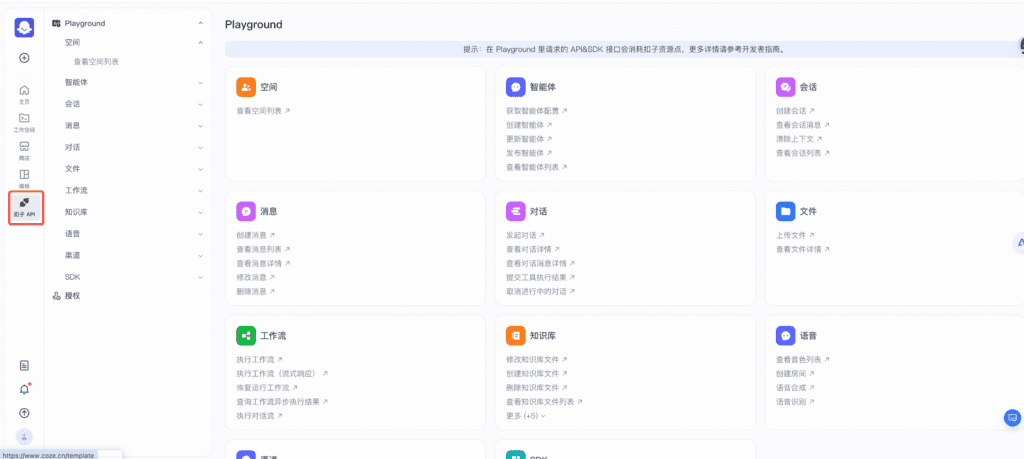
1.1 In Coze, select Coze API in the left sidebar.
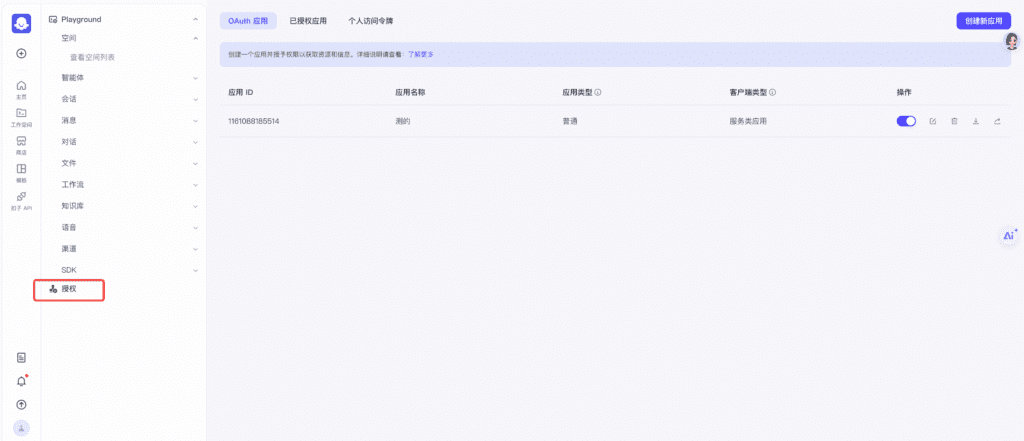
1.2 On the Coze API page, select Authorization.
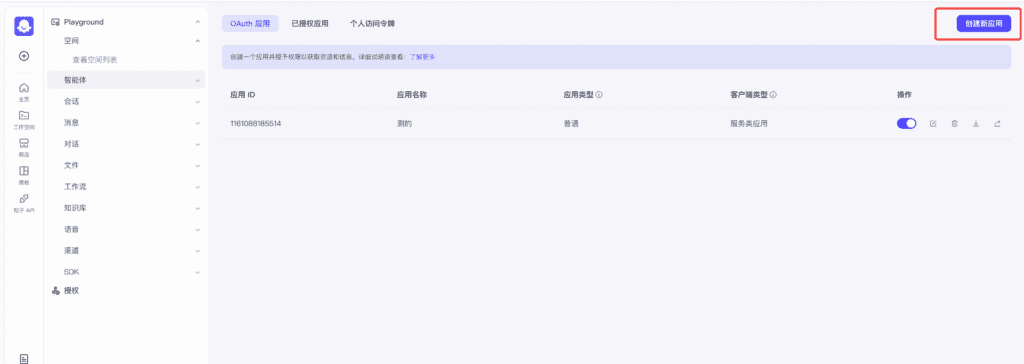
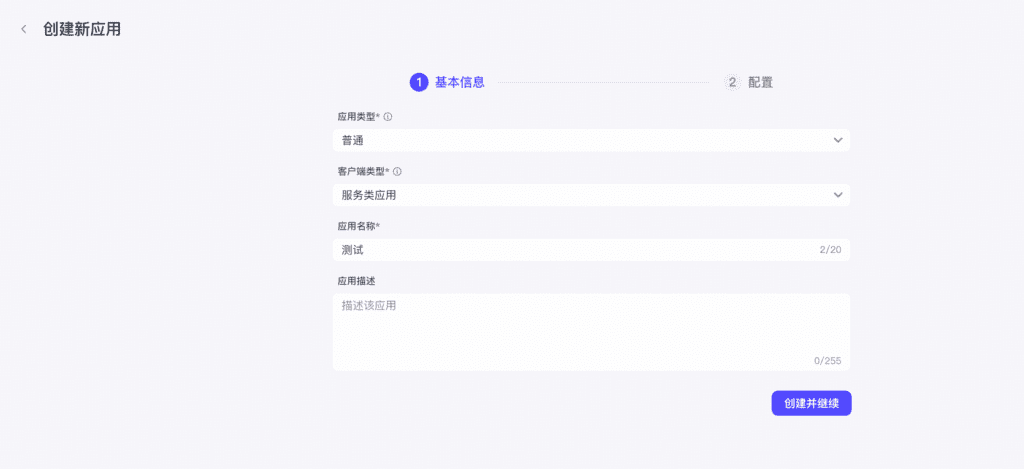
1.3 Select Create New Application in the upper-right corner.
1.4 Enter the application details.
Application type: Standard
Client type: Service application
Application name: Enter a suitable name.
Application description: Enter a suitable description.
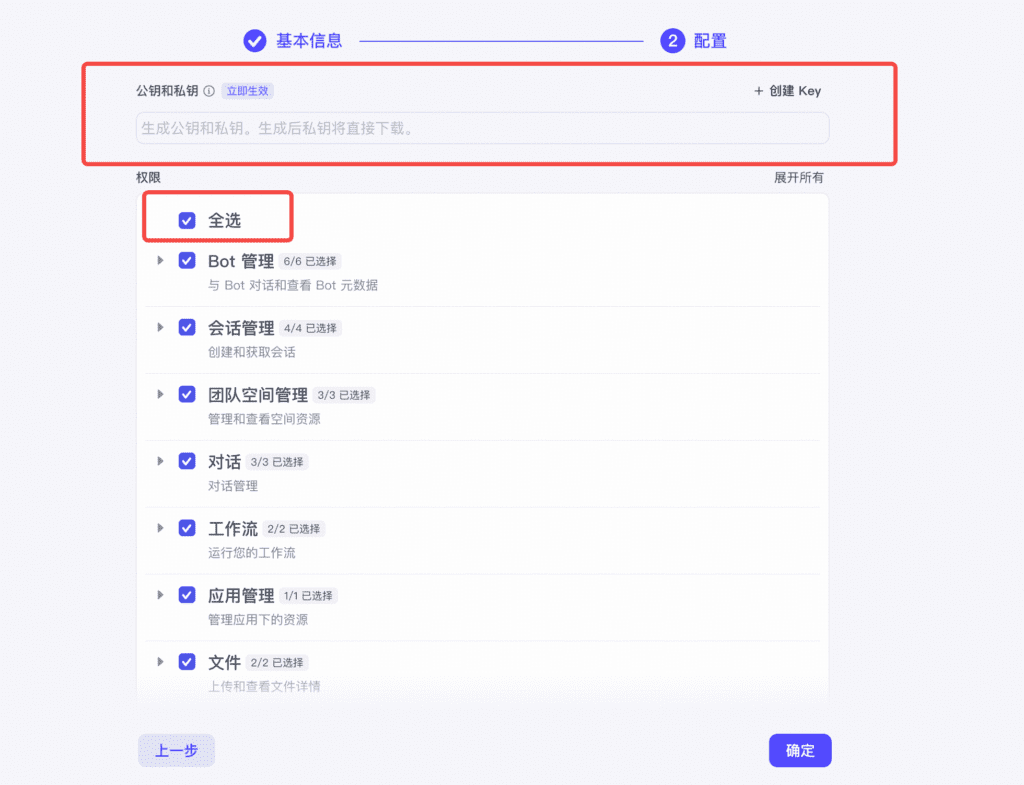
1.5 Obtain the Public Key and PEM file.
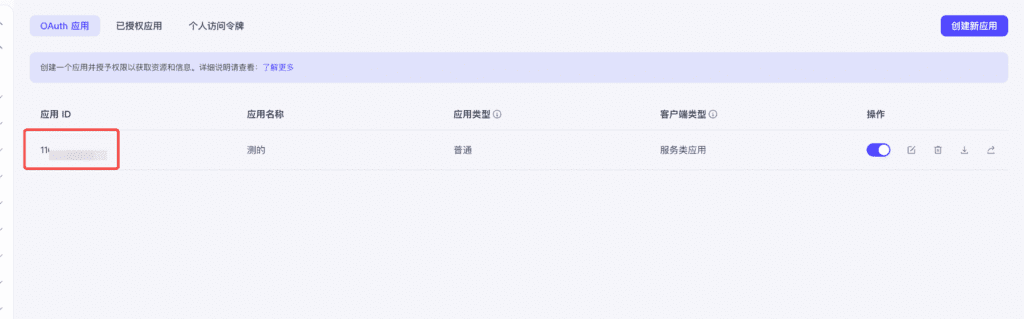
1.6 After creating the application, obtain its App ID.
1.7 Open Workspace from the left sidebar, select or create an agent, and publish it.
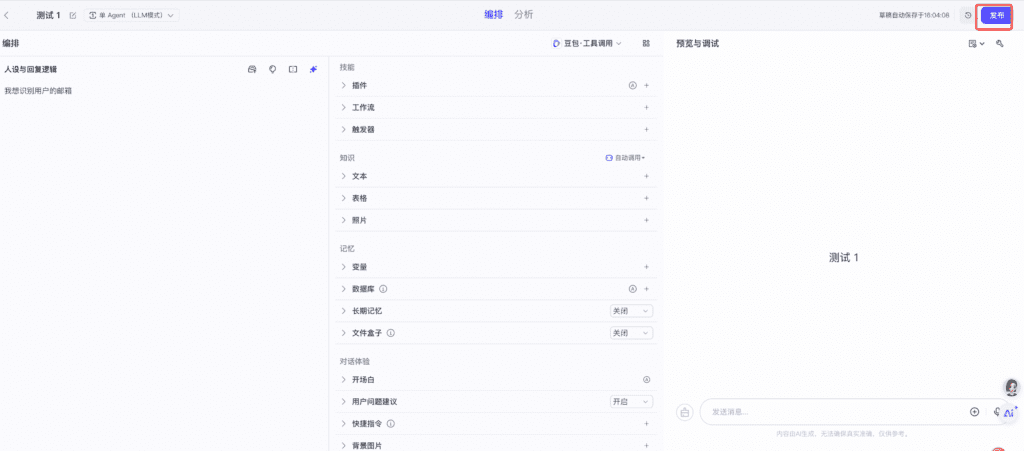
1.8 Enter the relevant information. Optional configuration can be completed now or skipped and edited later; skipping does not prevent publishing.
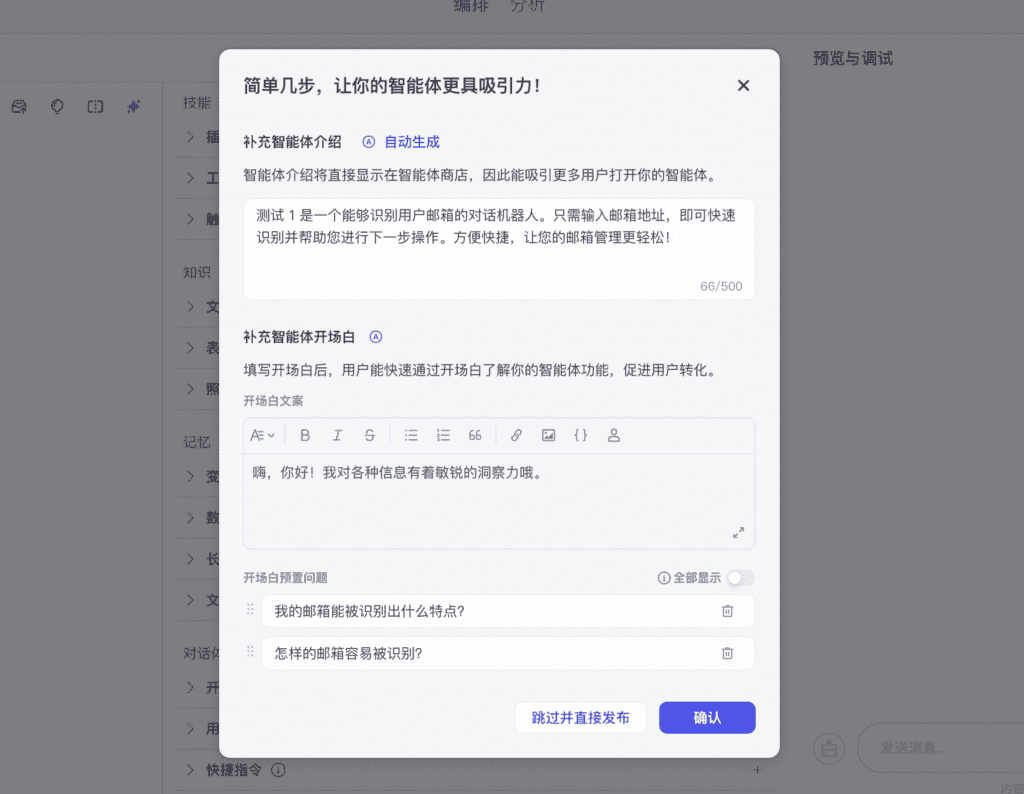
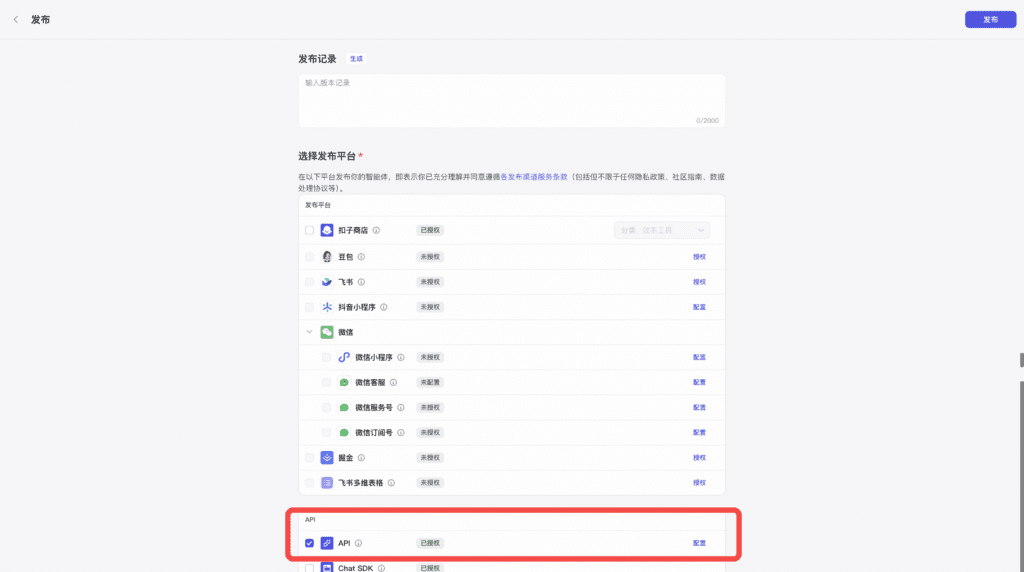
1.9 Select API, then publish.
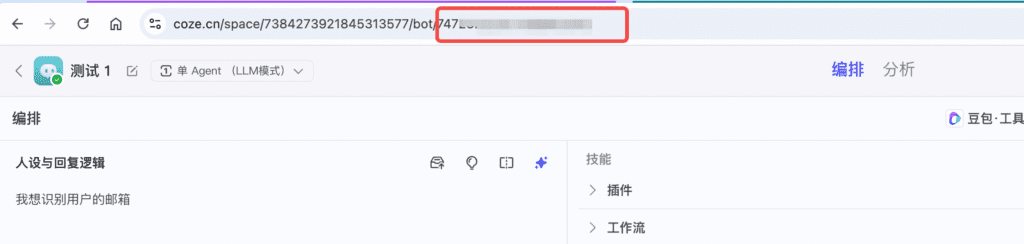
1.10 The last part of the URL is the Bot ID you need.
2. Connect Coze
2.1 In Mixdesk, go to AI > AI Integrations > Coze.
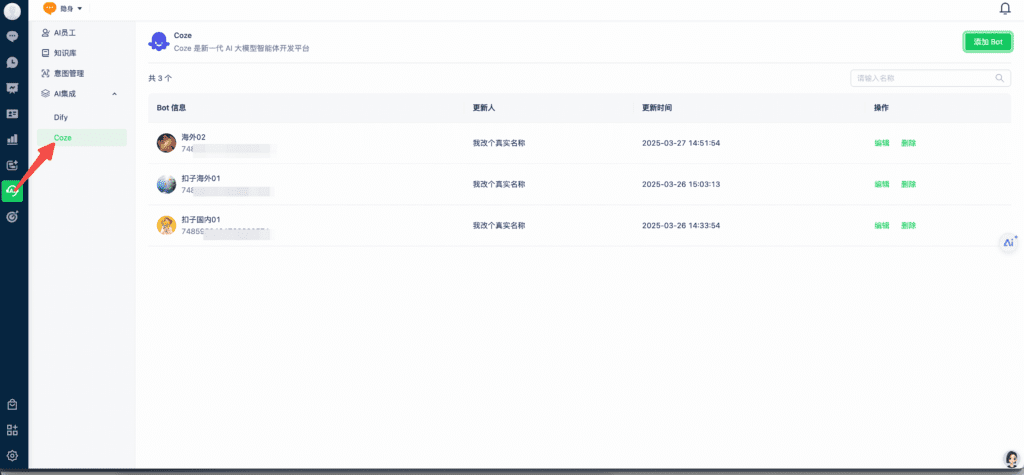
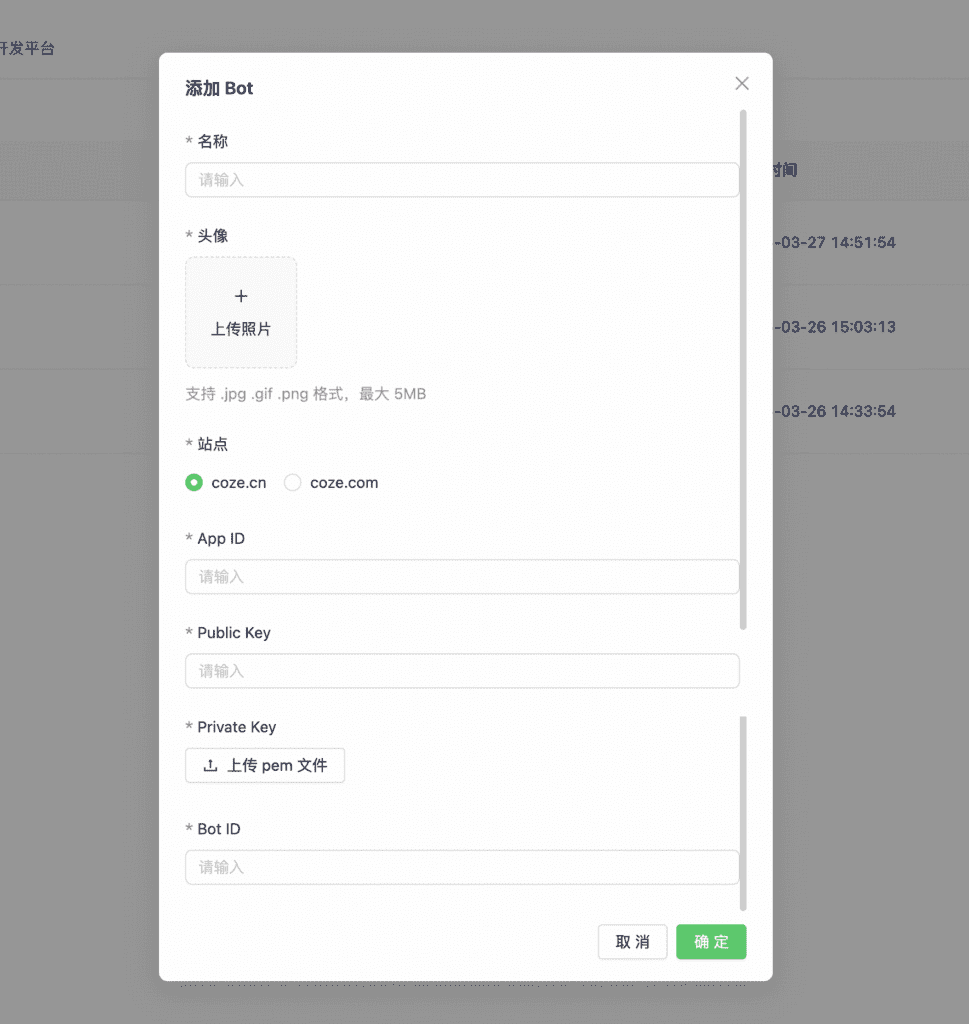
2.2 Select Add Bot.
- Upload an avatar, enter a name, and select the site that matches your Coze account.
- Enter the App ID, Public Key, and Bot ID obtained earlier, and provide the private-key PEM file.
3. Use Coze in conversations
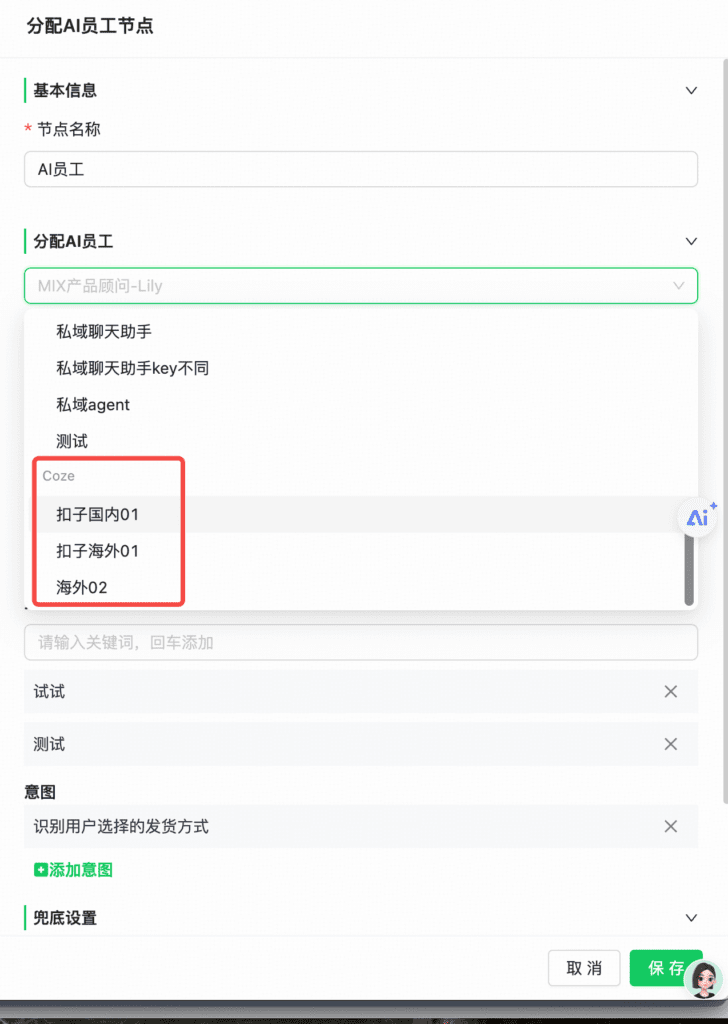
3.1 In Automation, select the Coze bot in an Assign AI Agent node.