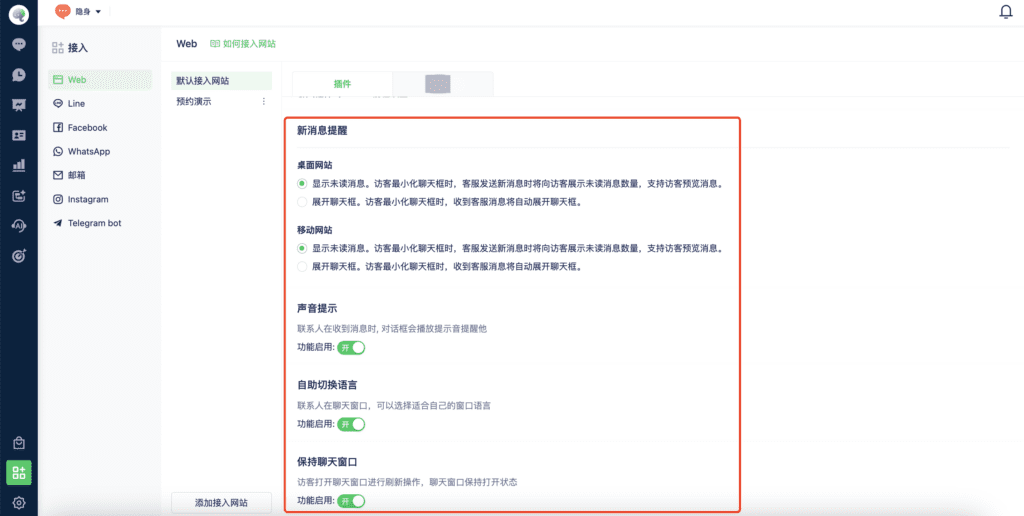
Overview
Customize desktop and mobile chat buttons, window styles, notifications, sounds, language switching, and whether the window remains open.
Use these settings to align the widget with your brand and customer-support needs.
Configure the widget
In the Mixdesk left sidebar, select Channels > Web. Below the widget code, configure desktop and mobile appearance separately.
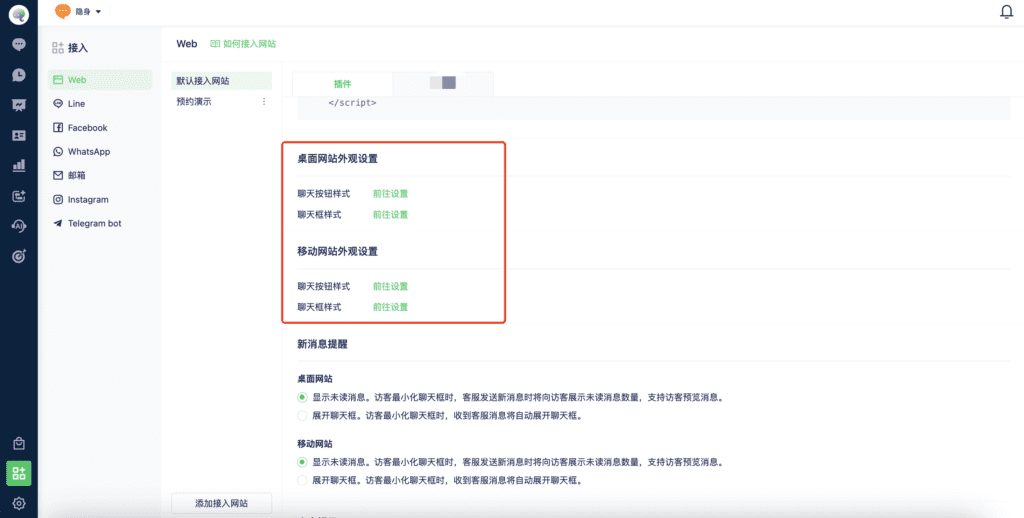
On both desktop and mobile, customize the Chat Button and Chat Window separately.
1. Desktop appearance
1.1 Desktop chat button style
Select Configure to customize the button style, theme color, online status, position, and side margin. Preview changes on the right.
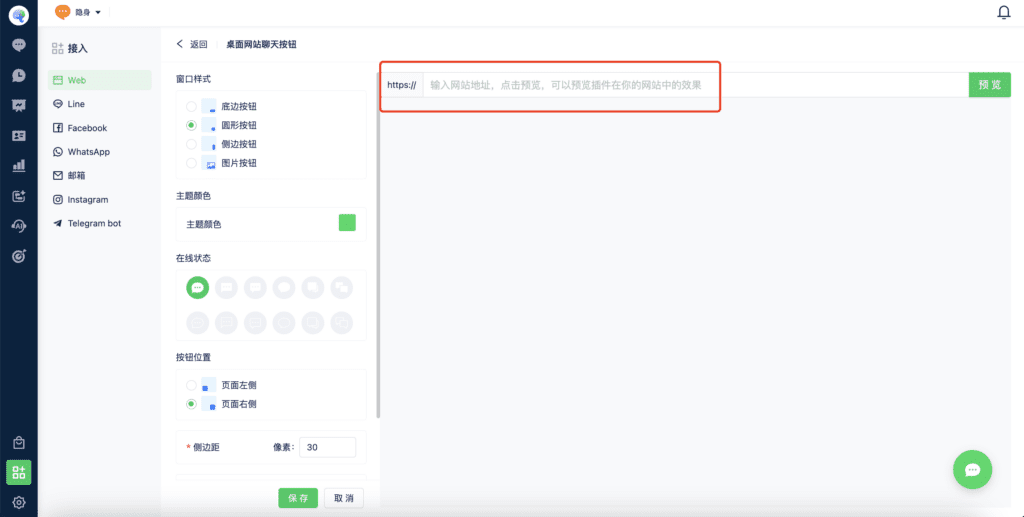
1.2 Desktop chat window style
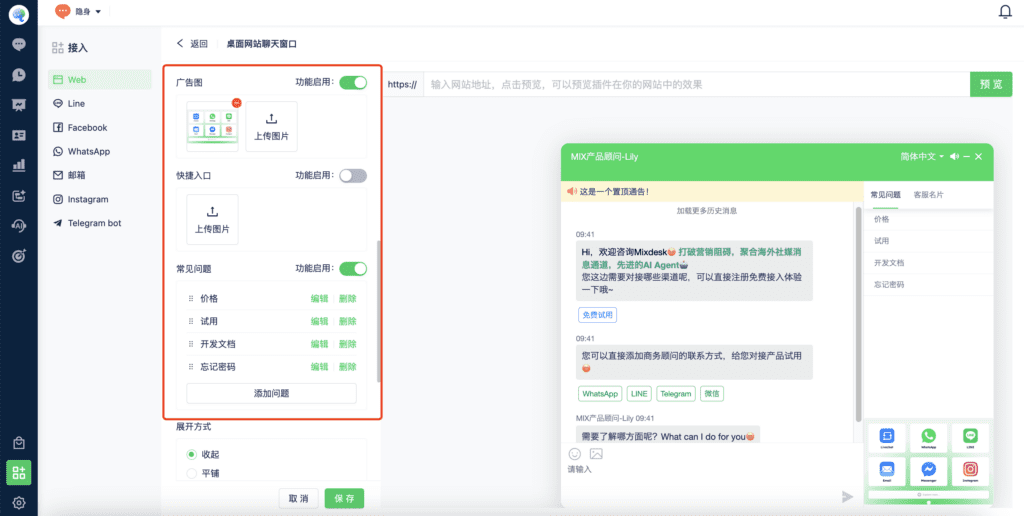
Customize how the chat window appears on your website, including window style, theme color, visitor message text color, position, side margin, size, and expansion behavior.
Choose from the available window styles to suit your needs.
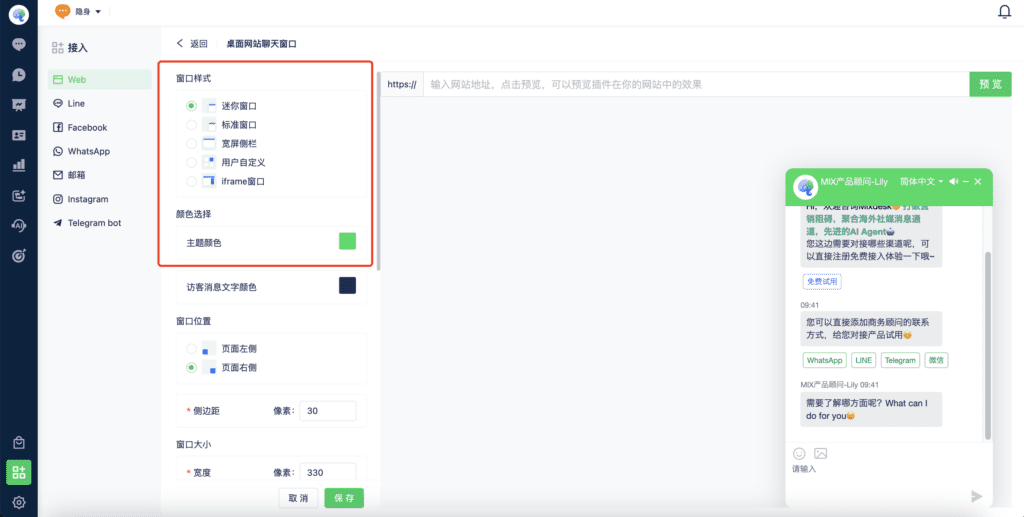
Customize window contentAdd promotional images, shortcuts, frequently asked questions, and pinned announcements to make information available within the chat window.
2. Mobile appearance
Mobile options work similarly to desktop options. Preview changes on the configuration page.
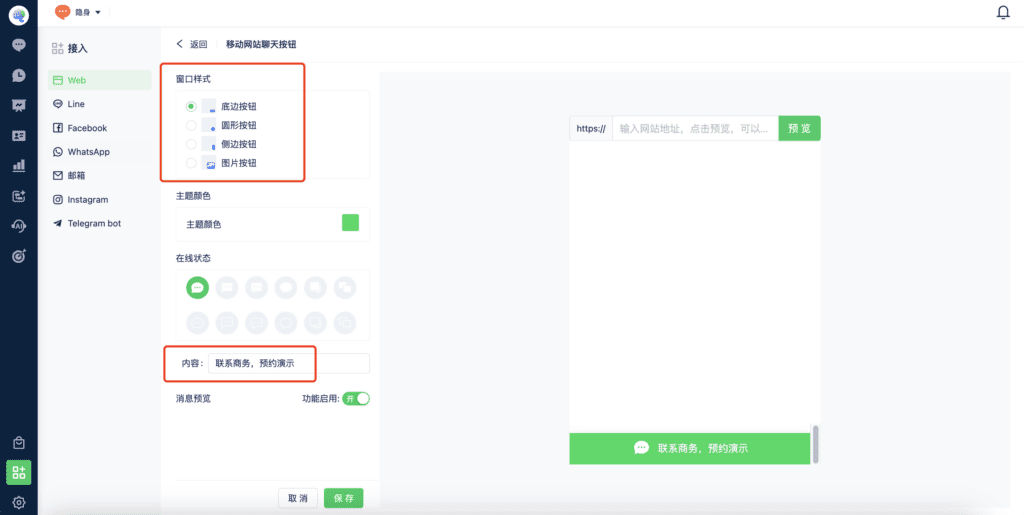
2.1 Mobile chat button style
You can customize the button style, theme color, online status, position, side margin, and bottom margin.A bottom-edge button is recommended for mobile websites.
2.2 Mobile chat window style
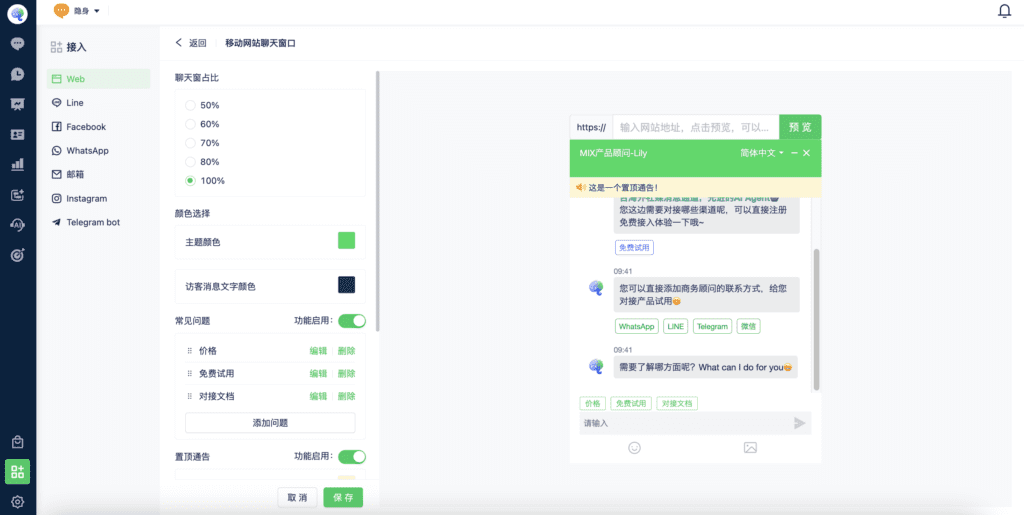
Because screen space is limited, mobile window settings focus on the window’s size ratio, theme color, FAQs, and pinned announcements.
3. Other Web channel settings
Configure new-message notifications, sounds, automatic language switching, and whether to keep the window open. These settings apply to both desktop and mobile widgets.