
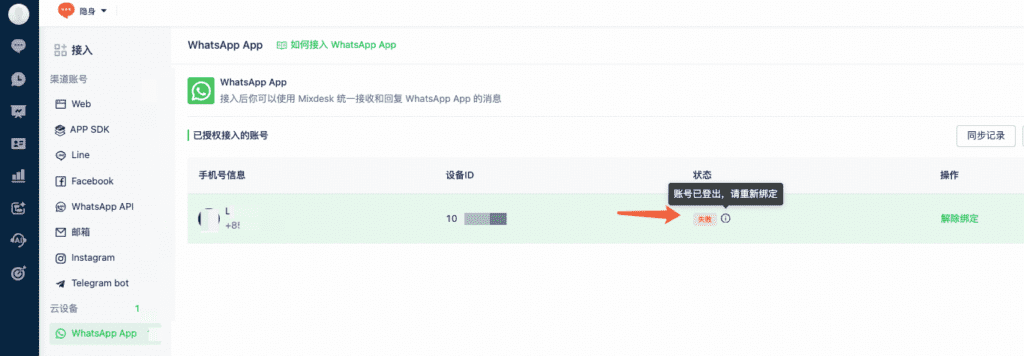
Step 1: Troubleshoot a Failed connection status
Cause 1: Signing out or switching accounts on the phone can disconnect linked devices and cause Mixdesk to disconnect. Check that the account is signed in on the phone. If it is working normally, disconnect and reconnect it in Mixdesk.
Cause 2: If WhatsApp restricts the account and it cannot be used, Mixdesk also disconnects it. Follow WhatsApp’s instructions to appeal. After a successful appeal, use the account normally for a period before reconnecting it to Mixdesk.
Step 2: Understand common restriction triggers
1. Unusual login activity
① Normal linked-device use:
- WhatsApp personal and WhatsApp Business accounts support linked devices. The primary device must be an iOS or Android phone. Each account has one primary phone.
- Up to four companion devices are supported, including computers, tablets, web clients, or a browser on another phone.
- WhatsApp records device and connection information, such as device model, browser user agent, IP, and location. Keep linked-device counts within four and maintain a stable login environment.
② Examples of unusual registration or login behavior:
- Frequently changing the primary phone, such as repeatedly signing in and out on several phones.
- Using the same number to sign out and back in repeatedly within a short period.
- Repeatedly removing and relinking devices, such as unlinking four in the morning and relinking them in the afternoon.
- Registering many numbers on the same device or IP in a short period.
- Frequently switching between IP locations, such as Hong Kong, the United States, and Thailand.
These patterns can resemble bulk account operations and trigger restrictions.
2. Unusual messaging behavior
- Adding many contacts or sending large volumes of messages immediately after registration.
- Repeatedly sending identical copied content in a short period.
- Creating many groups or flooding them with messages.
- Overtly promotional content, including excessive advertisements, links, or restricted topics such as gambling, investment, or adult content.
- One-way messaging, such as continuing to send messages without receiving replies, or sending 100 messages and receiving only one or two replies.
- Sending dozens of messages within minutes at a rate inconsistent with ordinary manual use.
3. User reports or blocks
- Frequent spam reports or blocks can trigger restrictions.
- The messaging patterns above make reports more likely.
4. Prohibited content
High-risk topics include unwanted advertising, gambling, illicit activities, cryptocurrency recruitment, and sensitive political or social content.
Step 3: Account-use guidance
1. Register and establish normal use
- Prefer a real phone number with a physical SIM rather than a virtual number.
- Do not begin large-scale activity immediately after registration. Start with ordinary personal and group conversations.
- Initial use: Spend the first few days having normal conversations with friends or colleagues before gradually introducing business use.
2. Messaging practices
- Limit daily new contacts and outbound messages rather than sending a large batch at once.
- Increase activity gradually, starting with a small number of contacts during the first week.
- Use relevant, varied wording rather than identical messages.
- Daily reference ranges in the source guide
| New contacts per day | New account (registered within 7 days): Suggested maximum 10–15 per day Early use (1–4 weeks): Suggested maximum 20–30 per day Established account (at least 1 month of normal use): Suggested range up to 40–50 per day Adding dozens of contacts in ten minutes can trigger restrictions. Spread activity over time. |
| Outbound messages per day | New account (up to 7 days): Suggested maximum 20–30 per day Early use (1–4 weeks): Suggested maximum 50–80 per day Established account (at least 1 month): Reference range 100–200 per day The risk rises when most messages receive no reply. |
| Groups | New accounts should not immediately create or join many groups. For established accounts, the guide suggests adding no more than 10–15 people at once and no more than 30 people per day. |
| Message content | The guide suggests limiting identical content to 5–10 sends and preparing several versions. Include a relevant question in outreach to encourage a reply and two-way conversation. Prioritize people who have saved your number over unfamiliar recipients. |
3. Devices and login environment
- Use a consistent device and network where possible.
- Avoid frequent switches between country or region IP addresses.
- Avoid rapidly switching multiple accounts on the same device.
4. Bulk-messaging practices
- Send in batches: Spread activity over time rather than messaging hundreds of numbers at once.
- Vary wording: Prepare at least three to five relevant versions for a topic rather than sending identical content to everyone.
- Encourage interaction: Include a question or another reason to reply instead of sending only an advertisement.
- Avoid restricted content: Limit sensitive terms and external links, particularly shortened URLs.
Use WhatsApp in a natural, policy-compliant way over time and avoid prohibited behavior. For business messaging needs, explore Mixdesk’s WhatsApp solution to manage customer conversations in line with applicable platform requirements.