Overview
Connect Telegram bots to synchronize direct and group messages with Mixdesk. Your team and AI Agents can respond from the workspace, and multiple bots can be connected.
Connection steps
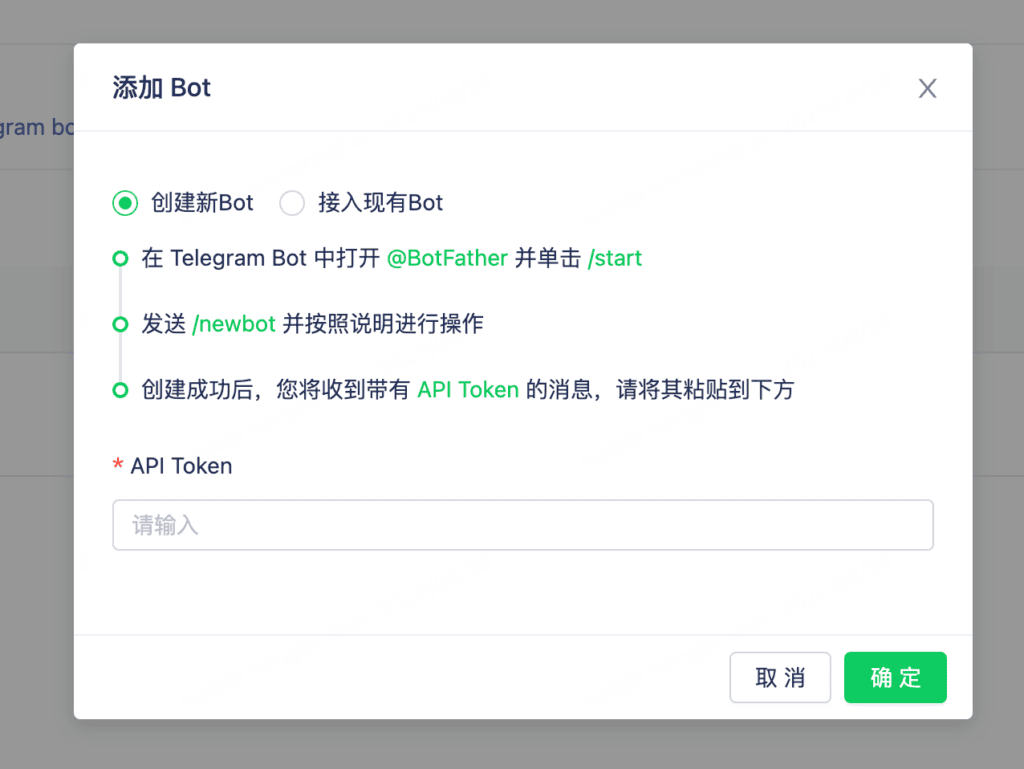
Option 1: Create a new bot
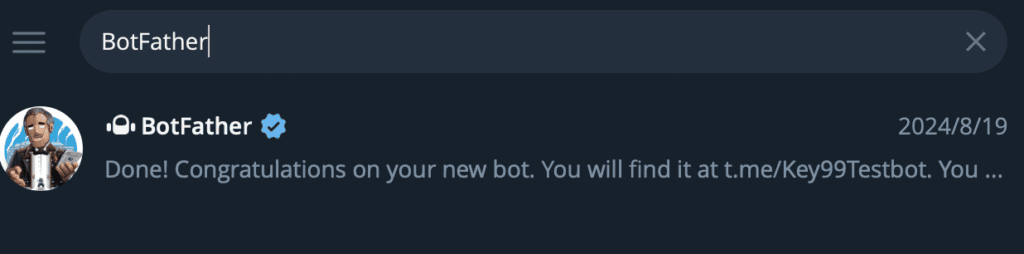
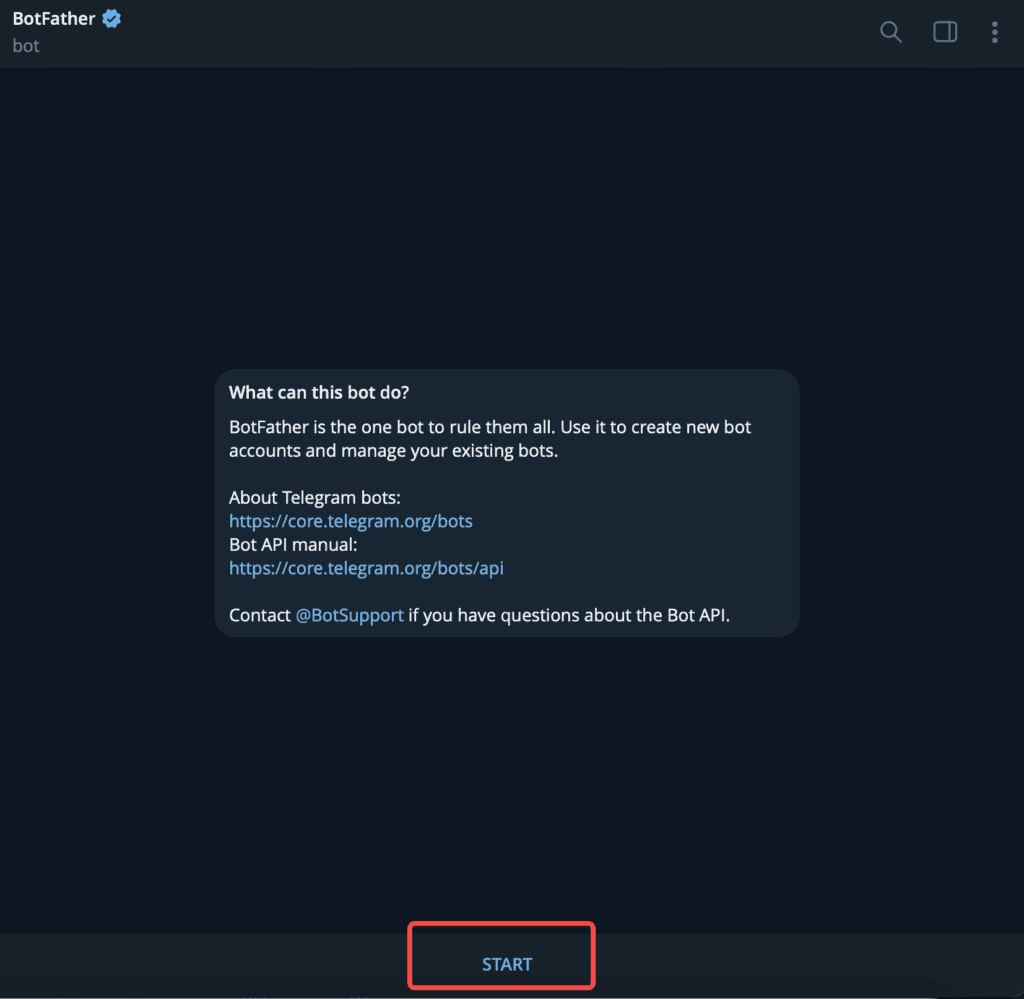
- Sign in to Telegram, search for BotFather and open the chat. Select /start to start the conversation.
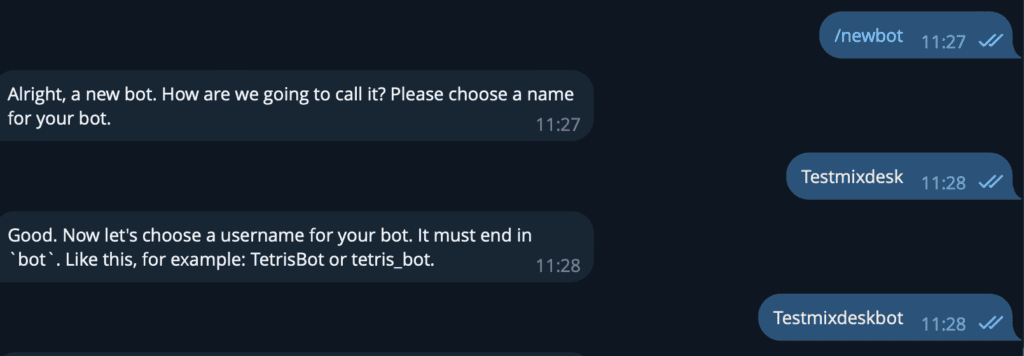
- Select or enter /newbot, and follow the prompts to create the bot.
- Copy the new bot’s API token into the API Token field in Mixdesk to complete the connection.
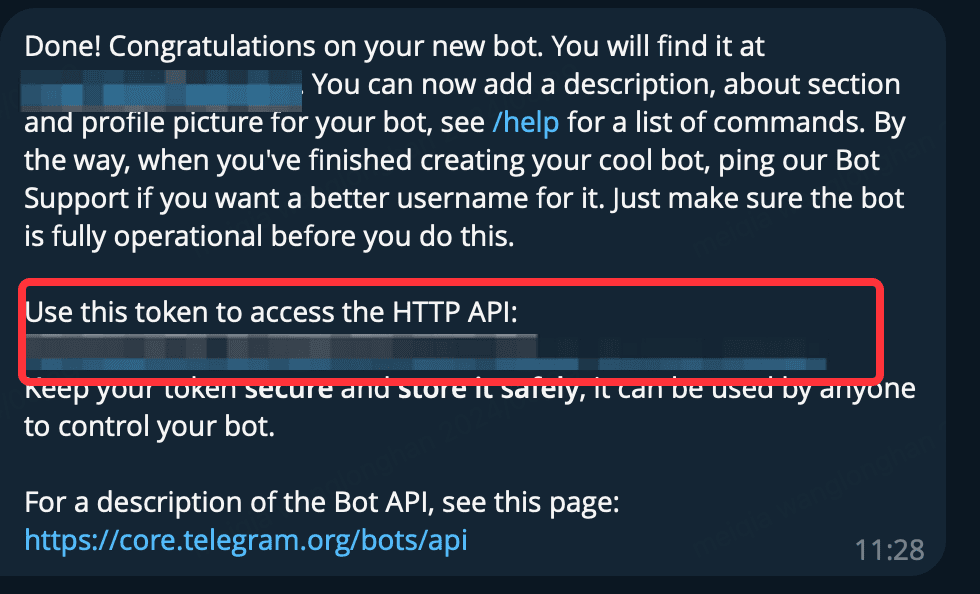
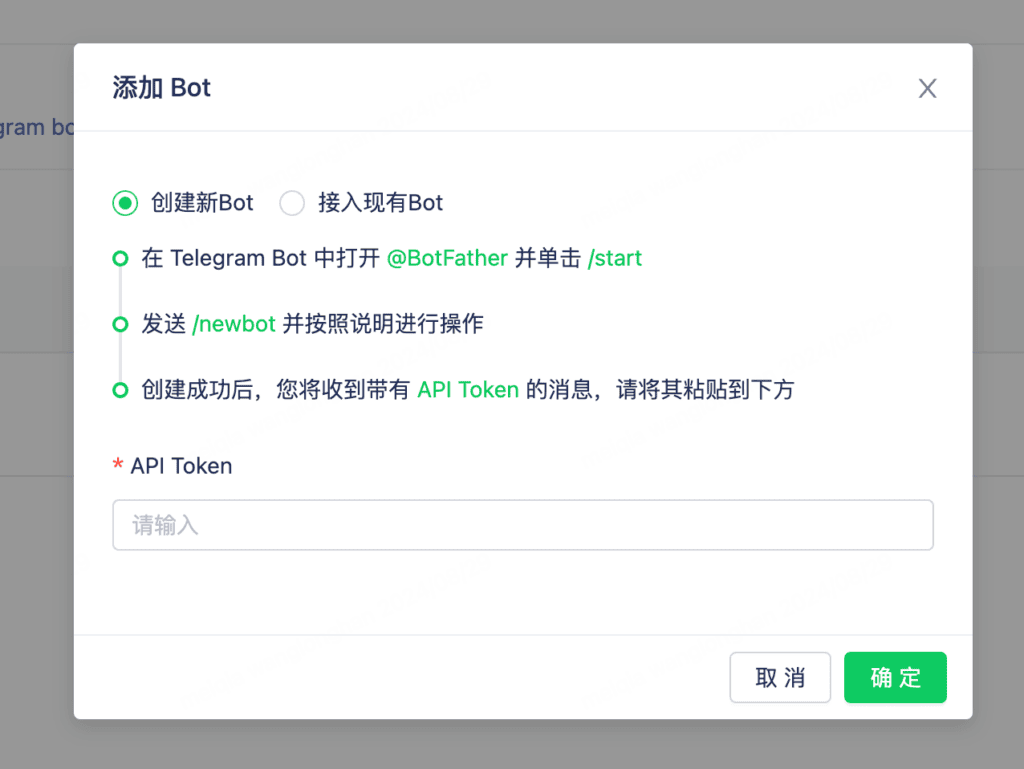
Option 2: Connect an existing bot
- Sign in to Telegram, search for BotFather and open the chat. Select /start to start the conversation.
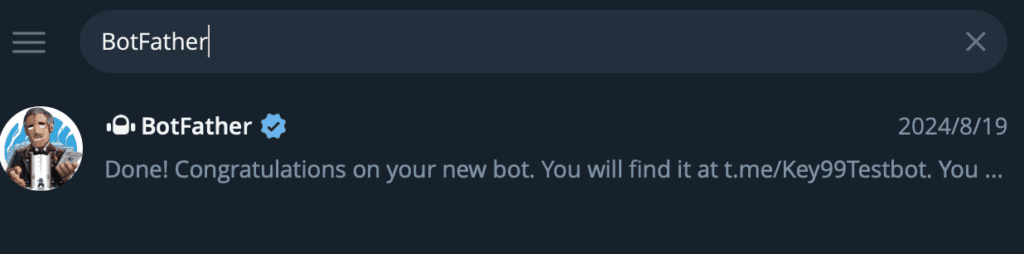
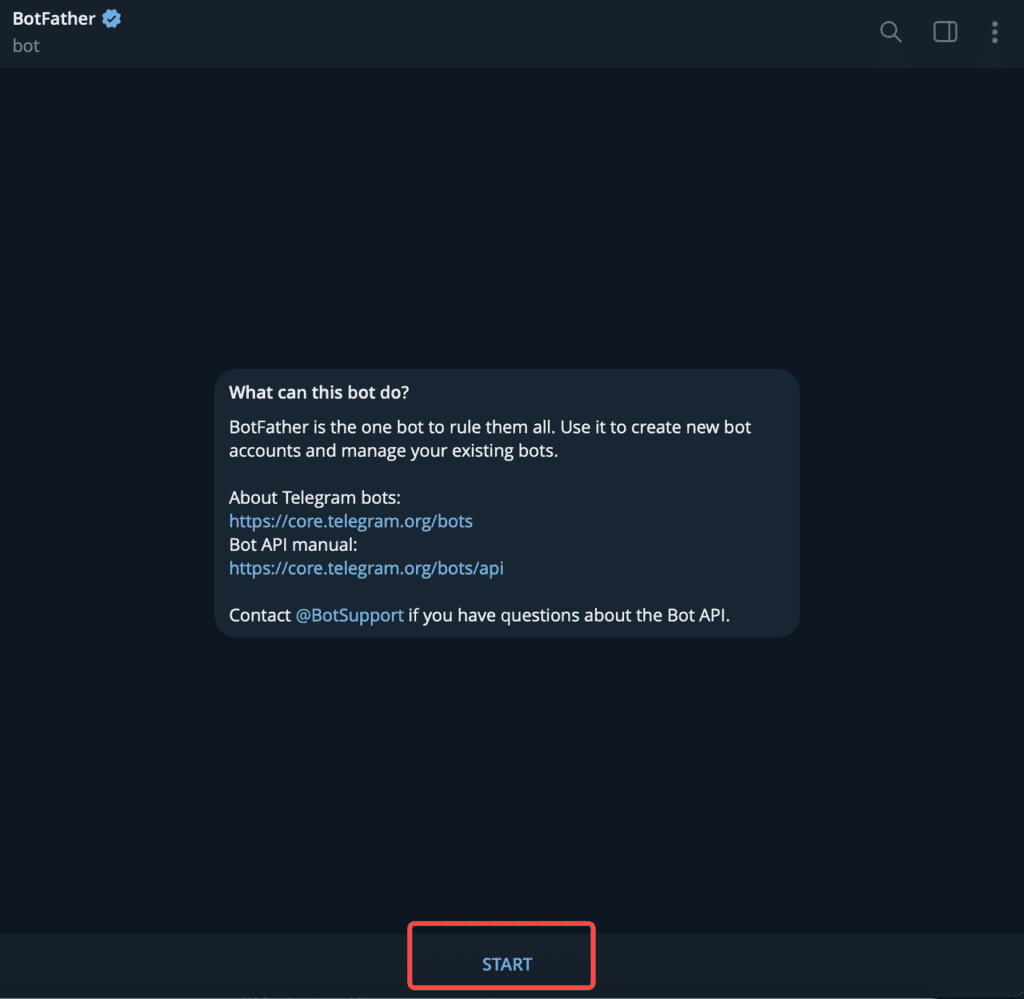
- Select or enter /mybots, to display your existing bots.

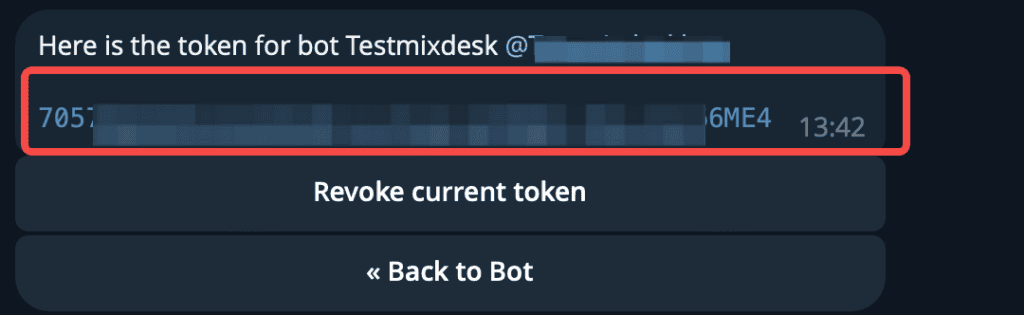
- Select the bot you want to connect, then select API Token.
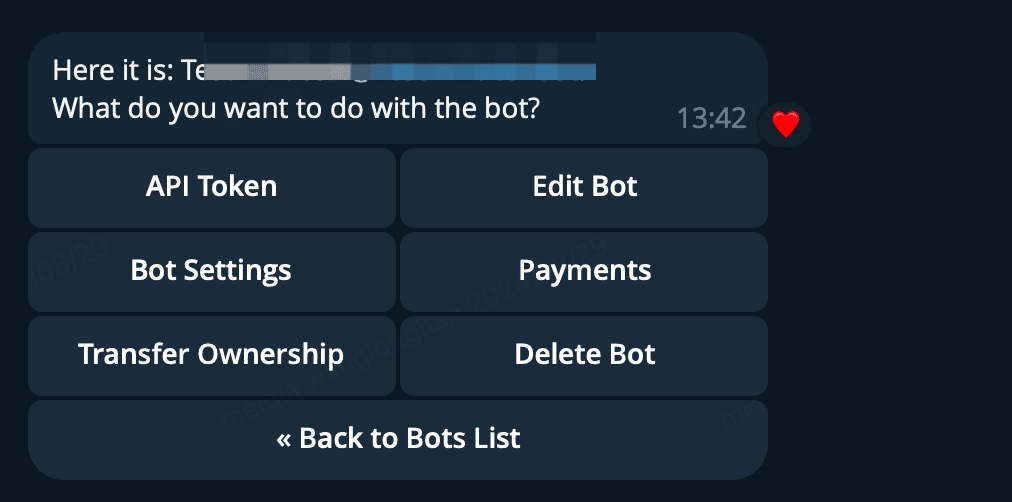
- Copy the token into the API Token field in Mixdesk to complete the connection.
Use the connected bot
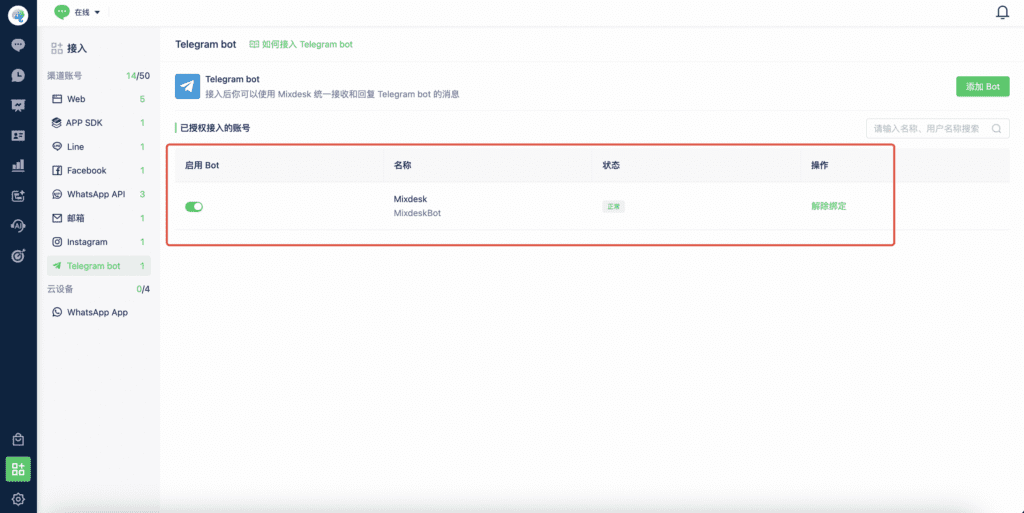
Go to Channels > Telegram in Mixdesk to review connected bots or disconnect them.
1. Direct messages
Example conversation
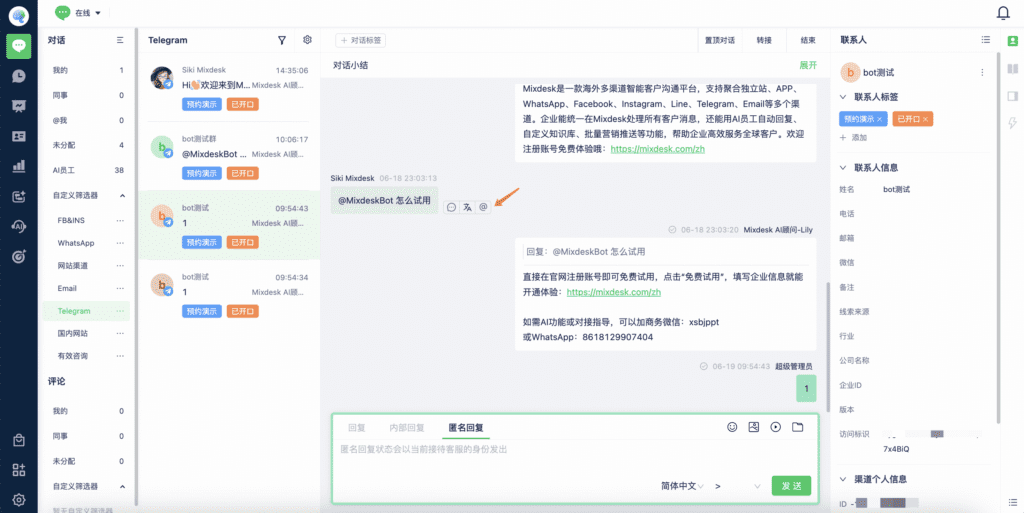
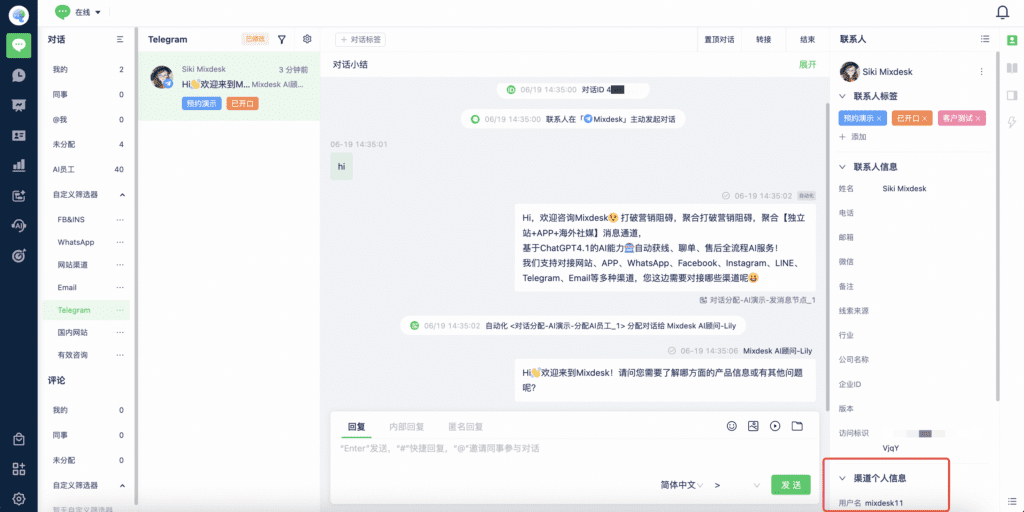
When a Telegram user starts a conversation with the bot, their avatar, name, username, and other details appear in the Mixdesk Inbox.
2. Group messages
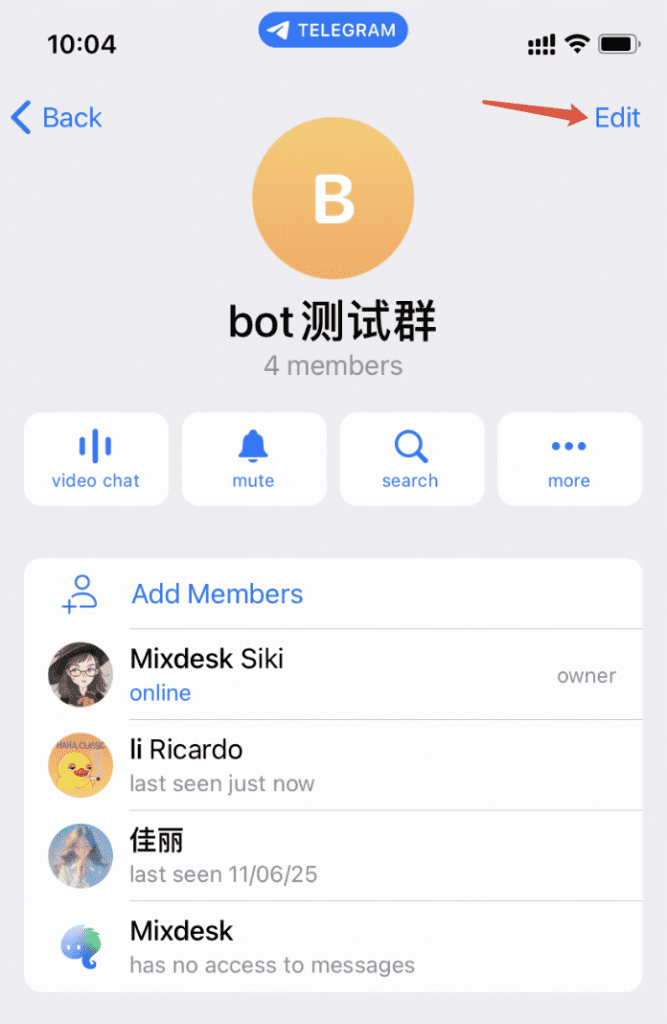
- Open the group and select Edit.
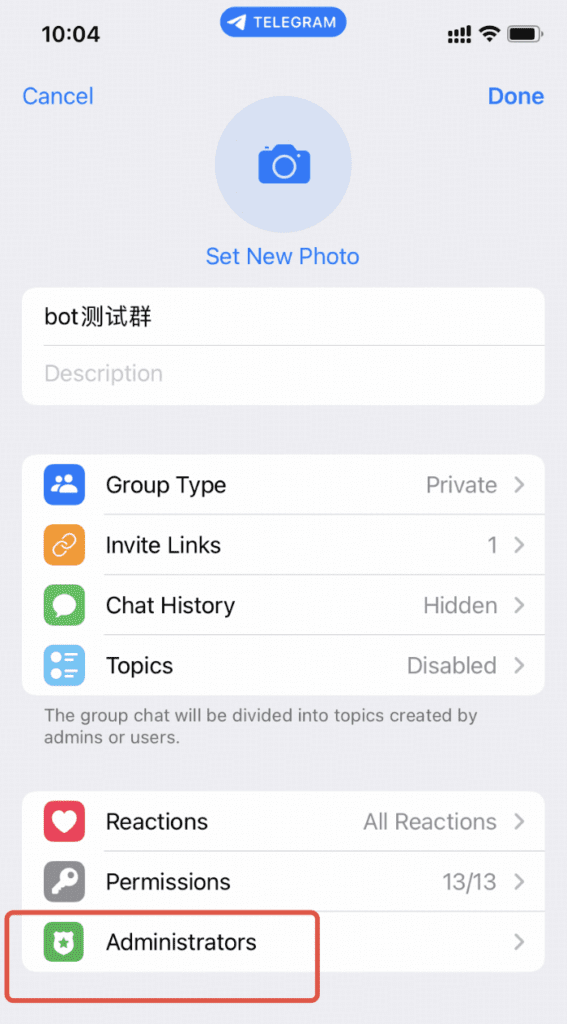
- Select Administrators.
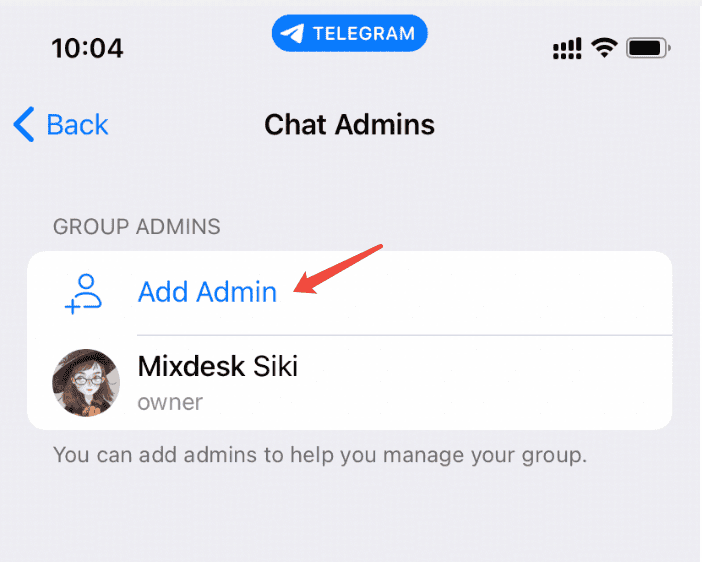
- Select Add Admin.
- Choose the bot connected to Mixdesk.
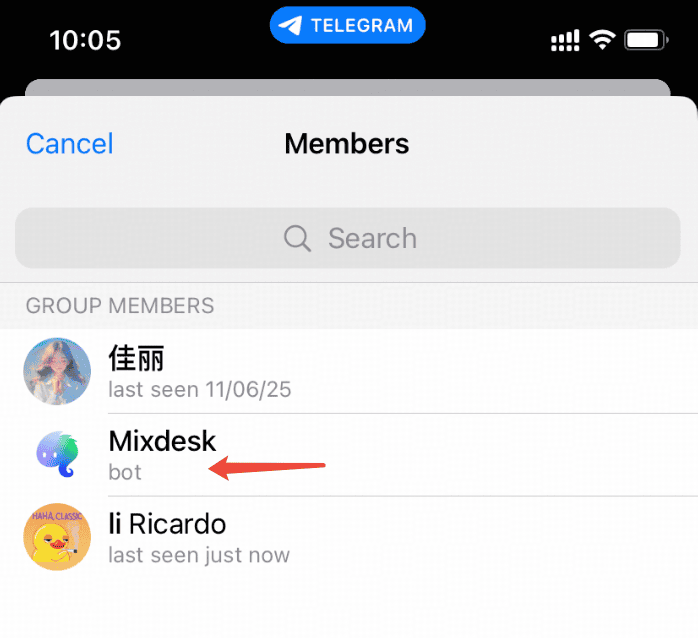
- Keep the default bot permissions shown in the screenshot and select Done.
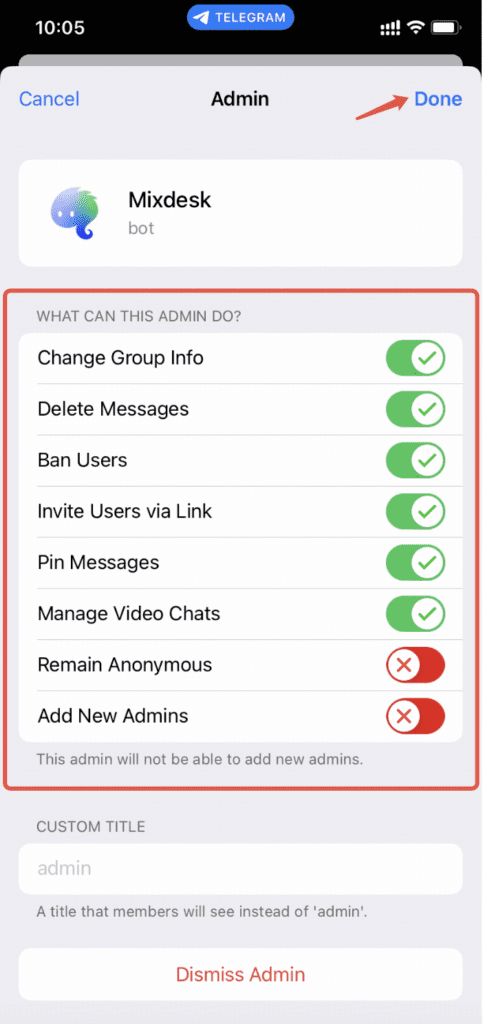
Once the bot is a group administrator, group messages are delivered to Mixdesk. AI Agents can respond, and team members can reply, quote or translate messages, and mention group members.
Contact your sales representative to discuss additional features.