
Overview
Connect a LINE Official Account to manage its incoming messages and replies in the Mixdesk workspace. Follow the steps below to configure the connection.
Requirements
Setup steps
1. Open LINE Official Account Manager
Open https://manager.line.biz/, then log in or sign up and access the account manager.
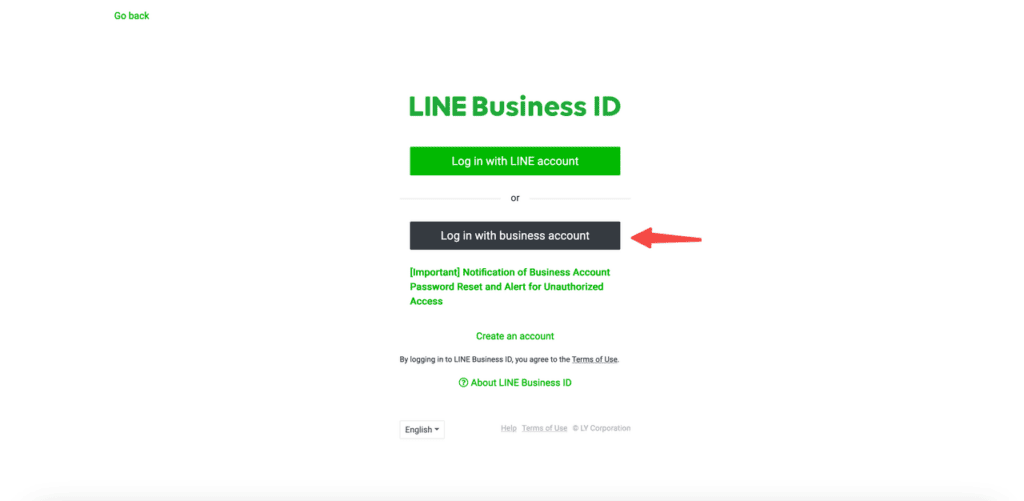
2. Open account management
Under Accounts, select the account name. If you do not have an official account, select Create new on the left to create one.
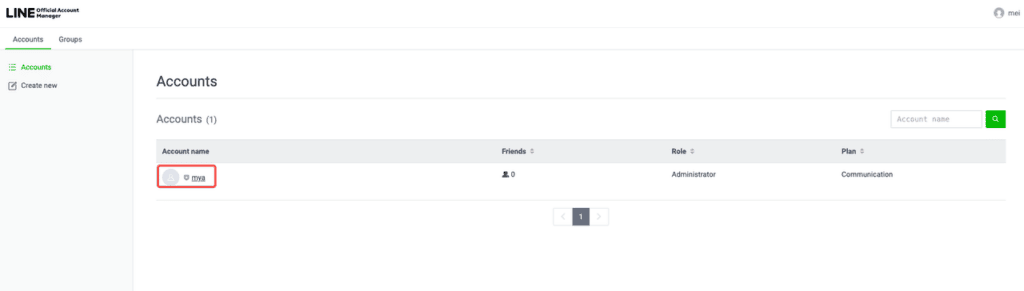
3. Enable the Messaging API channel
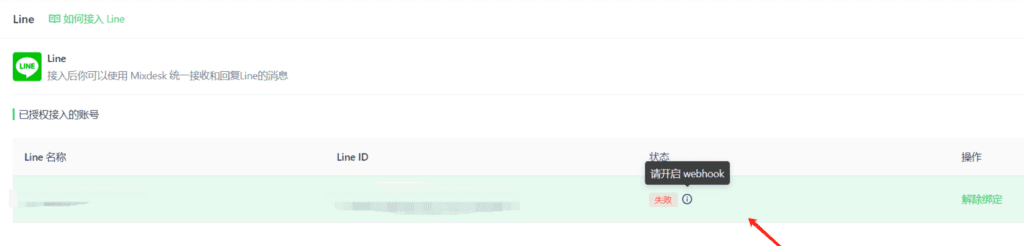
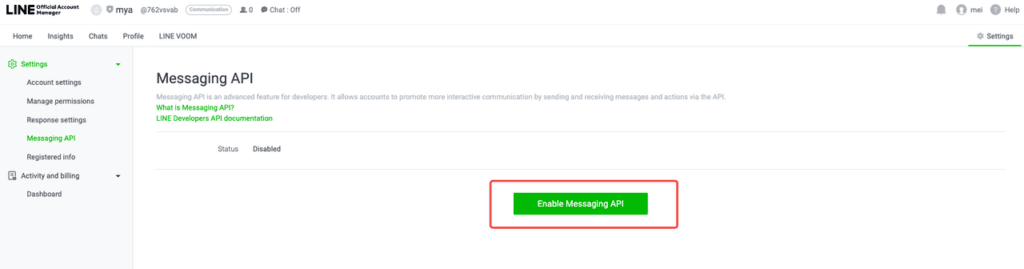
Open Settings > Messaging API and select Enable Messaging API.
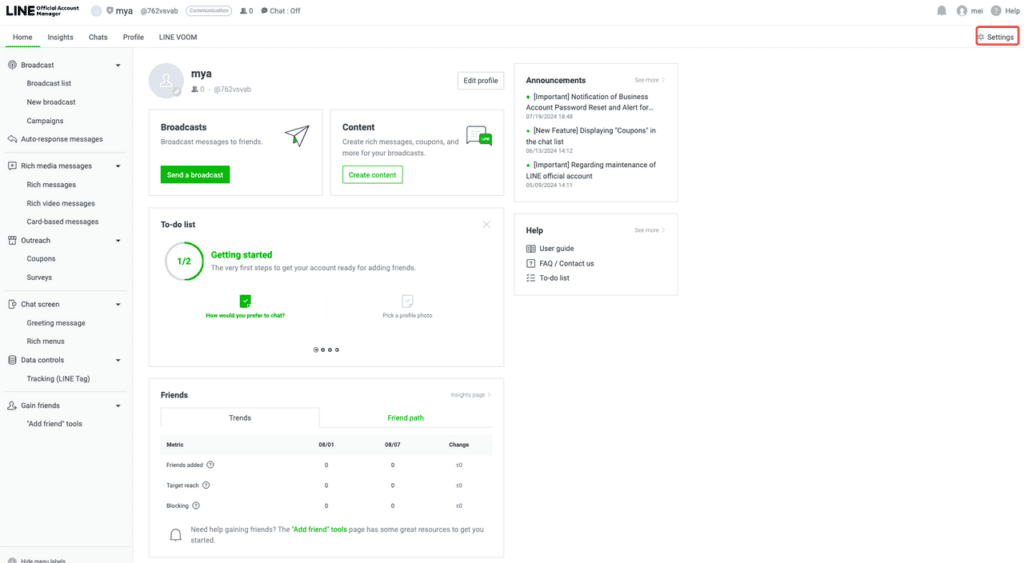
4. Create and select a provider
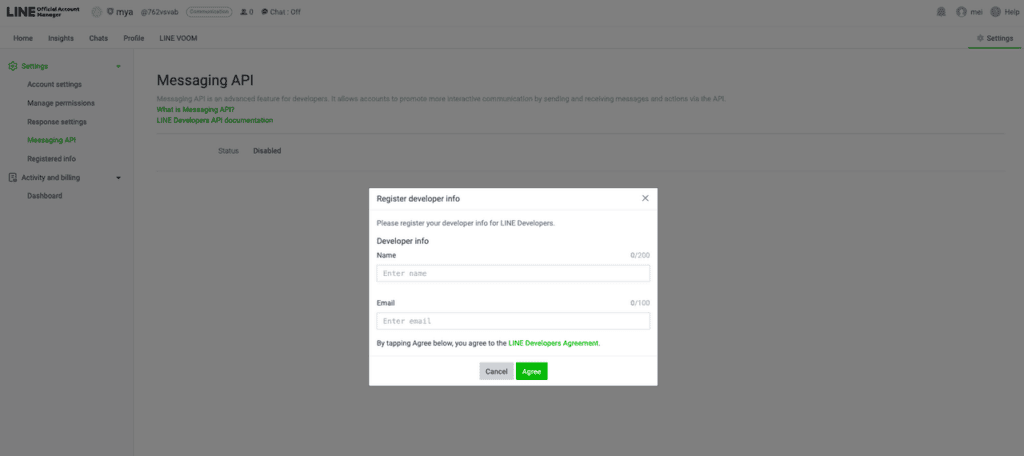
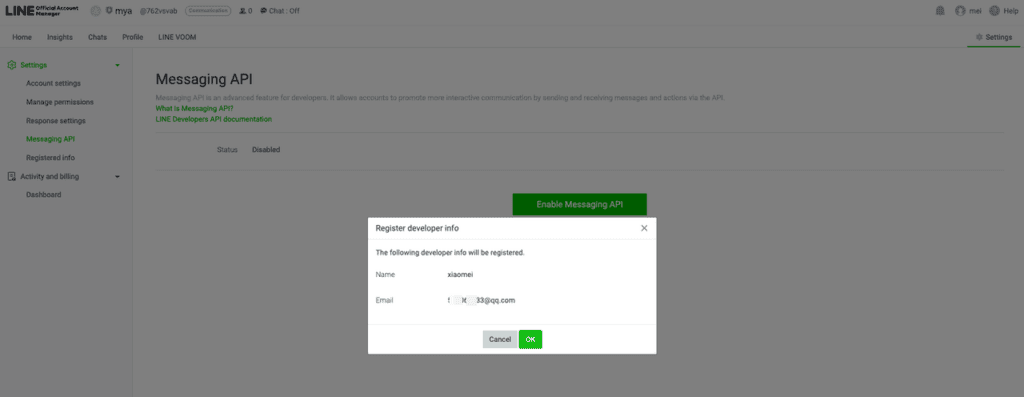
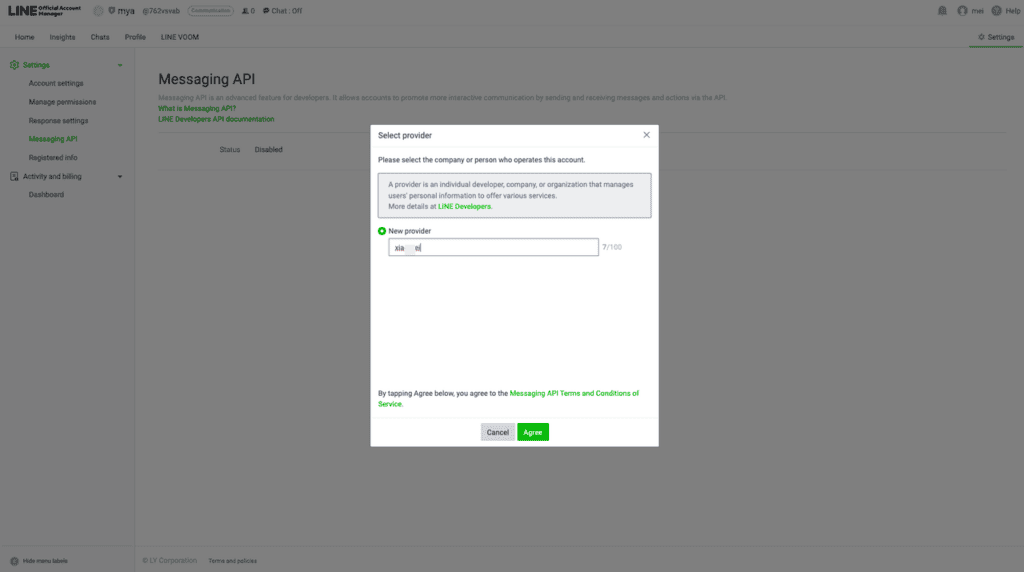
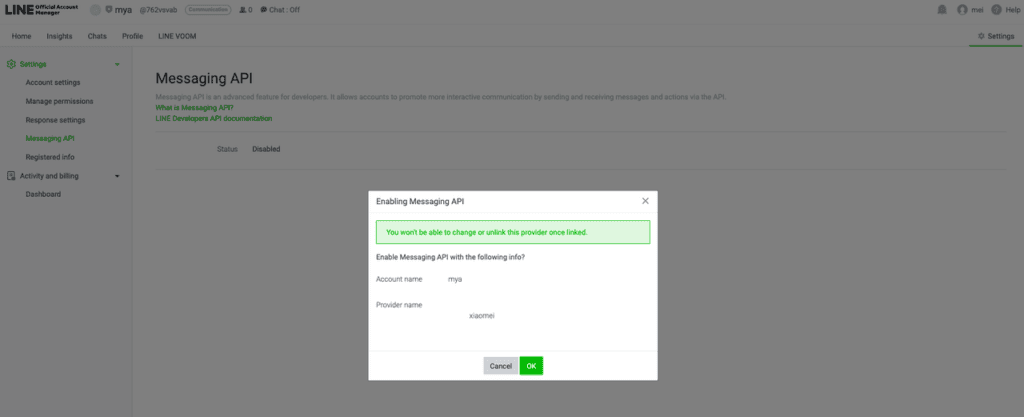
Create a provider using a name of your choice or your LINE Official Account name. The name does not affect the remaining steps. Agree to continue, confirm the details, and select OK.
Select the provider and agree to continue.
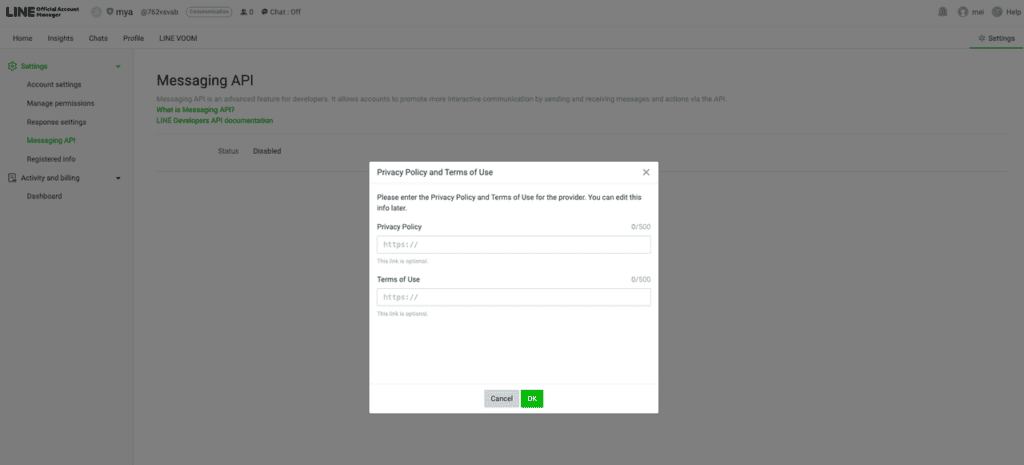
5. Confirm the privacy policy and terms
- The privacy policy and terms of service fields are optional. Leave them blank and select OK if not needed.
- If applicable, enter the URLs for your website’s privacy policy and terms of service.
- Confirm the account and provider names, then select OK
6. Copy the LINE channel credentials
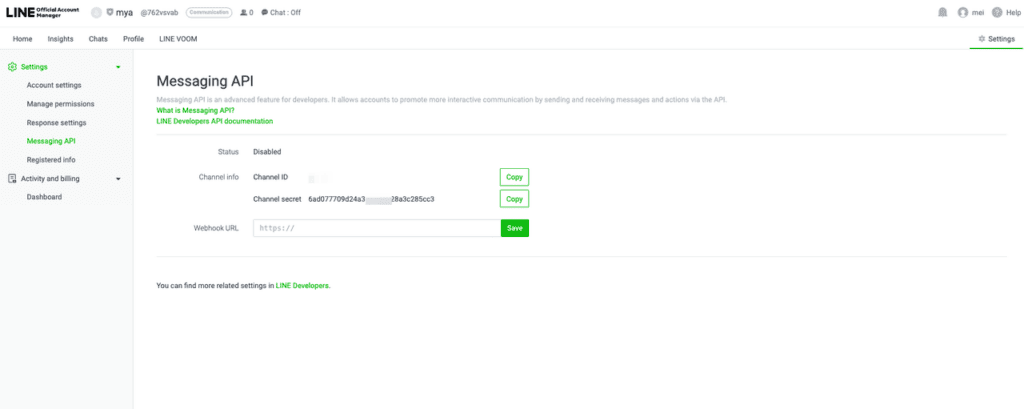
After enabling Messaging API, the page displays Channel ID and Channel Secret. Save or copy these values.
7. Add the account in Mixdesk
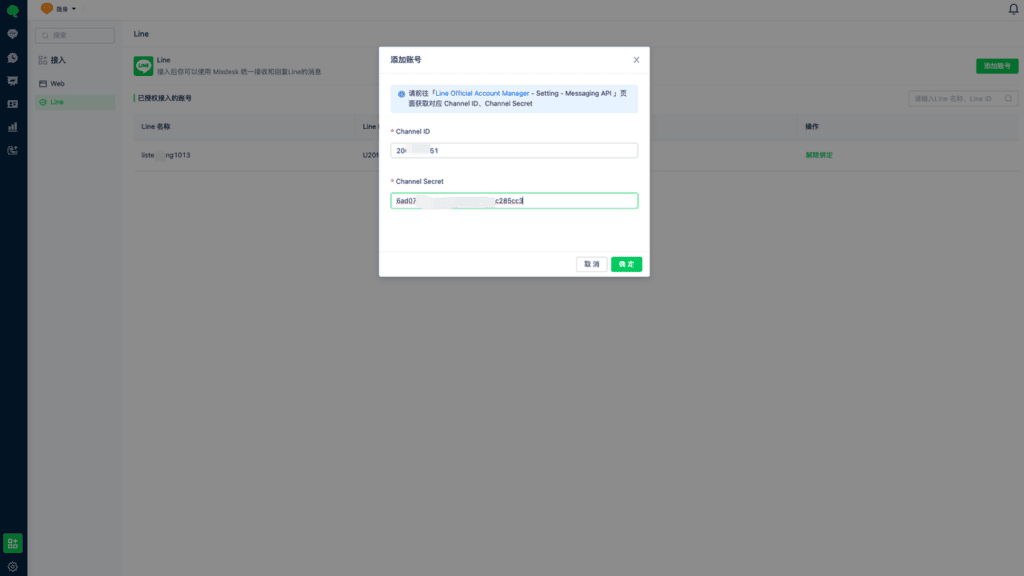
Step 1: In the workspace, select Channels, then select LINE as the channel.
Step 2: In the upper-right corner, select Add Account.
Step 3: Enter the credentials obtained earlier: Channel ID and Channel Secret, then select Confirm.
8. Enable webhooks
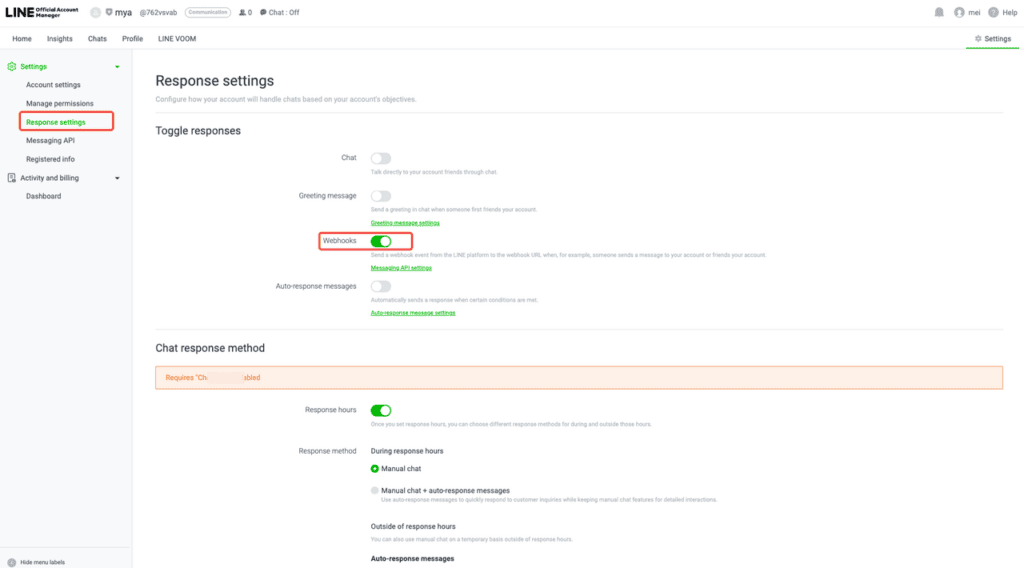
In LINE Official Account Manager, go to Settings > Response settings and enable Webhooks.
9. Enable Use Webhook in LINE Developers
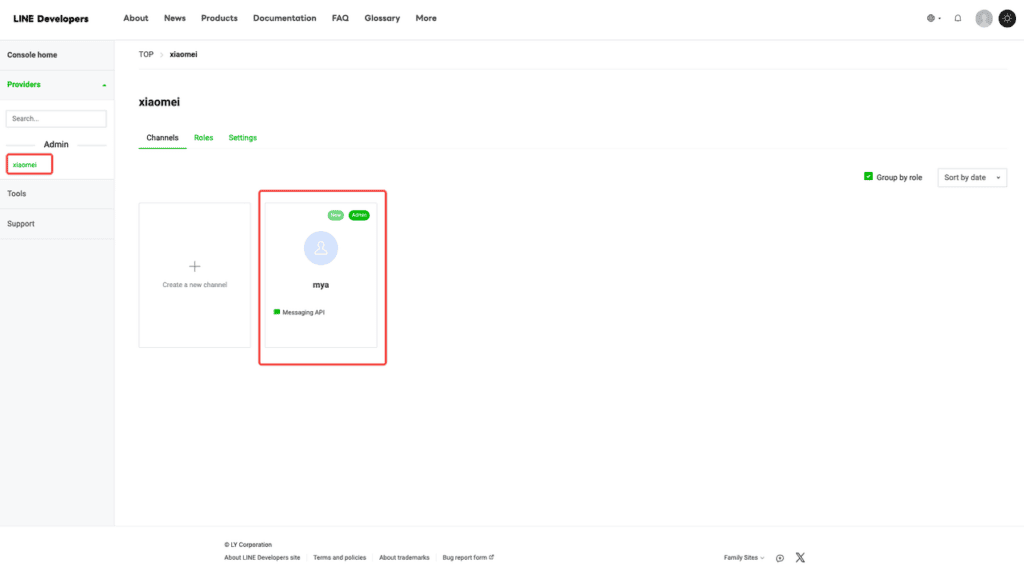
Open https://developers.line.biz/console/ to access the developer console. Select the provider name to open its details.
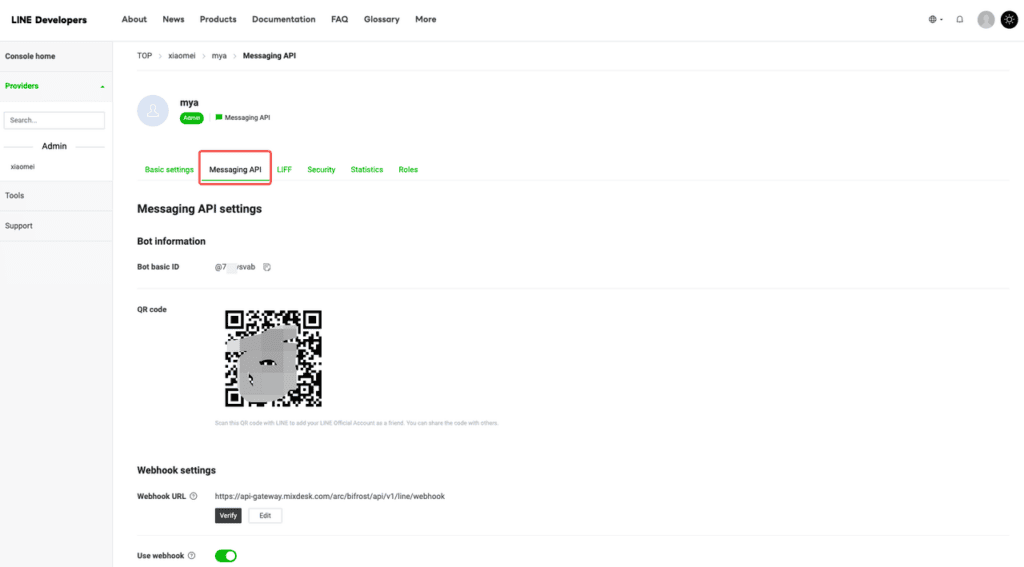
Select Messaging API and scroll down to find Use webhook and enable it.
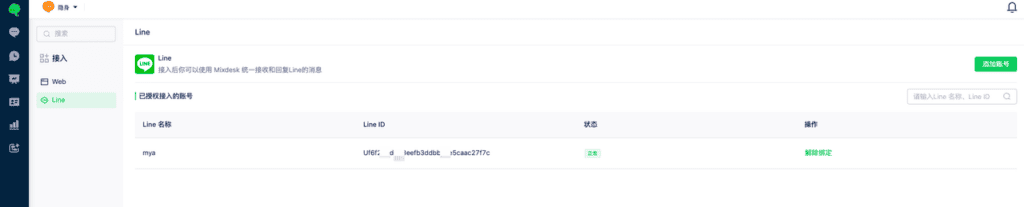
Your LINE Official Account is now connected to Mixdesk.
Contact technical support if you need help.