
Step 1: Create a WhatsApp template
- In the left sidebar, select Marketing > WhatsApp API Templates.
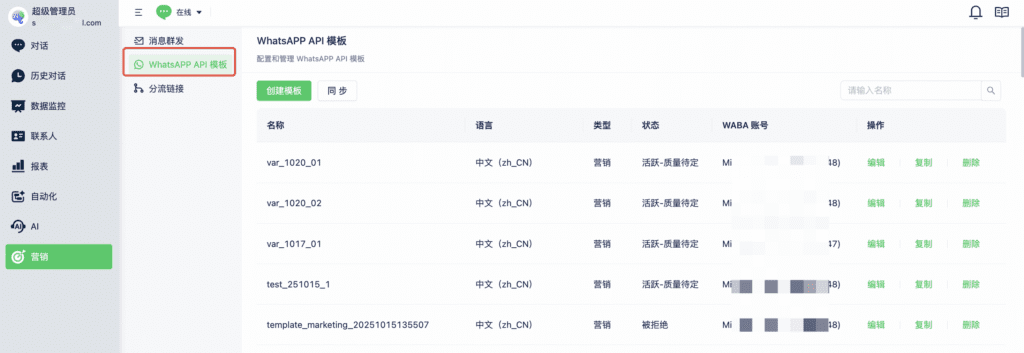
- Select Create Template. Enter the name, account, type, language, and other details, then submit the template. A live preview appears on the right.
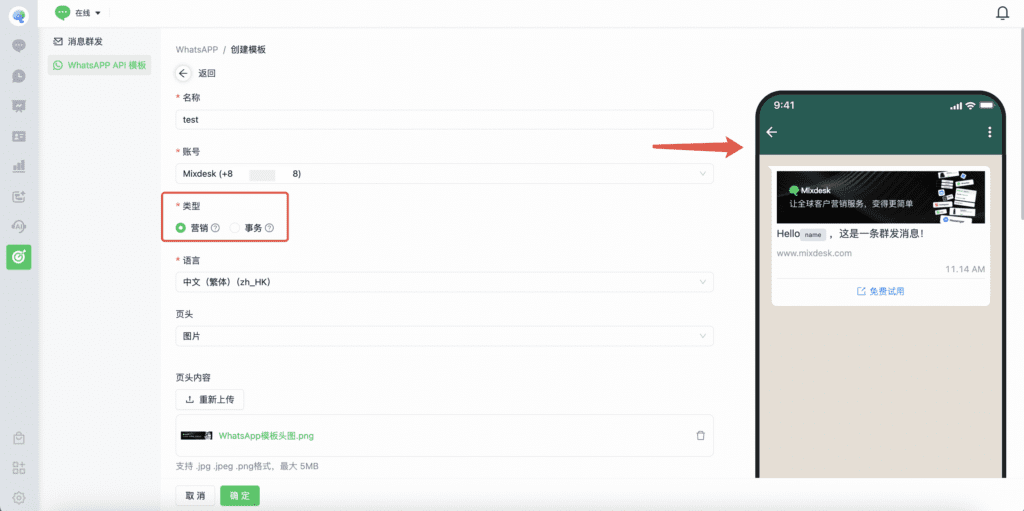
1. Name: Enter a name that makes the template easy to find.
2. Account: Select the business phone number.
3. Type: Choose marketing or utility according to the message content. An incorrect category can cause rejection.
4. Language: Choose the message language.
5. Header: Optionally add text, an image, a video, or a file.
6. Header content: Enter the content for the selected header type.
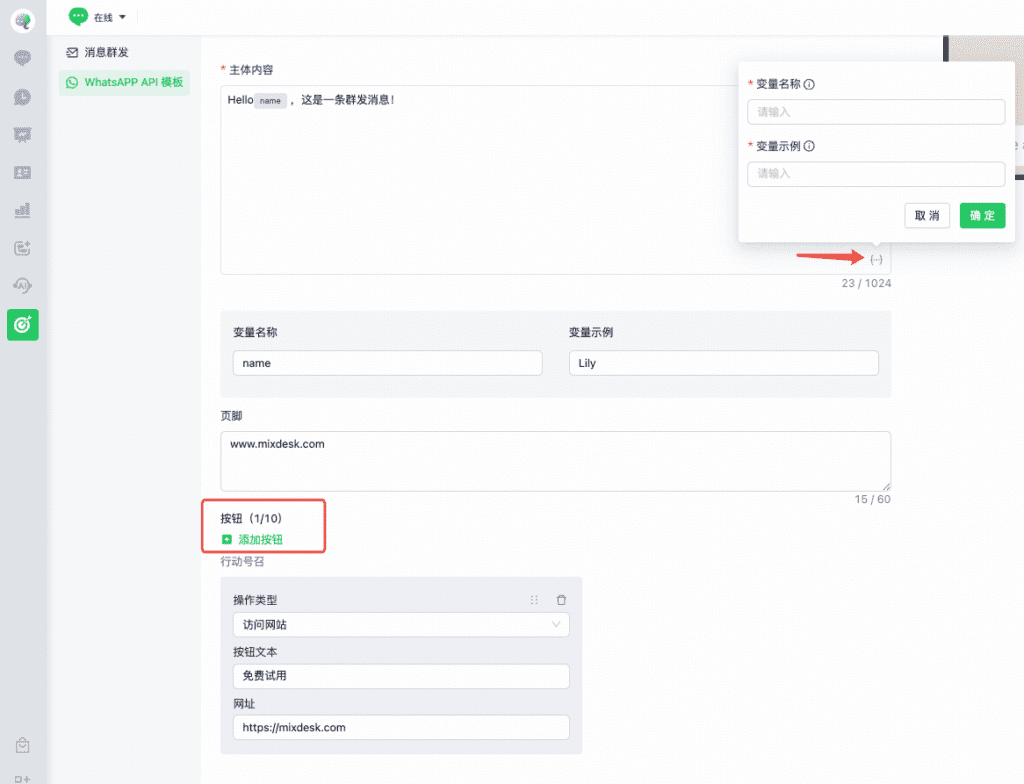
7. Body: Enter the complete message. Variables are supported.
- Variable name: For example, name, id, or URL.
- Variable example: Provide a sample value, such as Lily for a variable named name.
8. Footer: Optionally include brand information, such as your website or brand name.
9. Buttons: Add buttons such as text replies, phone calls, or website links.
Select Confirm to save. The template enters Pending Review. The source guide notes that review usually takes a few minutes.
Step 2: Send a template campaign
After completing template setup, create a bulk-messaging task.
1. Choose WhatsApp API as the channel and Template Message as the message type.
2. Filter or import the contacts to message.
3. Choose System Matching or Specified Account for the sender. Imported contacts require Specified Account.
4. Choose WABA Account to use one template for all sending numbers, or Individual Number to choose a different template for each number.
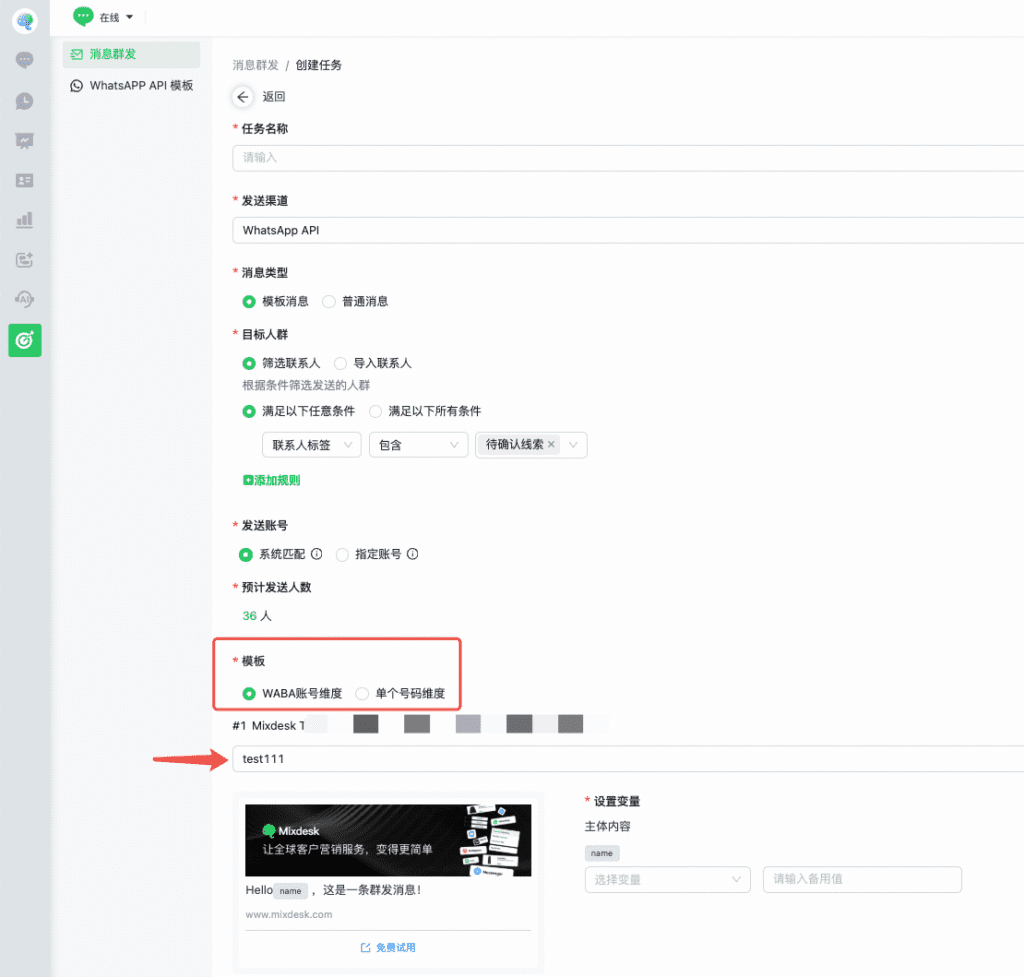
5. Set variable values

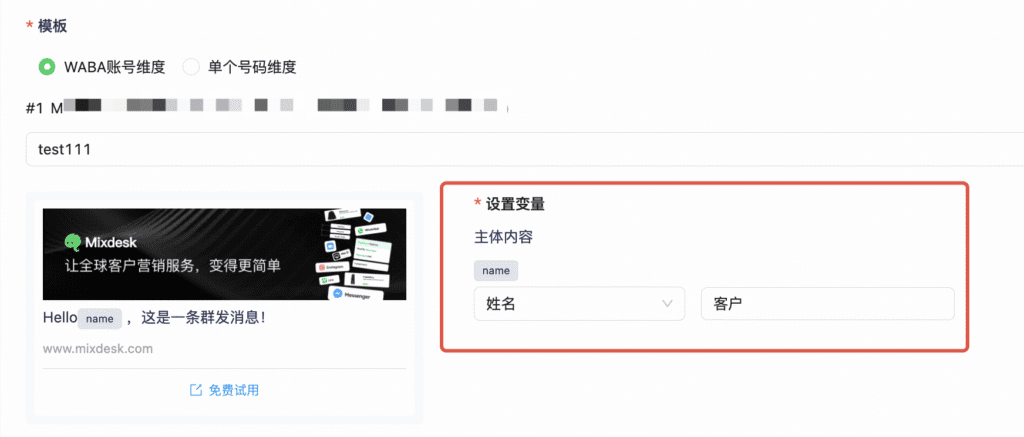
For detailed bulk-messaging instructions, see: