
Overview
Connect WhatsApp Business API directly through Meta Embedded Signup, or through a Meta service provider such as YCloud, NxCloud, or Alibaba Cloud ChatApp.
Follow these steps to connect WhatsApp Business API and receive and reply to business messages in Mixdesk.
Connection steps
Compare WhatsApp account types
For personal WhatsApp and WhatsApp Business App accounts, see: Connect using a cloud device
| Account type | WhatsApp personal account | WhatsApp Business App | WhatsApp Business API |
|---|---|---|---|
| Purpose | Personal messaging, similar to a personal WeChat account | Business tools for small businesses | Official customer-support capabilities for medium and large businesses |
| Registration | Register with a phone number | Register with a phone number | Connect through Meta Embedded Signup or a Meta service provider |
| Connection to Mixdesk | Cloud device | Authorize through Meta Embedded Signup or the service provider | |
| Capabilities available in Mixdesk |
|
| |
Option 1: Connect through Meta Embedded Signup
Connect directly to WhatsApp Business Platform through Meta Embedded Signup. After authorization, receive, assign, and reply to messages in Mixdesk without an additional service provider.
This does not transfer account ownership to Mixdesk. Your business retains ownership of the WABA, phone numbers, and Meta assets. You authorize Mixdesk to connect and handle business messages for the selected number.
Before you start
Confirm the following:
- The Facebook account you use to sign in to Meta is an administrator of the target Business Portfolio .
- You can access the target WABA or create a new one during setup.
- A new phone number can receive a verification code by SMS or voice call.
- If two-step verification is enabled, you know the number’s six-digit PIN.
- The number is not in use with another API provider. If it is, complete migration or release it with the current provider first.
1. Open the official WhatsApp connection page
- Sign in to Mixdesk.
- In the left navigation, select Channels.
- Select WhatsApp API.
- Switch to the Official WhatsApp tab.
- Select Connect WhatsApp Business.
Complete authorization in the Meta pop-up. Keep it open until Meta confirms completion or returns you to Mixdesk.
2. Authorize business assets in Meta
Follow the screens in the official Meta Embedded Signup pop-up.
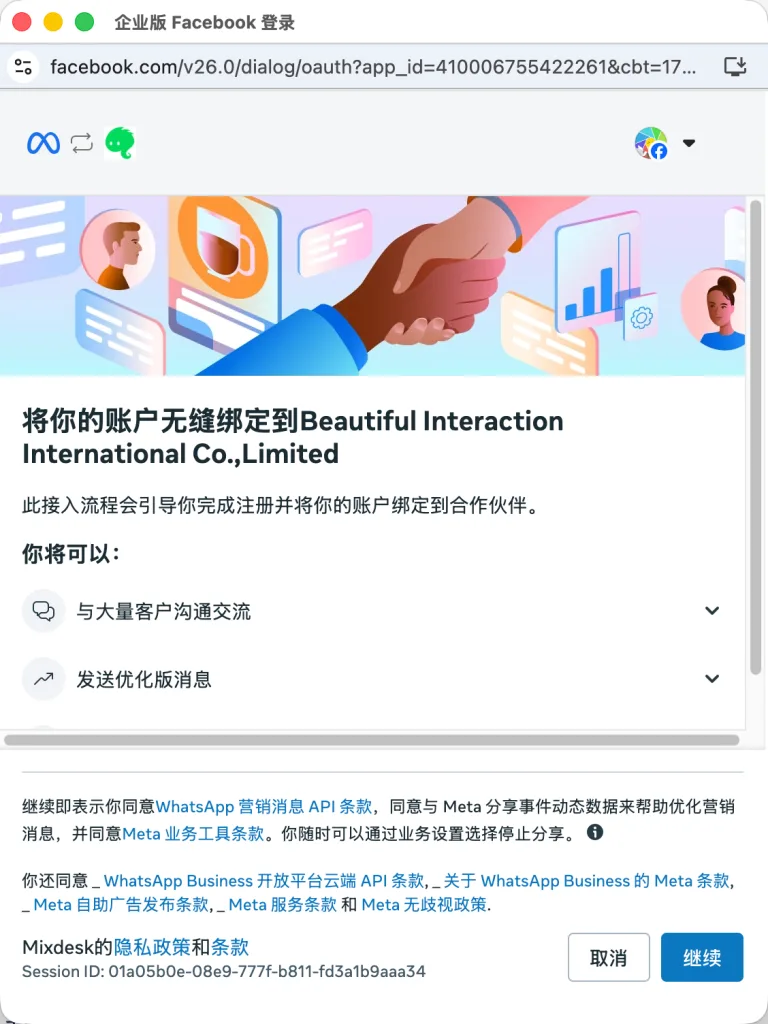
1. Confirm the connection: Review the partner connection, available capabilities, and terms, then select Continue.
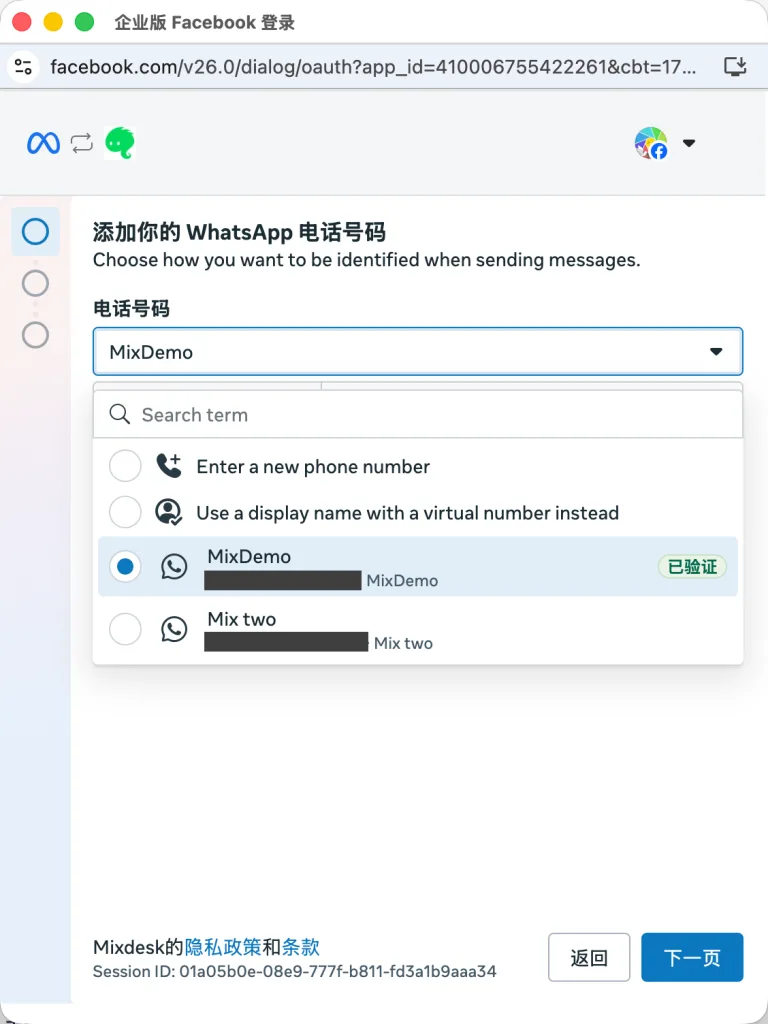
2. Add a phone number: Choose an already verified business number from the dropdown, or select Enter a new phone number to add a new one. Verify new numbers by SMS or voice. Then select Next.
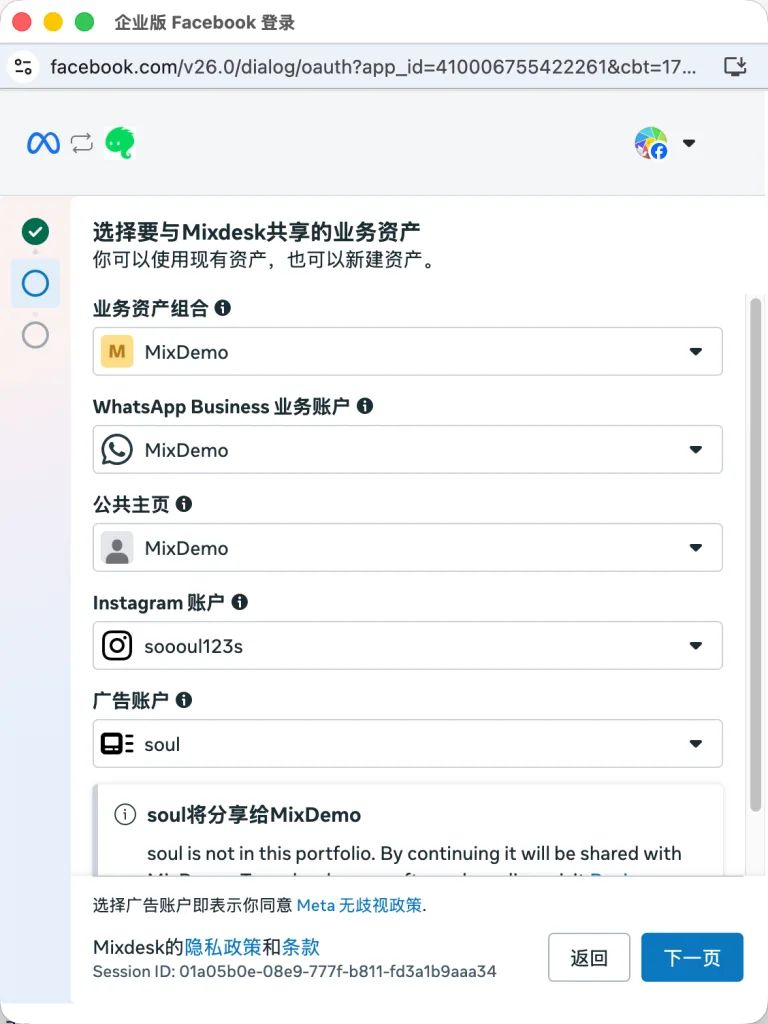
3. Select business assets: Select Business Portfolio and WhatsApp Business Account. Use existing assets or create new ones. Meta may also request a Page, Instagram account, and ad account; choose your business’s relevant assets. The WABA and phone number are the core assets for WhatsApp. Then select Next.
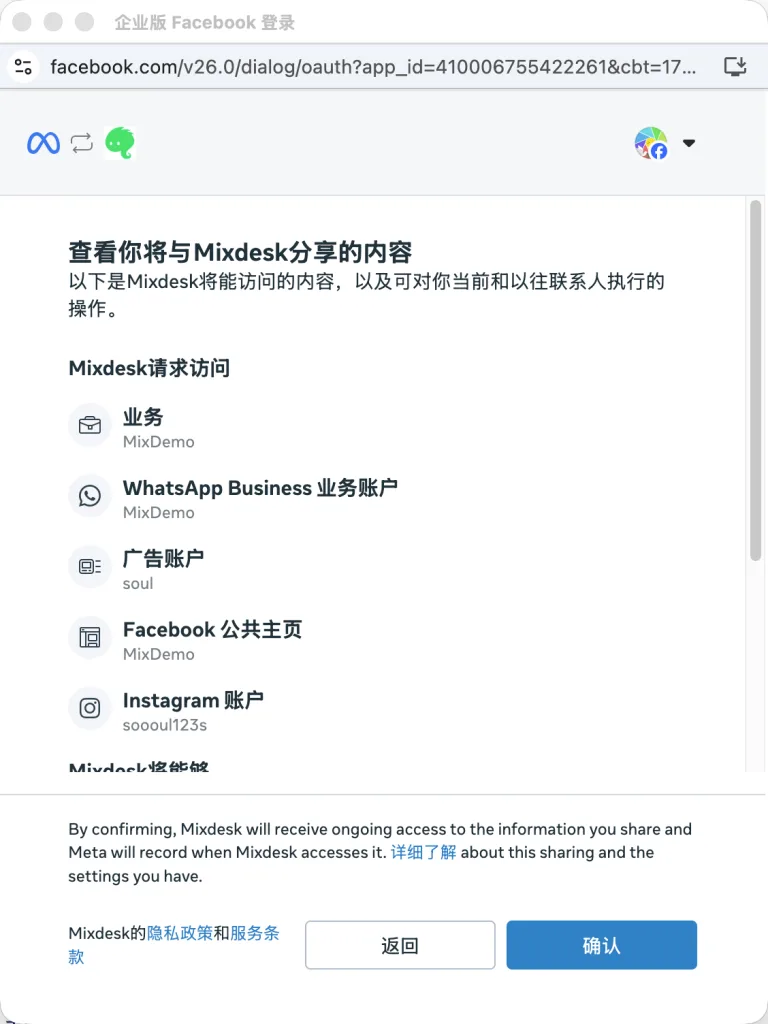
4. Confirm permissions: Review the assets and actions Mixdesk can access, then select Confirm.
5. Wait for the connection: Keep the pop-up open while Meta connects the account.
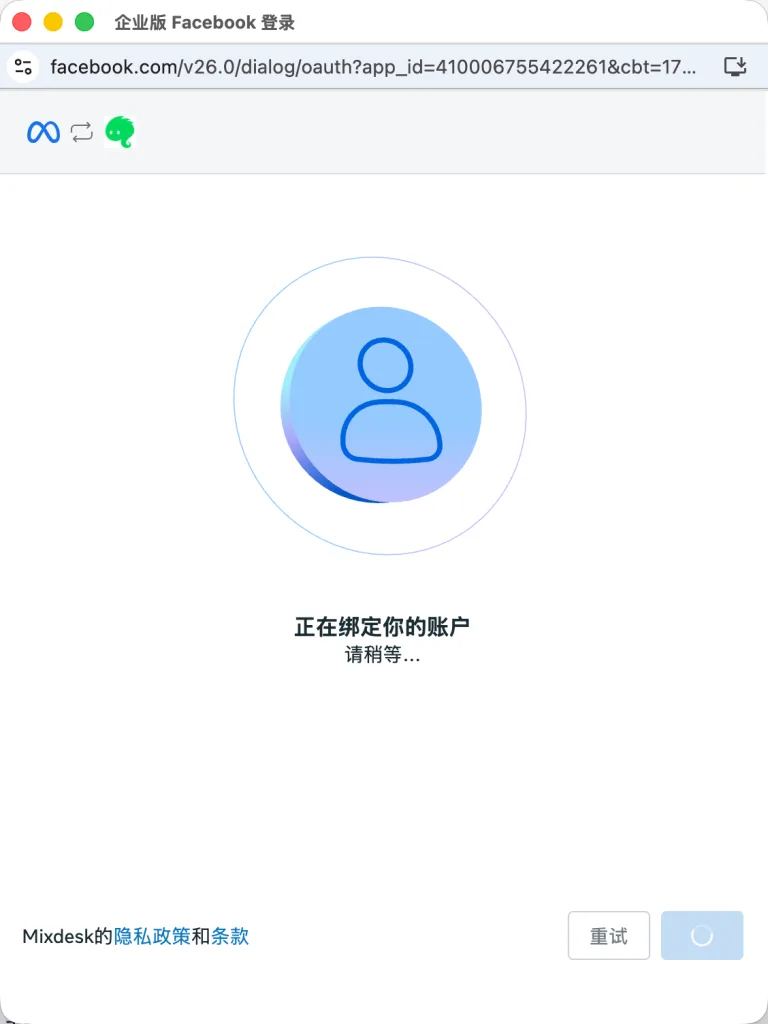
6. Connection complete: “Your account is connected” confirms authorization. Meta reviews compliance with WhatsApp Business messaging policies and may contact you within 24 hours if there is an issue.
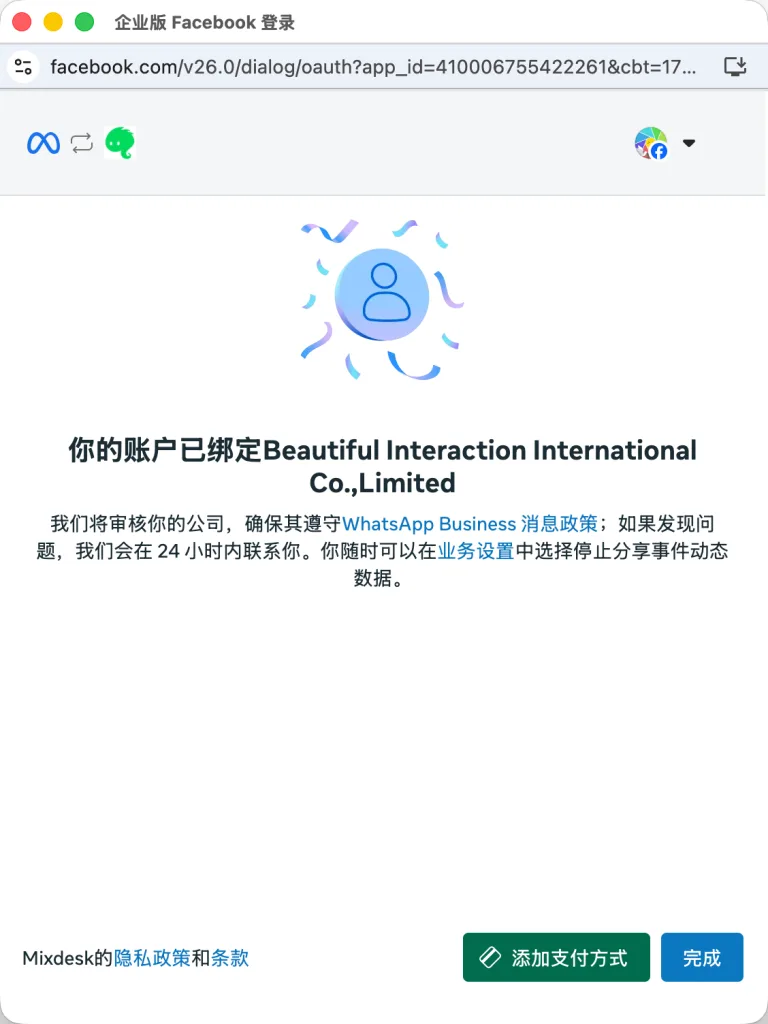
3. Add a payment method
WhatsApp Business API messages are billed under Meta’s rules. A number without a payment method cannot send messages normally. Select Add Payment Method on the completion screen, or open Meta billing later:
https://business.facebook.com/latest/billing_hub/accounts/details/
4. Confirm that the number is connected
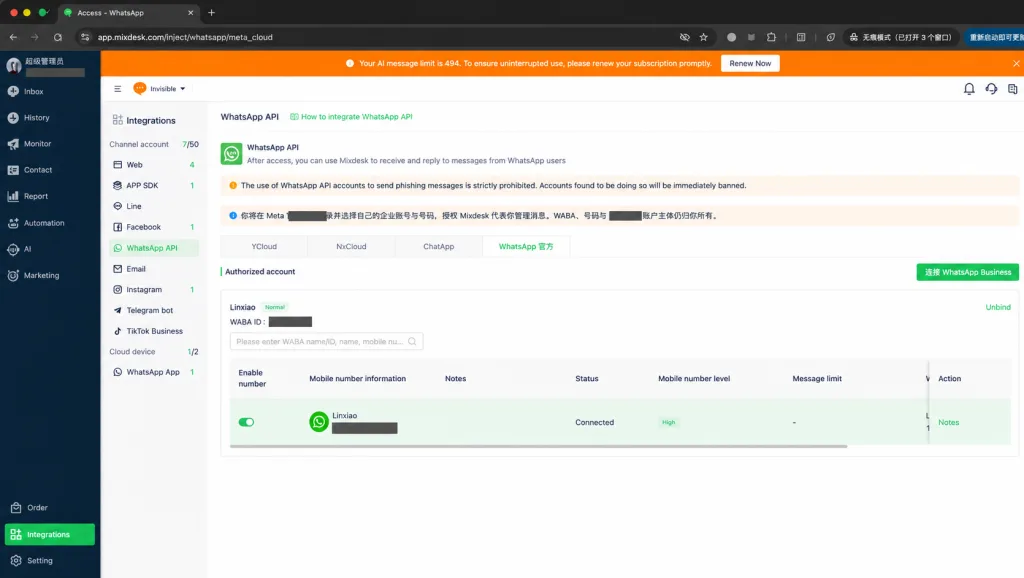
After authorization and payment setup, return to Mixdesk’s WhatsApp API page. In the Authorized account section, confirm:
- The authorized WhatsApp number is listed.
- Status is shown as Connected.
- The number is enabled.
A status of Connected confirms that Meta authorization and the Mixdesk connection are complete. Incoming messages for this number will appear in Mixdesk.
5. Test sending and receiving
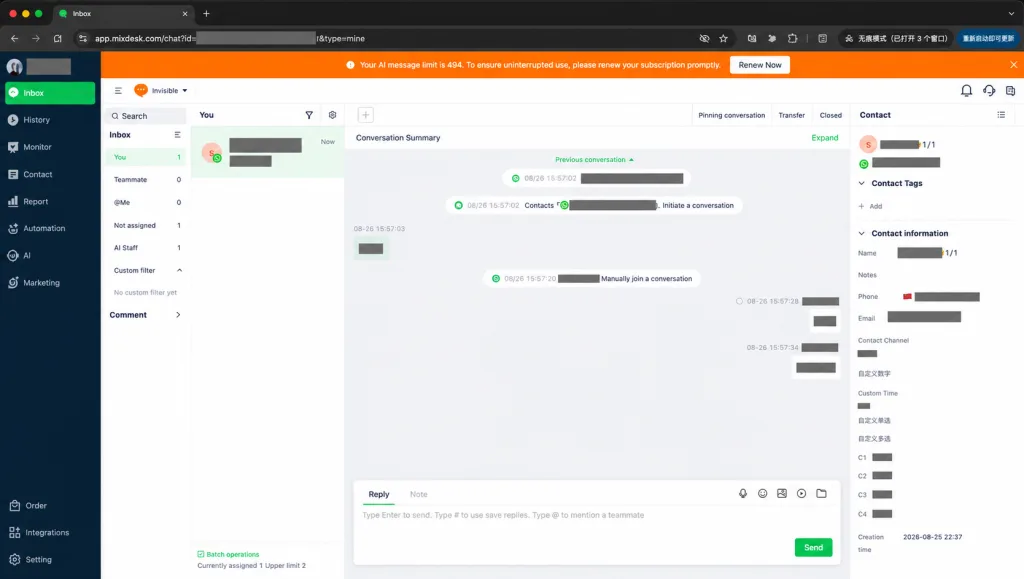
Test the connection as follows:
- From another phone or WhatsApp Web, send a message such as “hello” to the connected business number.
- Open the conversation list in Mixdesk.
- Find and open the new conversation.
- Enter a reply and select Send.
- Confirm that the reply arrives in the WhatsApp client that sent the test message.
Mixdesk supports WhatsApp message types such as text, emojis, and images. Free-form replies are available only within the 24-hour customer-service window after the customer messages you. Outside this window, use an approved WhatsApp message template.
Troubleshooting
Meta reports missing permissions or unauthorized assets
Repeat setup using an administrator of the target Business Portfolio. Choose the correct WABA and number and complete every authorization step. “business assets were not granted the requested permissions” means the selected assets were not authorized for Mixdesk.
Two-step verification PIN mismatch
Enter the number’s existing six-digit PIN. If you have forgotten it, reset it in WhatsApp or Meta’s number-management page before reconnecting.
The number is connected but cannot send messages
“display name approval before message can be sent” means Meta is still reviewing the display name. Check its status in the phone-number profile in WhatsApp Manager.
Disconnect a number
In Mixdesk’s WhatsApp API - Authorized account section, select the number and choose Disconnect. This removes only the Mixdesk connection; it does not delete your WABA, phone number, or Meta business assets.
Security and permissions
Option 2: Connect through YCloud
1. Sign in to YCloud
1. Register with YCloud and follow its guide to create a WABA.
YCloud website: https://www.ycloud.com/
2. If you already have an account, sign in: https://www.ycloud.com/console/#/entry/login
2. Create a WhatsApp Business API account
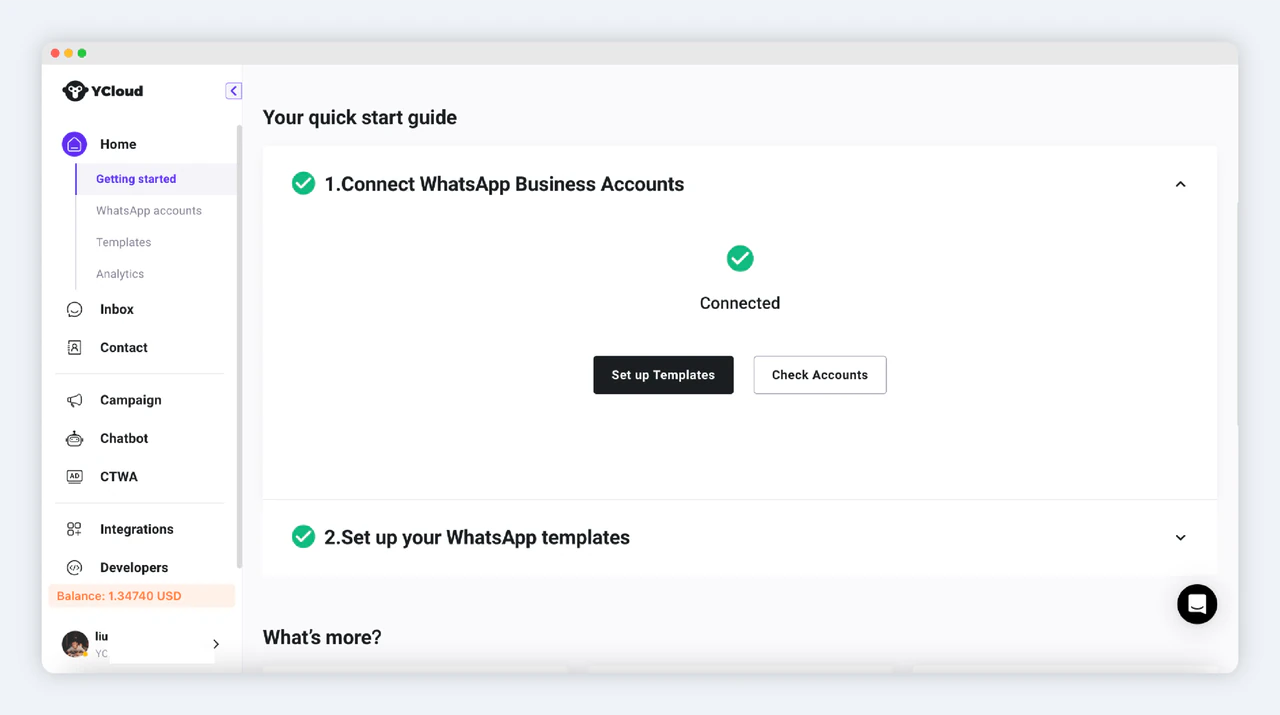
After registration and setup in YCloud, obtain an API key.
3. Obtain the API key
1. In YCloud’s left sidebar, select developer and choose API key.
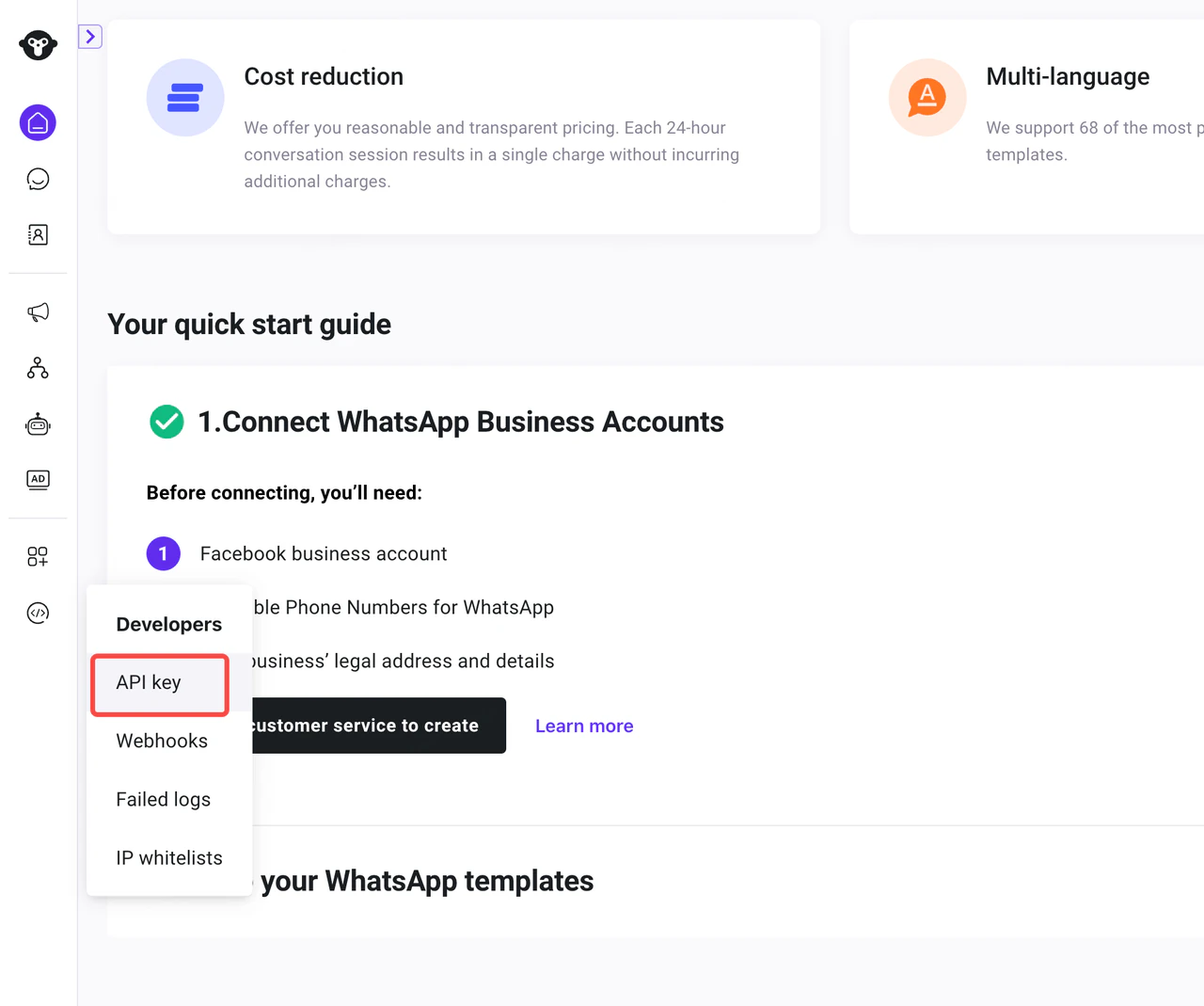
Screenshot note: This older screenshot shows where to find the API key. Its pricing text is outdated; refer to current WhatsApp Business Platform pricing and your provider’s rates.
2. Copy the generated API key.
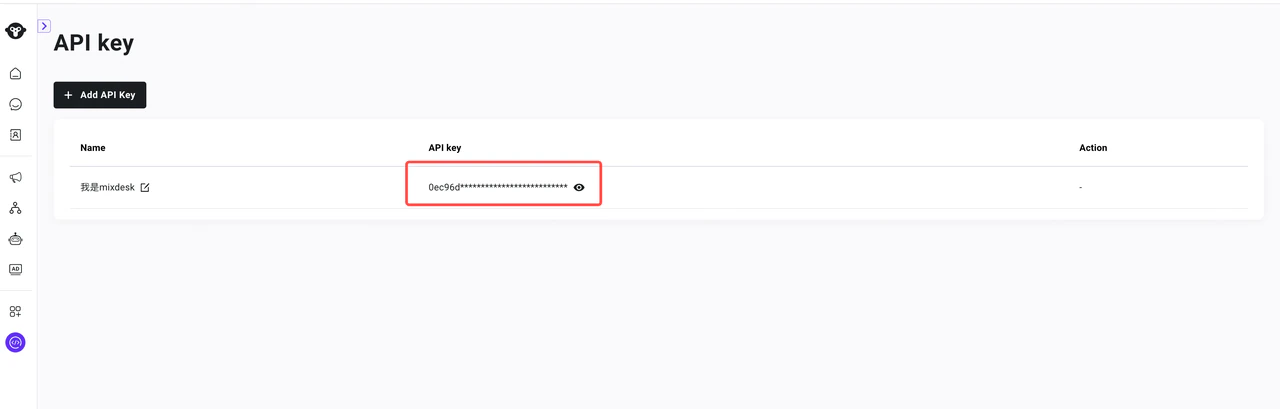
4. Enter the API key in Mixdesk
1. Register or sign in to Mixdesk.
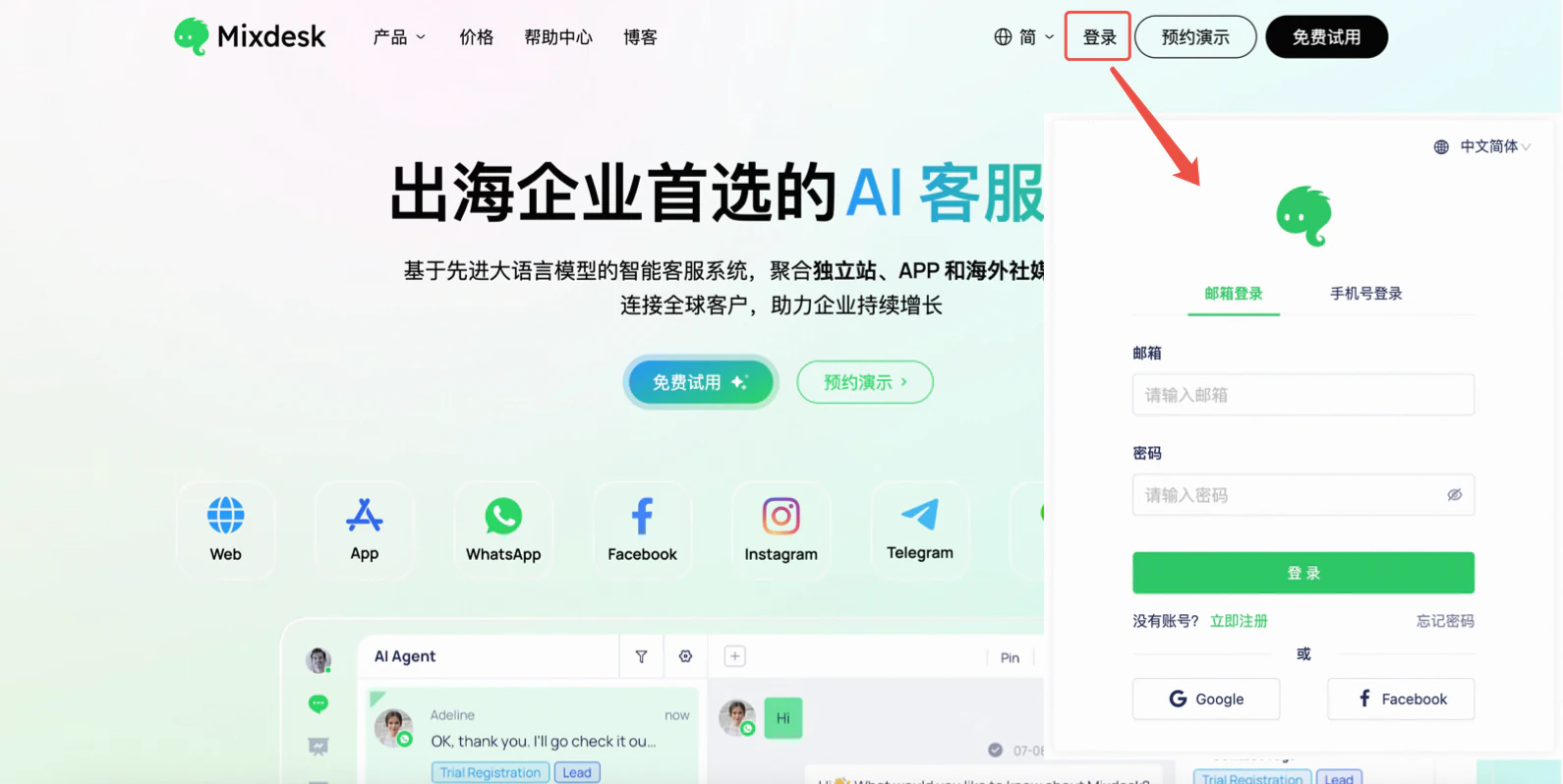
2. In the left sidebar, select Channels, then WhatsApp-YCloud and use Add Platform Account to connect the channel.
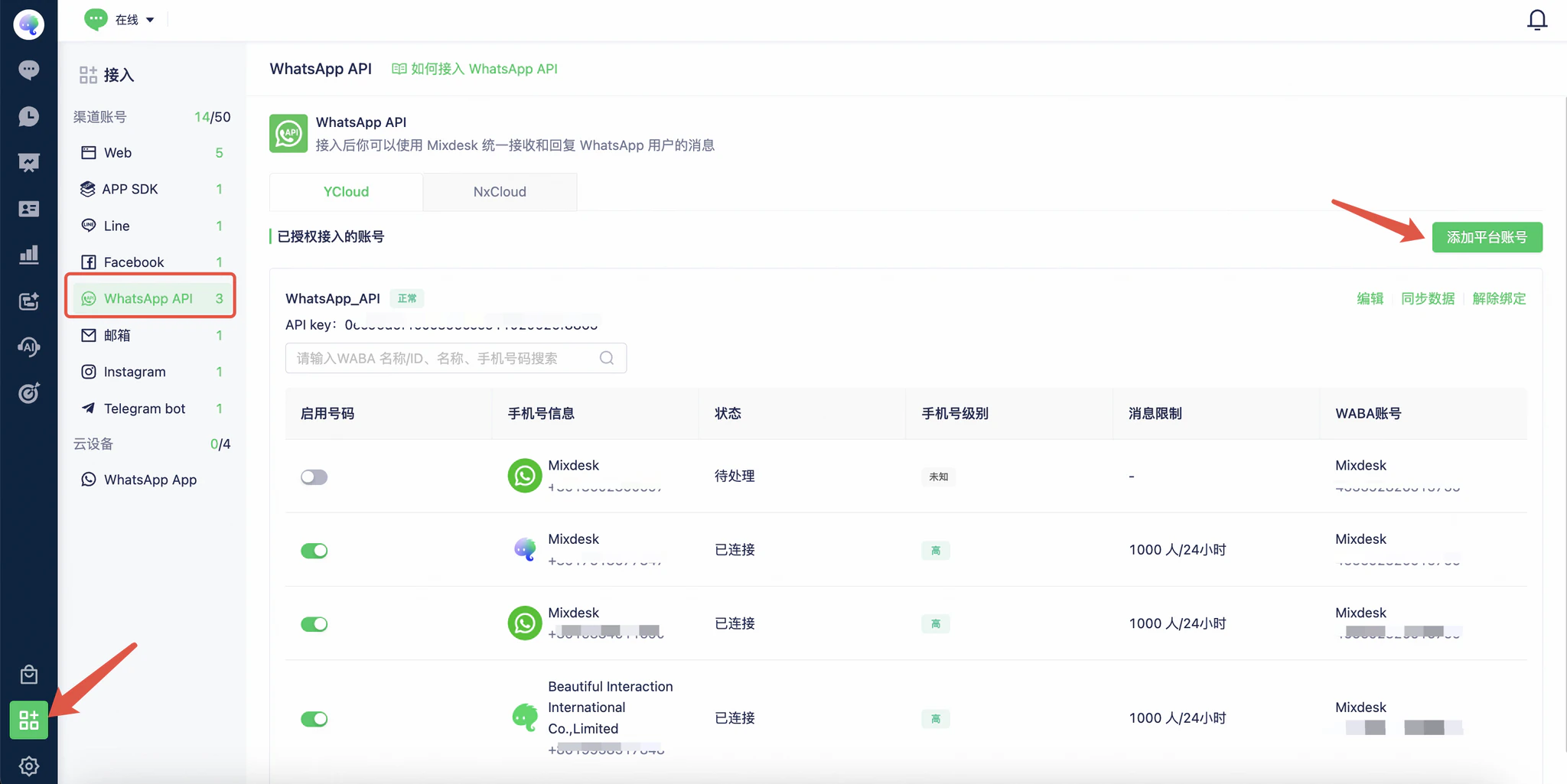
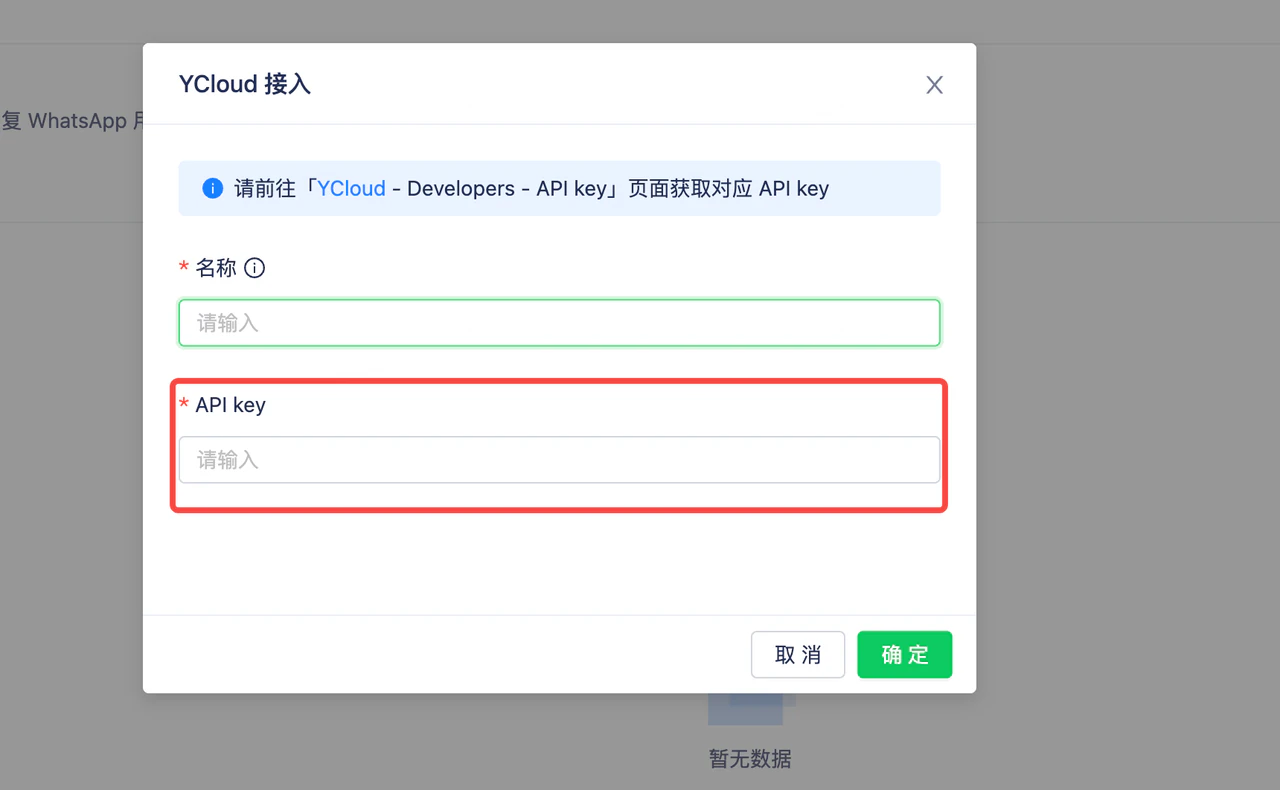
3. Enter the name and API key, then select Confirm.
The name is for internal identification and can be customized.
In the YCloud dialog, enter the name and API key, then select Confirm.
Option 3: Connect through Alibaba Cloud ChatApp
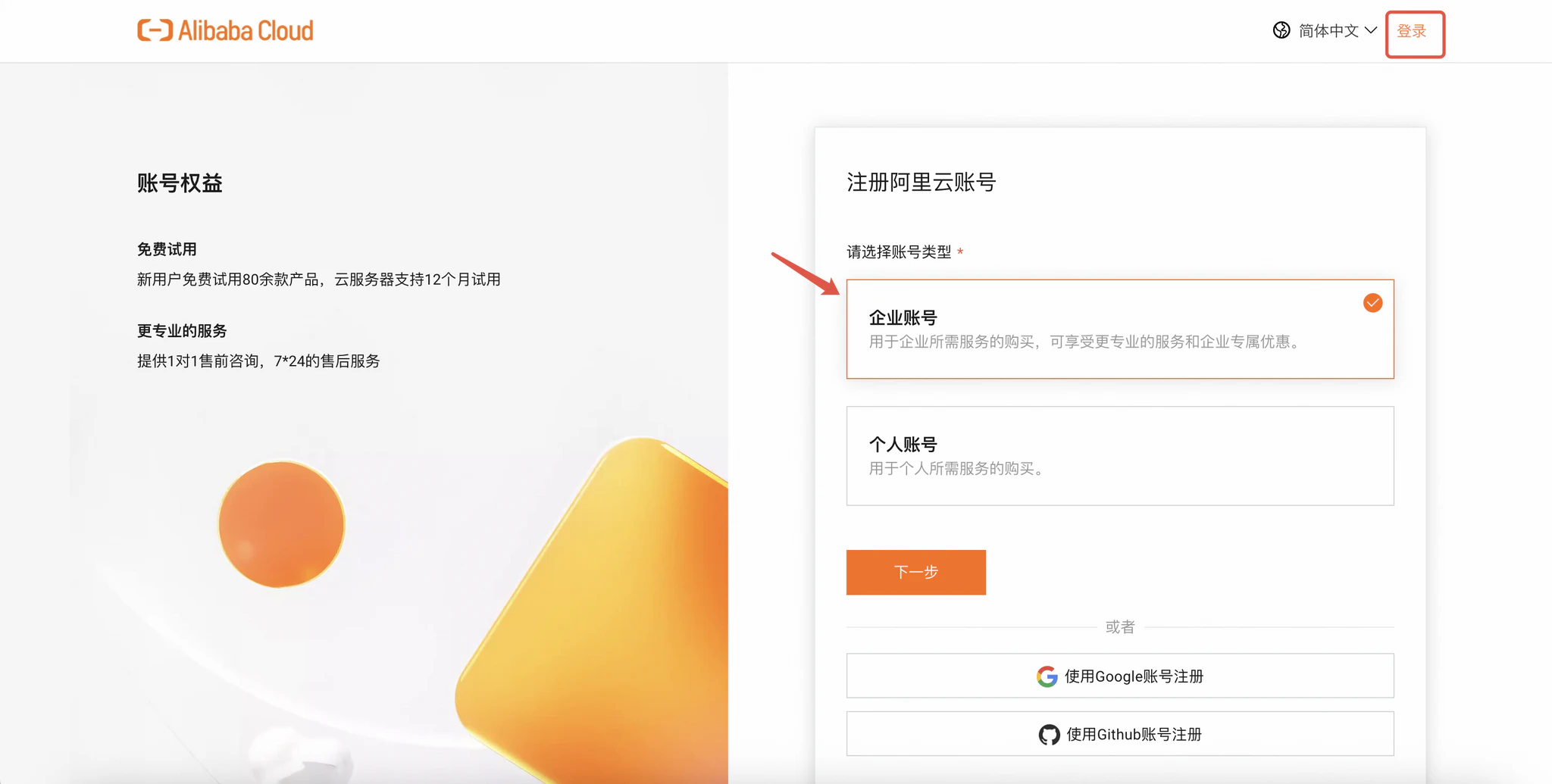
1. Sign in to Alibaba Cloud
Register or sign in using a business account.
https://chatapp.console.aliyun.com/dychatapp/whatsapp/list
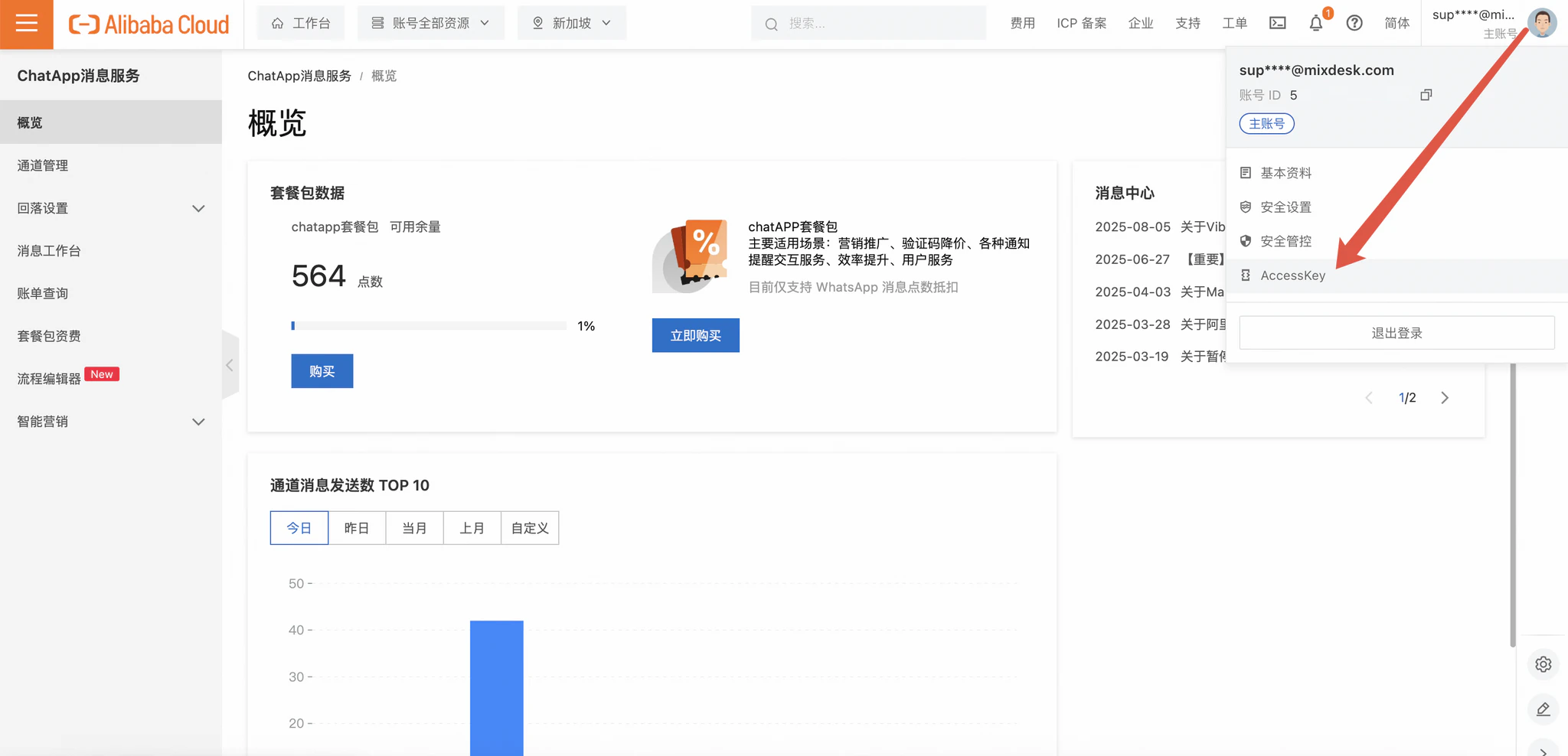
2. Open AccessKey management
Select your avatar in the upper-right corner and find AccessKey Management.
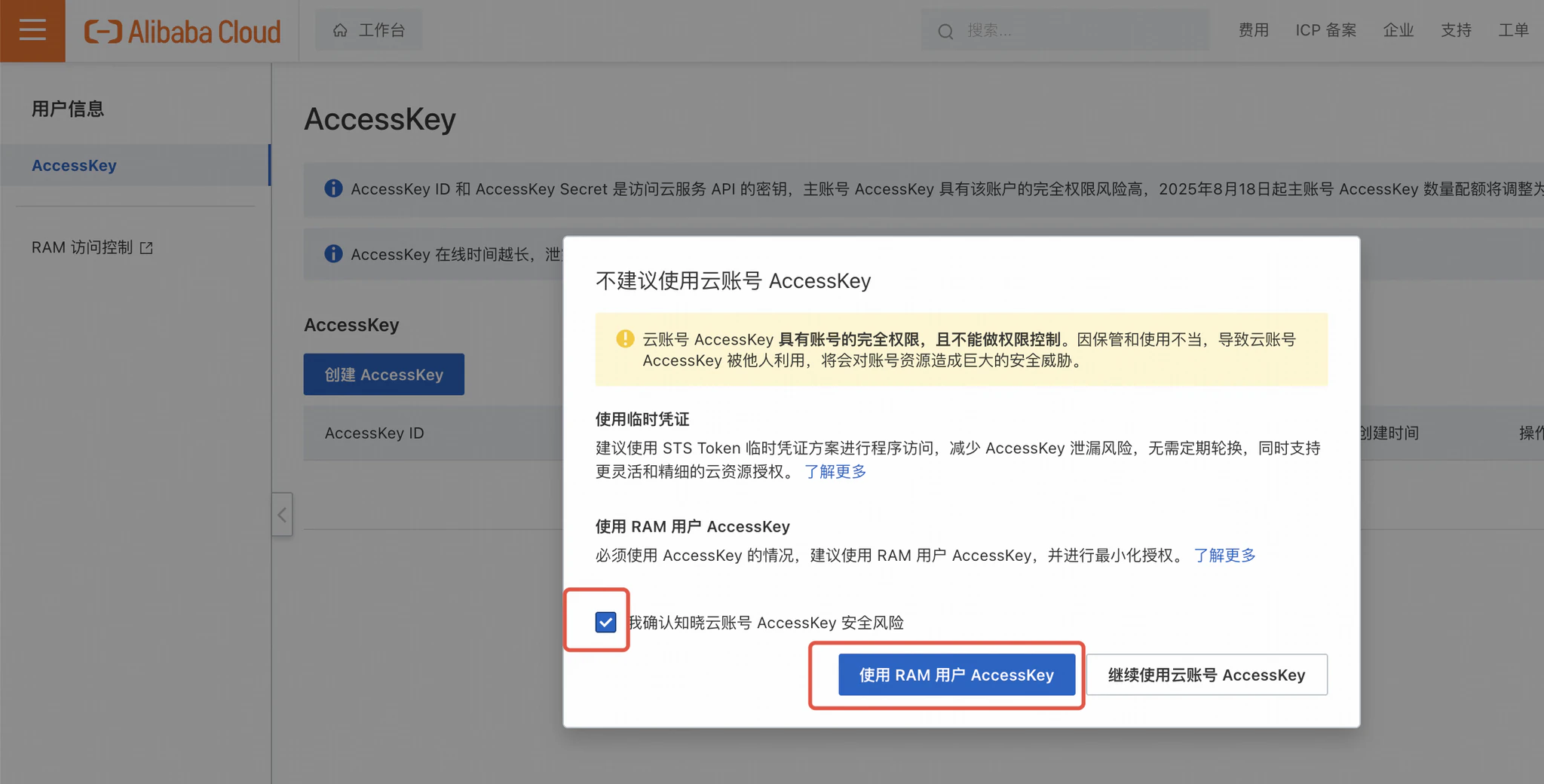
3. Use a RAM user AccessKey
Select the confirmation checkbox, then choose Use RAM User AccessKey.
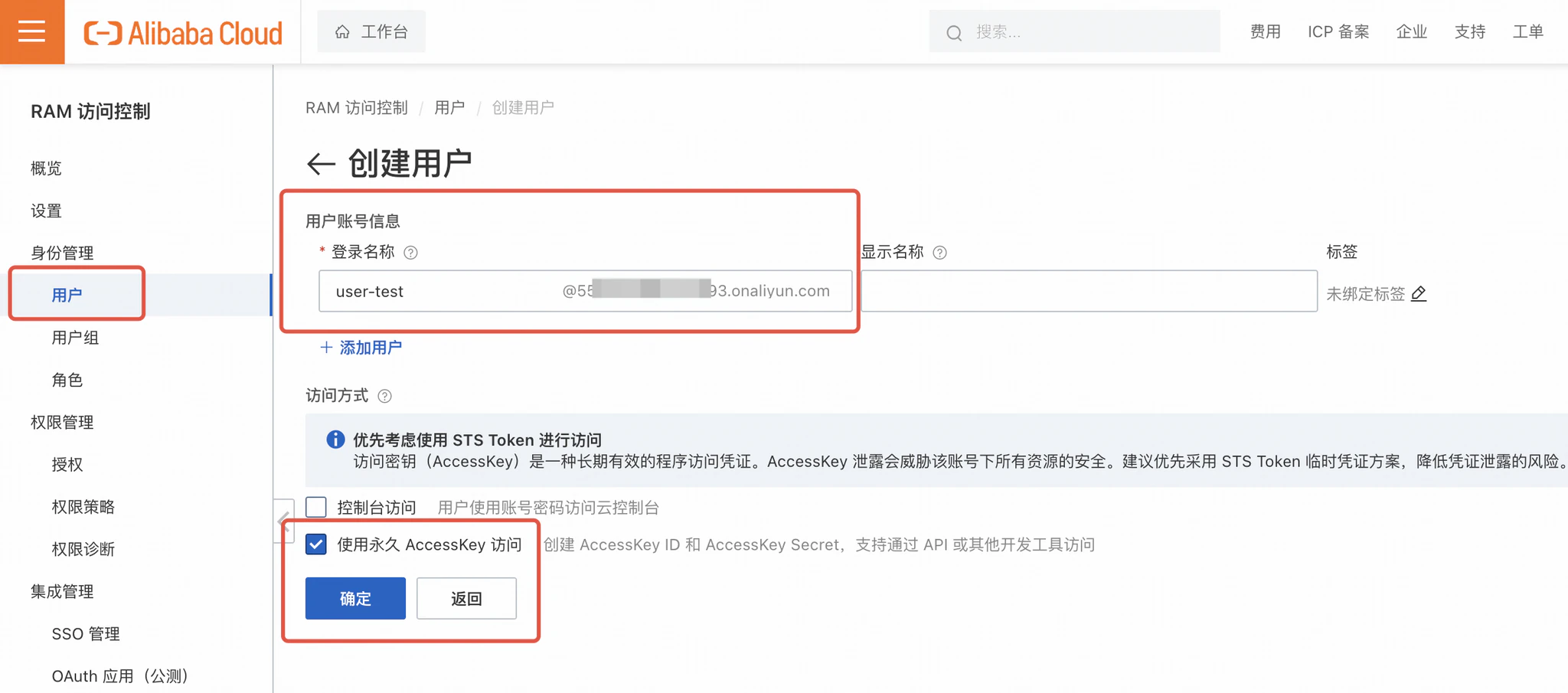
4. Create a user
Select Create User, enter the account details, enable permanent AccessKey access, and confirm.
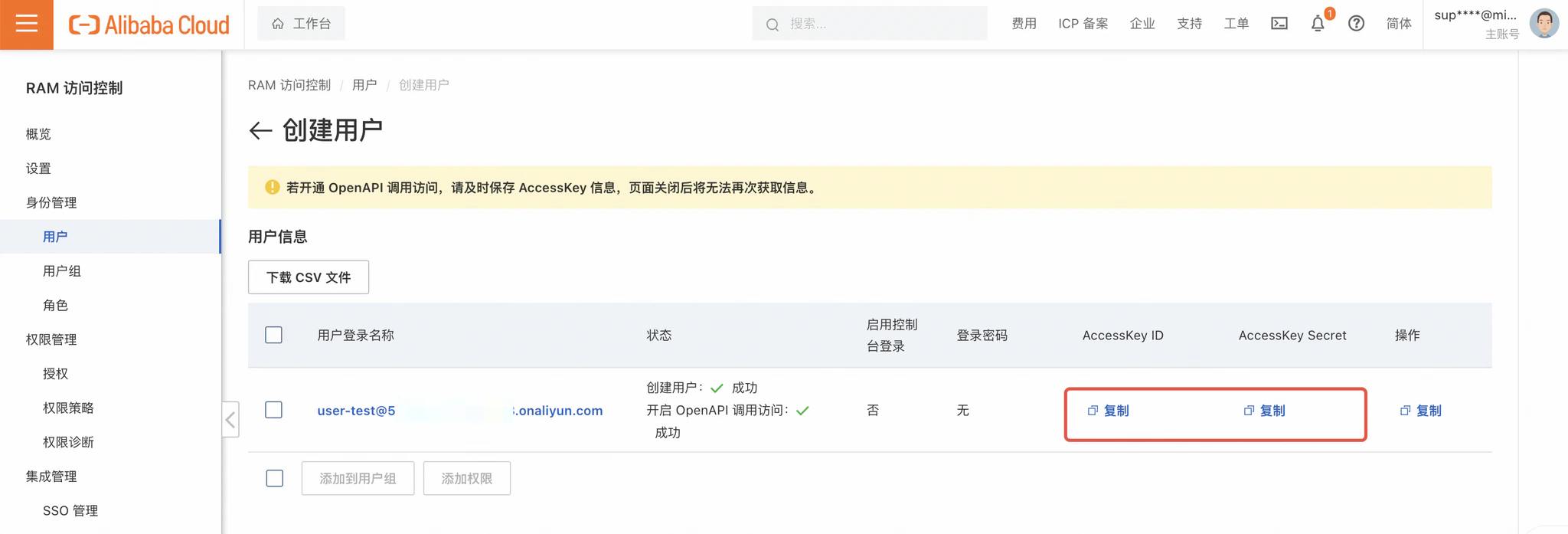
5. Copy the AccessKey ID and AccessKey Secret
Copy and securely retain both values. They are displayed only once.
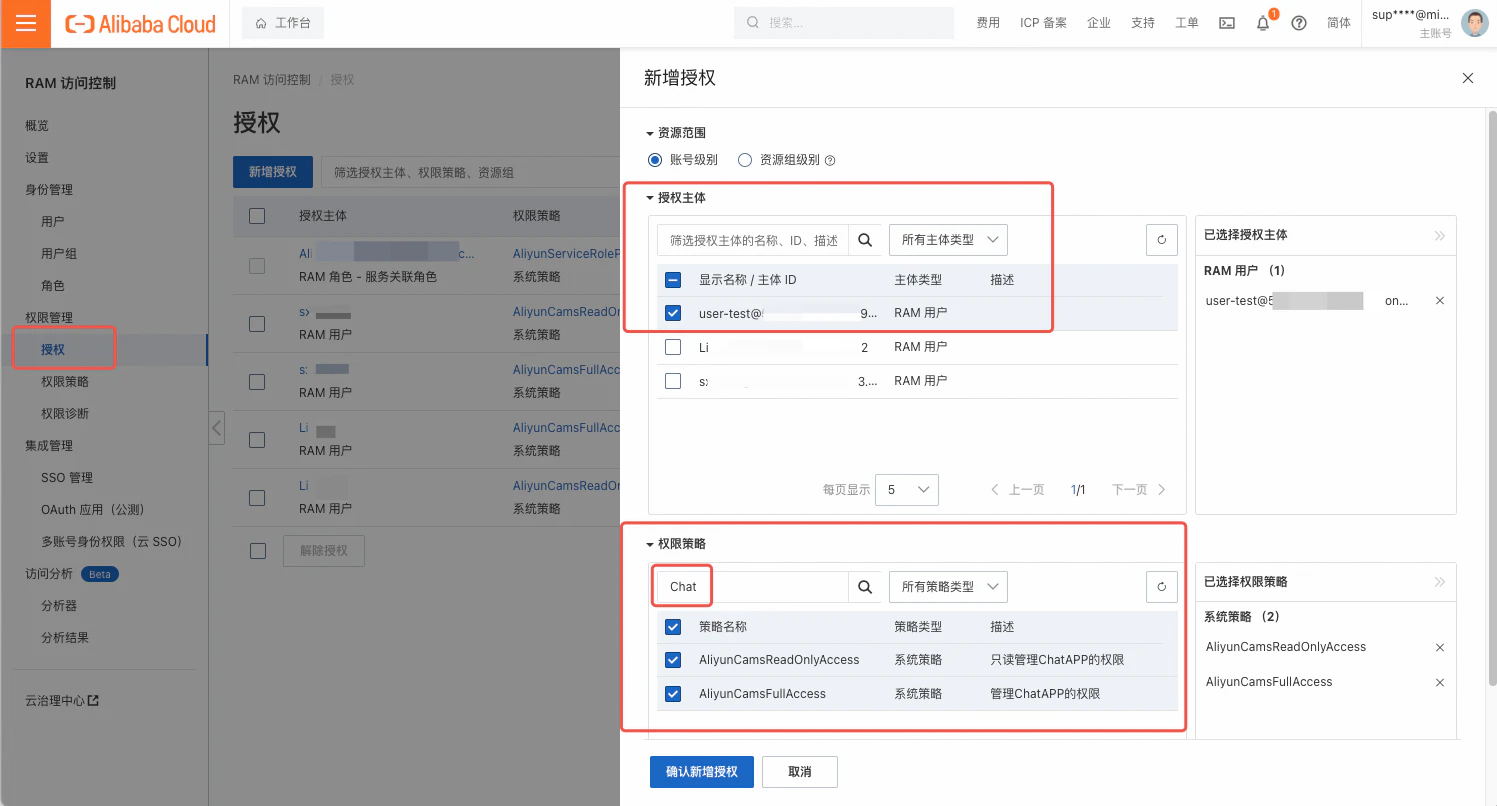
6. Grant permissions
Select Authorize > Add Permissions. Find the new account, search for “chat” permissions, select the read-only management and ChatApp management permissions, and confirm.
7. Configure callback URLs
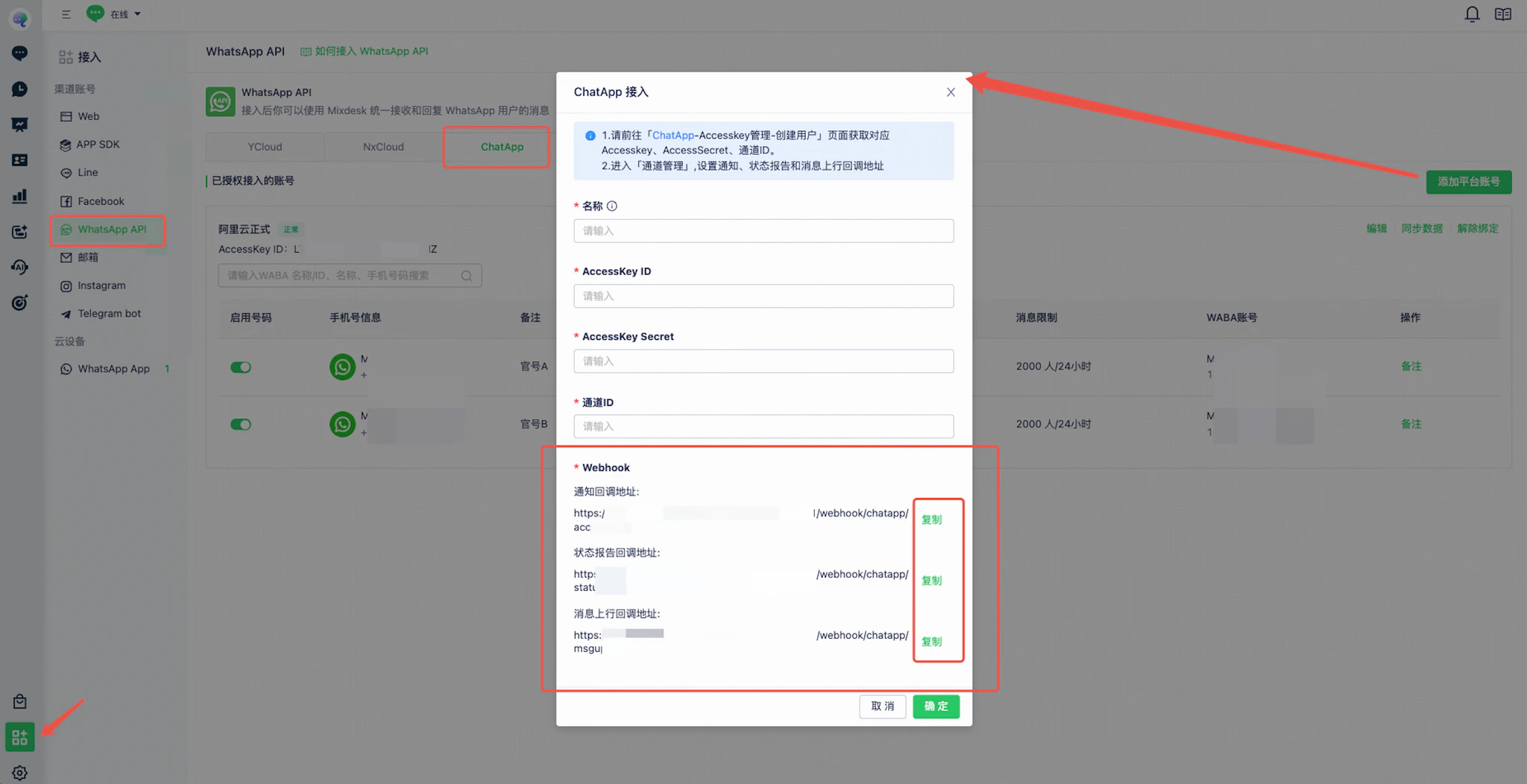
7.1 Copy callback URLs from Mixdesk
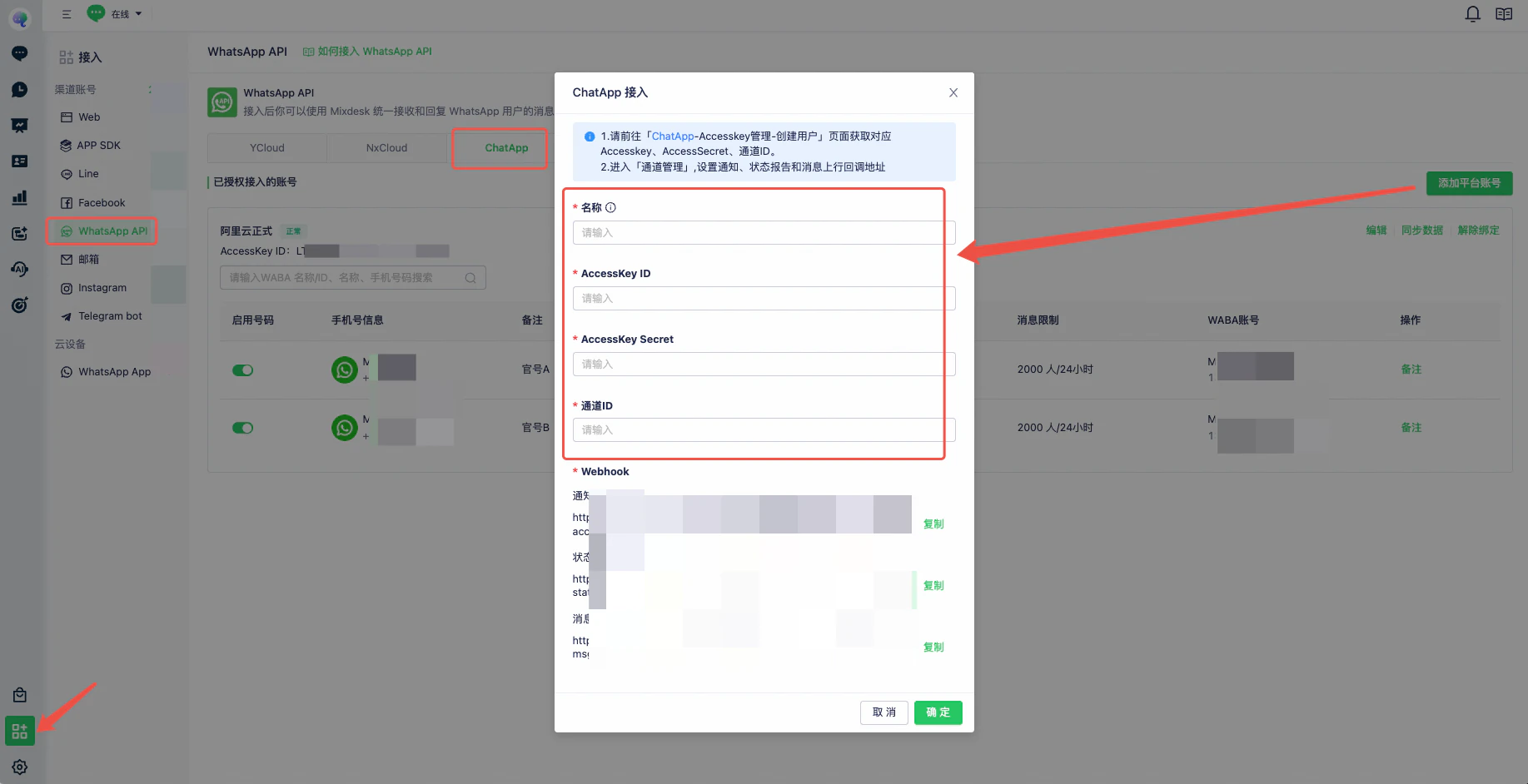
Go to Channels > WhatsApp API > ChatApp > Add Platform Account. Copy the three webhook callback URLs to the corresponding WABA in ChatApp. Match each URL to its callback type.
7.2 Enter the URLs in ChatApp
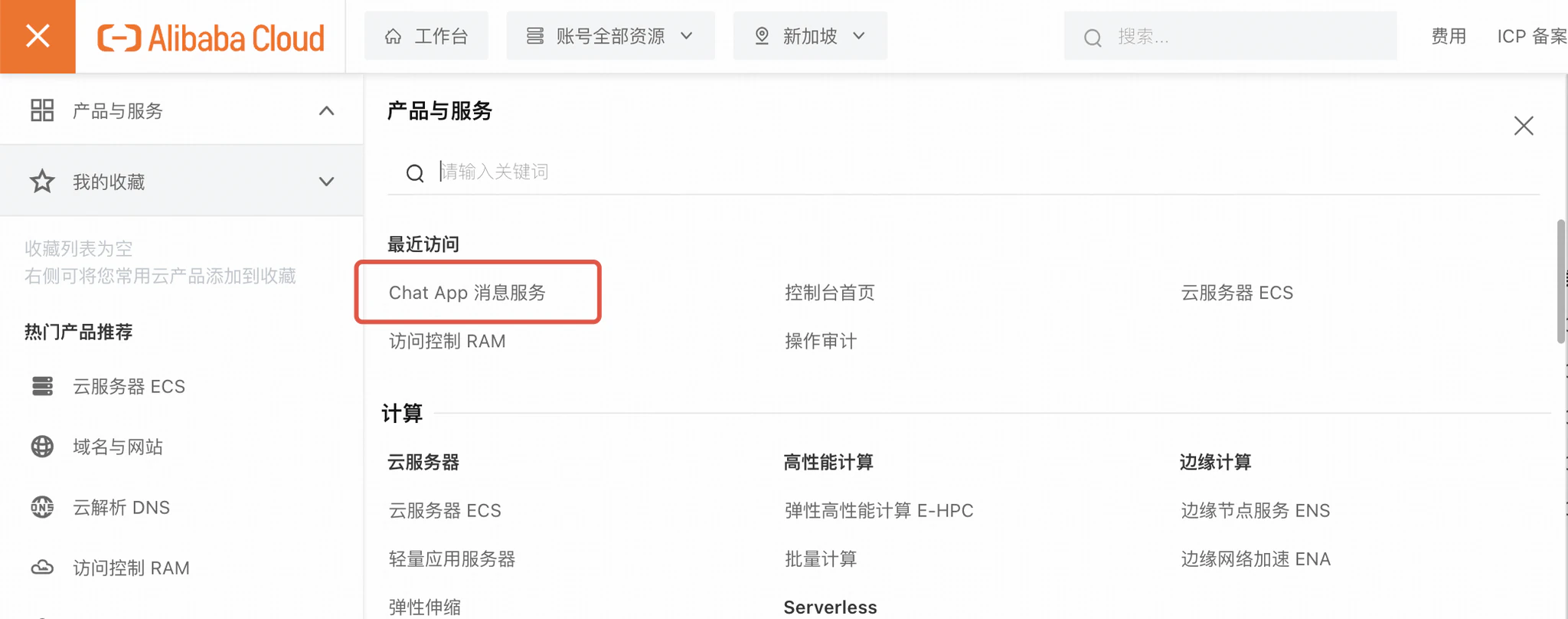
1. Open ChatApp Message Service using the search at the top of the Alibaba Cloud page.
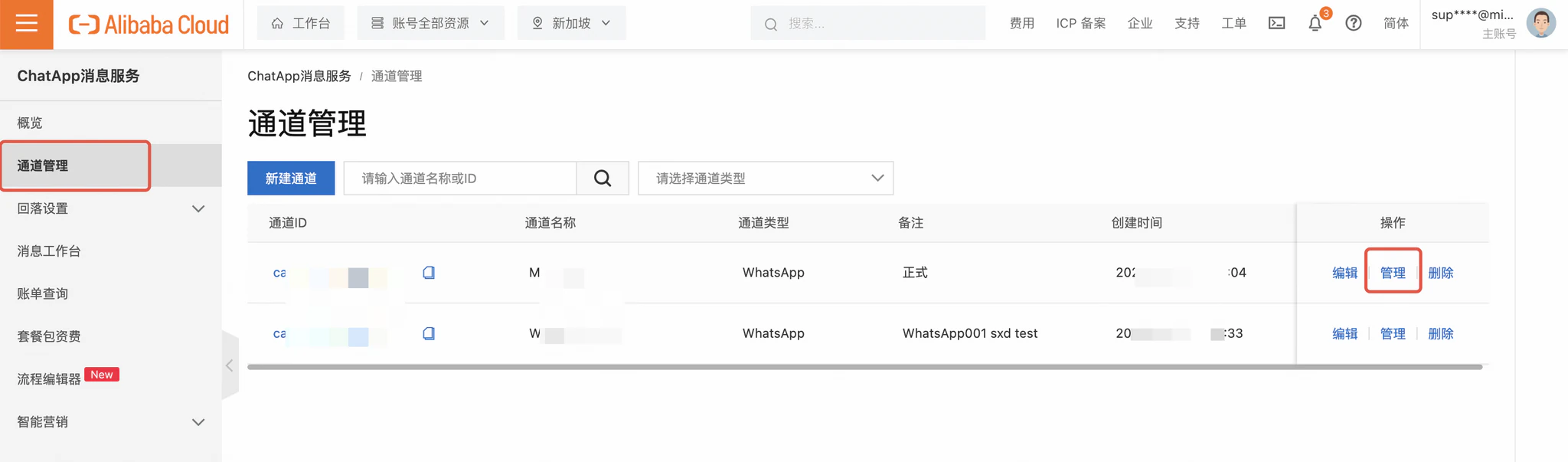
2. Open Channel Management and select Manage for your channel. A WABA must already be connected.
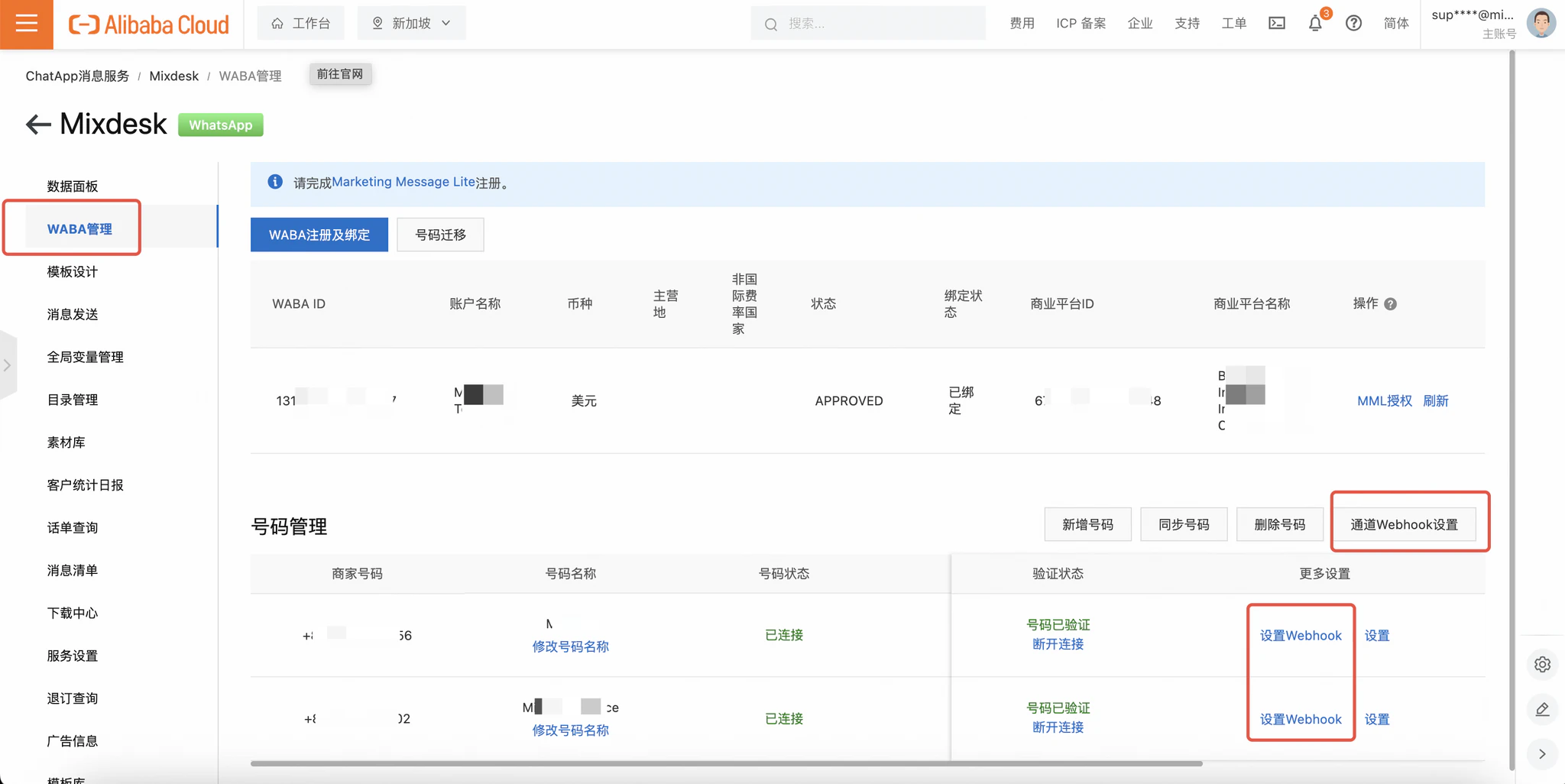
3. Open WABA Management and enter each URL copied from Mixdesk according to its webhook type.
- Open Channel Webhook Settings and enter the notification callback URL.
- For each number, open Set Webhook and enter the status-report and incoming-message callback URLs.
8. Enter credentials in Mixdesk
Go to Channels > WhatsApp API > ChatApp > Add Platform Account.
- Enter a name for internal identification.
- Enter the ChatApp channel ID from Channel Management, AccessKey ID, and AccessKey Secret.
- Select Confirm to connect.
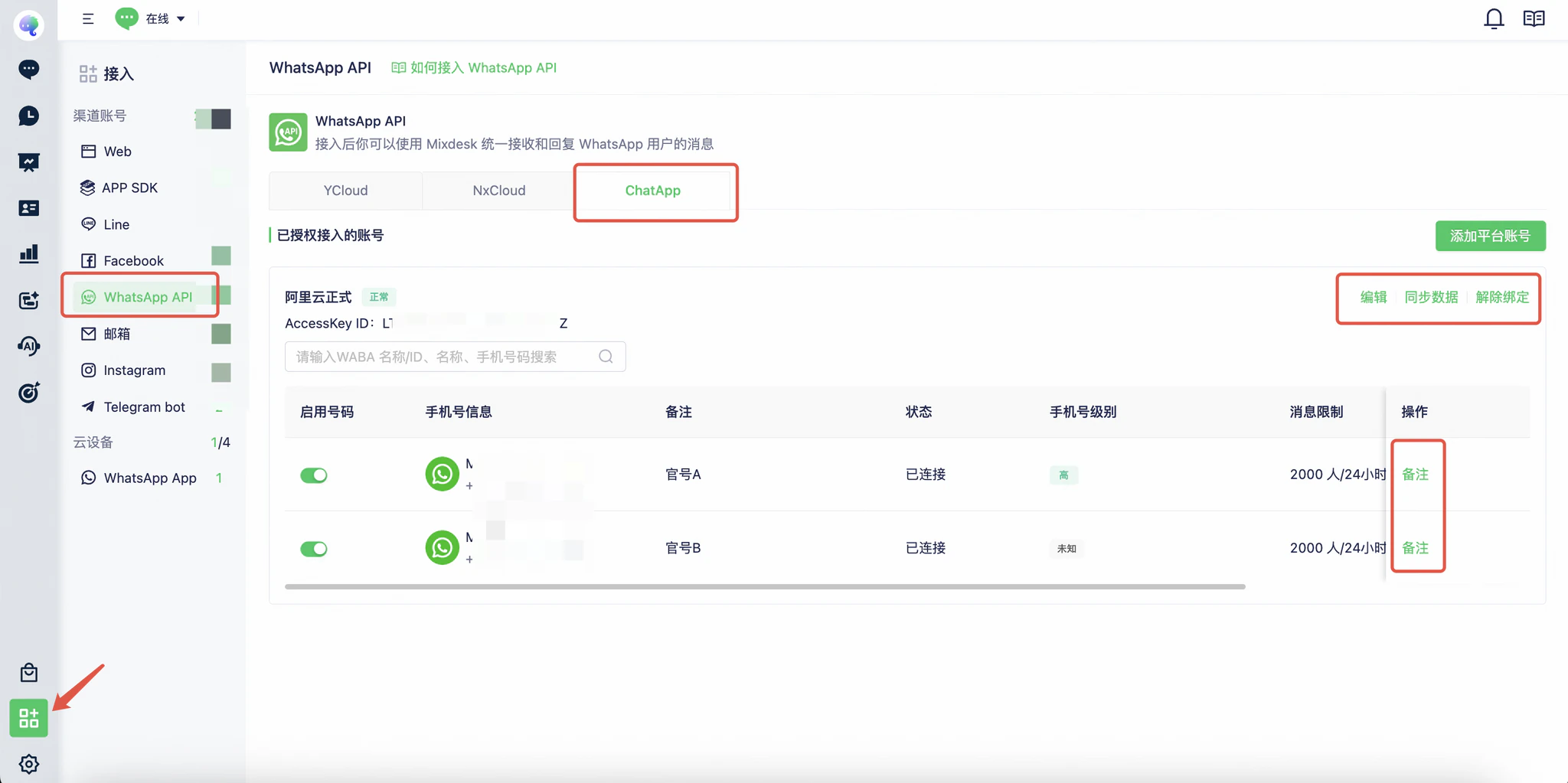
After connecting, review and enable the WABA’s numbers in Mixdesk. Disabled numbers do not synchronize messages.
Sync Data: Refresh the list after adding, editing, or deleting numbers in ChatApp.
Notes: Give each number a recognizable name to distinguish its purpose.
Disconnect: Disconnects all numbers under the WABA. Use with care.
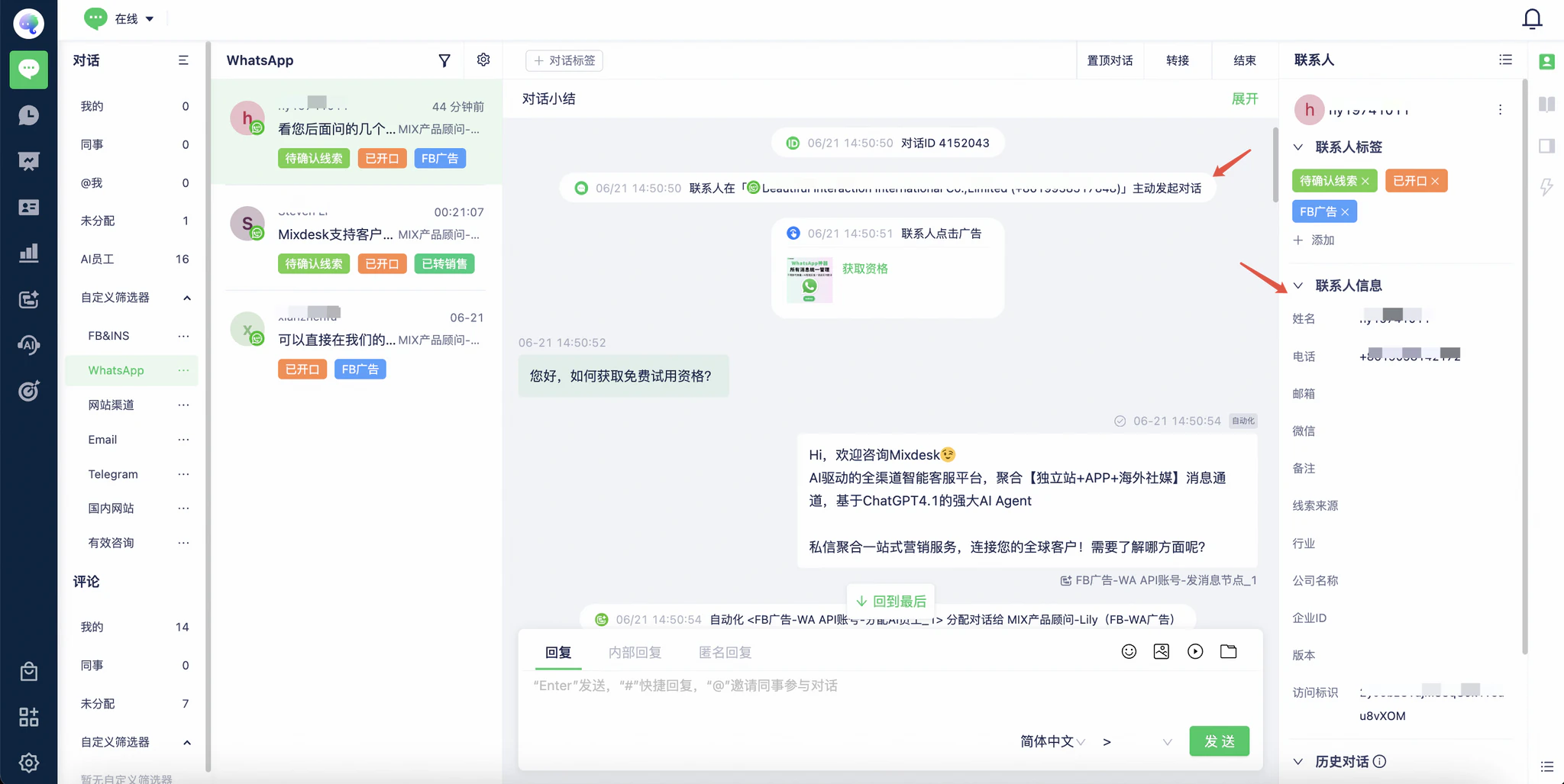
Receive WhatsApp API conversations
A WABA can contain several business numbers. Once connected, their conversations synchronize with Mixdesk. Configure AI Agents and workflows to handle replies.
See other help articles or contact your sales representative to explore additional features.