Overview
Save answers to common questions so team members can insert and send them during conversations.
Workspace-wide and personal quick replies use similar setup steps. Workspace-wide replies are available to all team members; personal replies are available only to the person who created them.
The following example uses workspace-wide quick replies.
1. Configure quick replies
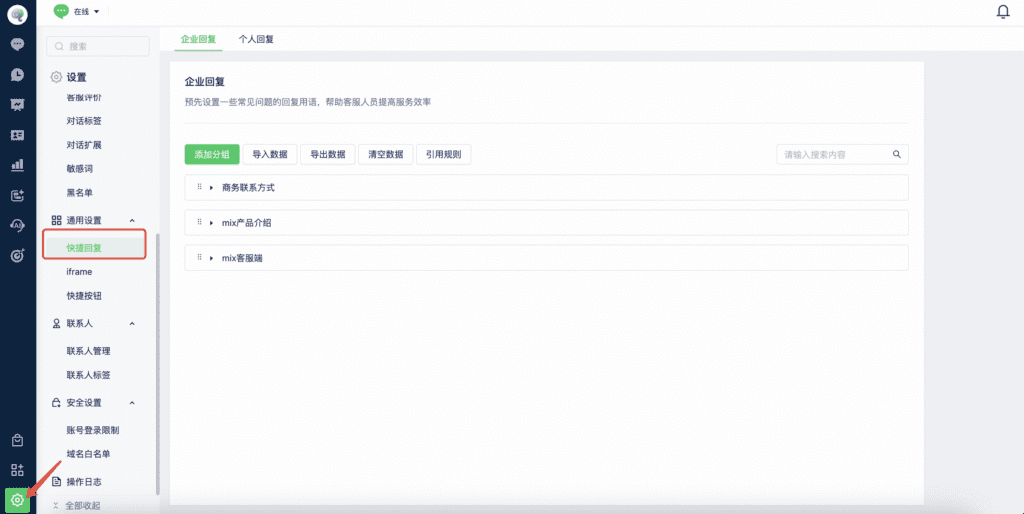
Go to Settings > General Settings > Quick Replies to manage existing replies, or select Add Group to create a reply category.
2. Add reply content
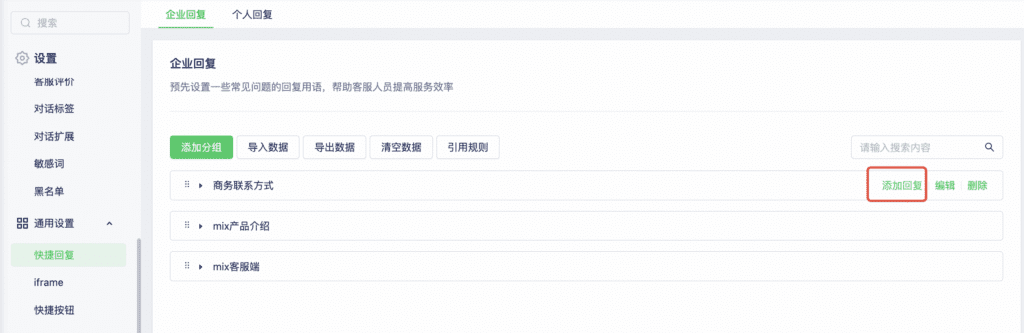
After creating a group, select Add Reply next to its name.
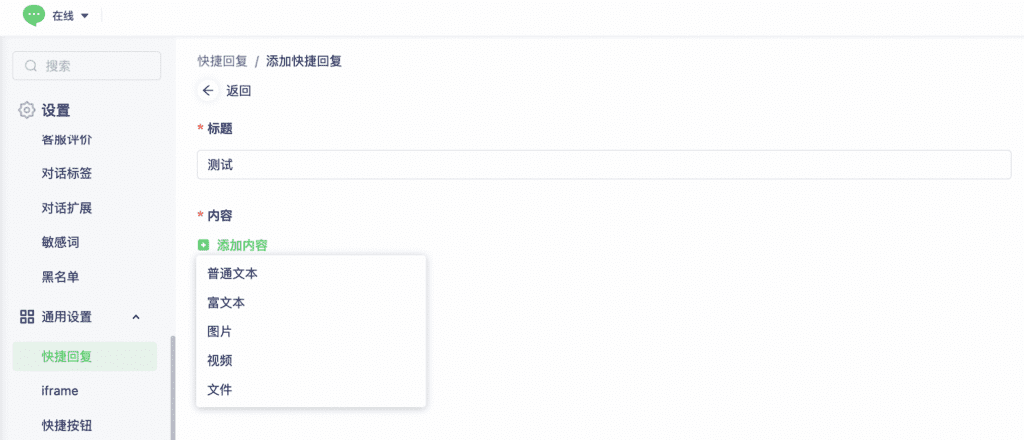
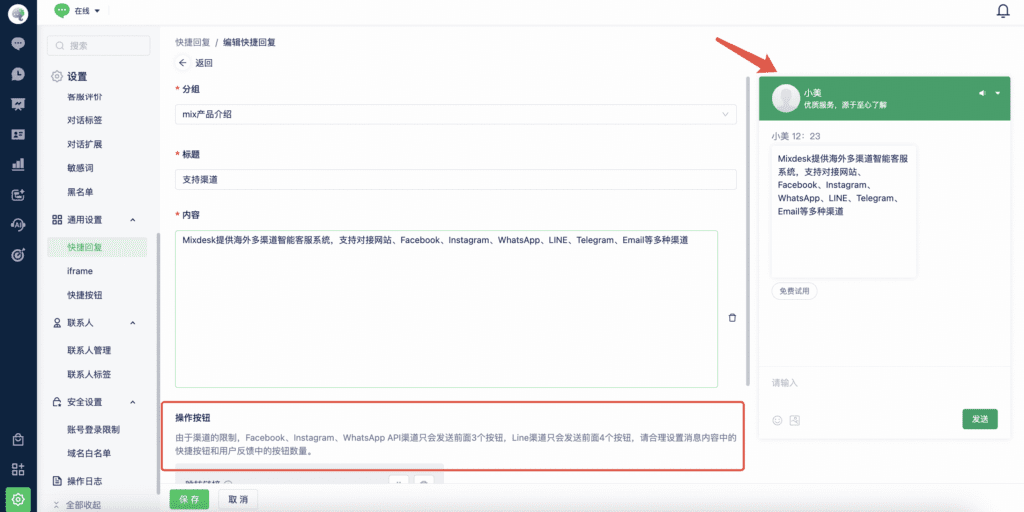
Quick replies support plain text, rich text, images, videos, and files.
Preview the reply while configuring it. You can also add action buttons below the content. Button availability depends on the channel; refer to the notes on the configuration page.
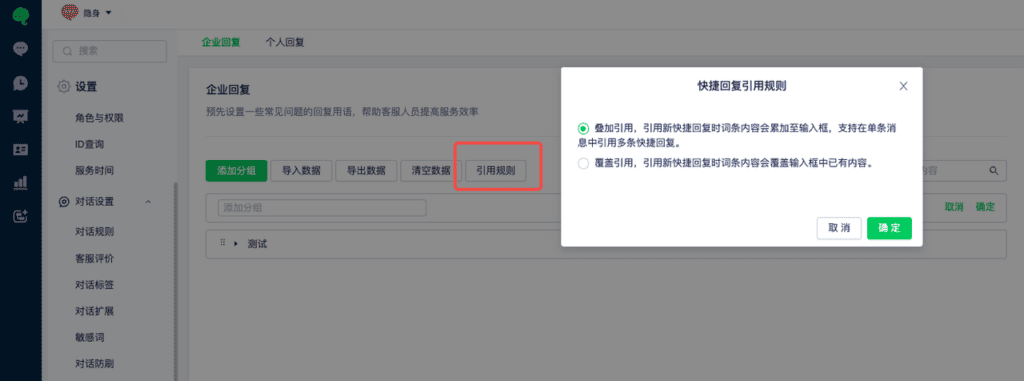
When inserting a reply, choose append to add it to your draft or replace to replace the existing content.
3. Import quick replies
Quick replies support data imports. Download the import template and follow its format.
4. Personal quick replies
Configure personal quick replies in the same way as workspace-wide replies.
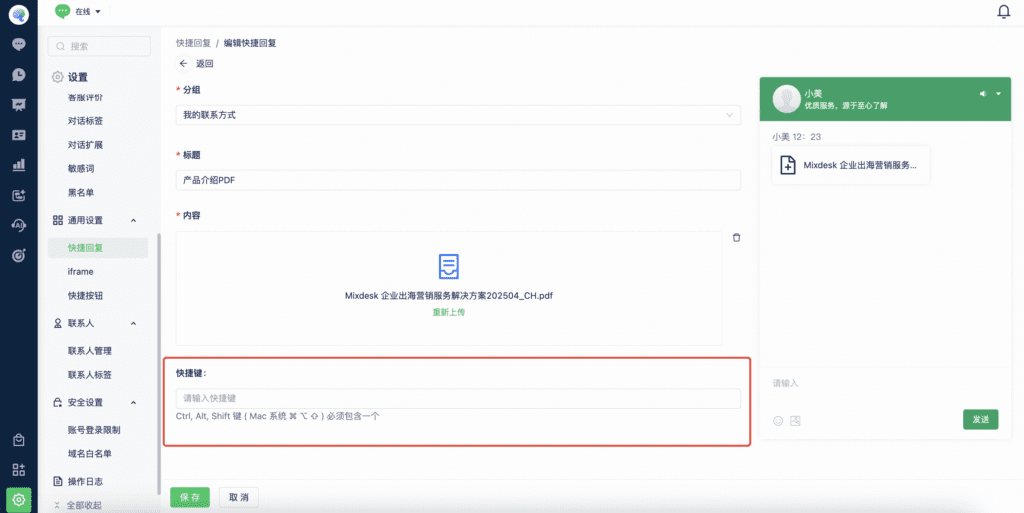
Personal replies also support optional keyboard shortcuts. Select a reply on the Personal Quick Replies page and configure its shortcut below.