
Overview
Add the chat widget to your website to respond to visitors, help visitors who arrive from other channels, and manage customer conversations.
Set up the widget
The same widget code supports desktop and mobile websites and adapts to the site. Deploy it separately to each site. Ask your development team to install the code.
1. Copy the code
In the left navigation, select Channels and choose Web to view your widget code.
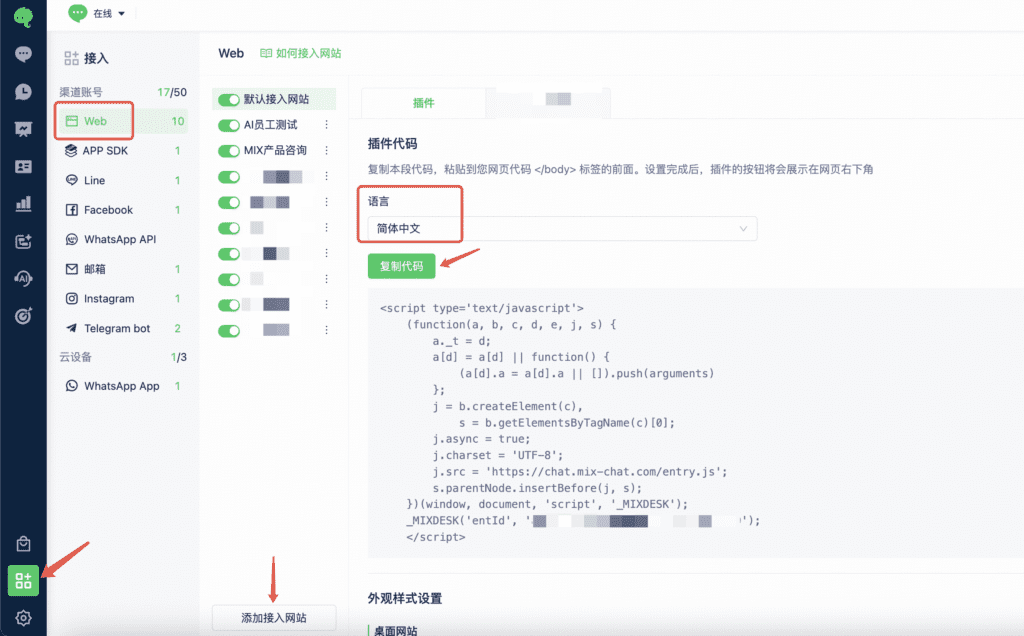
To make the widget follow the visitor’s browser language, see: Use the browser language
2. Paste the code (developer assistance recommended)
Instructions: On your site’s server, paste the copied widget code immediately before the </body> tag. The chat button then appears in the lower-right corner of the page.
Demo

3. Developer documentation
To customize the integration, such as building your own chat button or passing user information when a conversation starts, see the developer documentation.
4. Customize the chat window
After installation, configure the chat button and window in Mixdesk to match your brand.